
Contents
Introduction
This document describes the features and enhancements of IP1 XT UI 4.1 (interactive user interface platform used by Iptor IP1).
XT client
New design & look
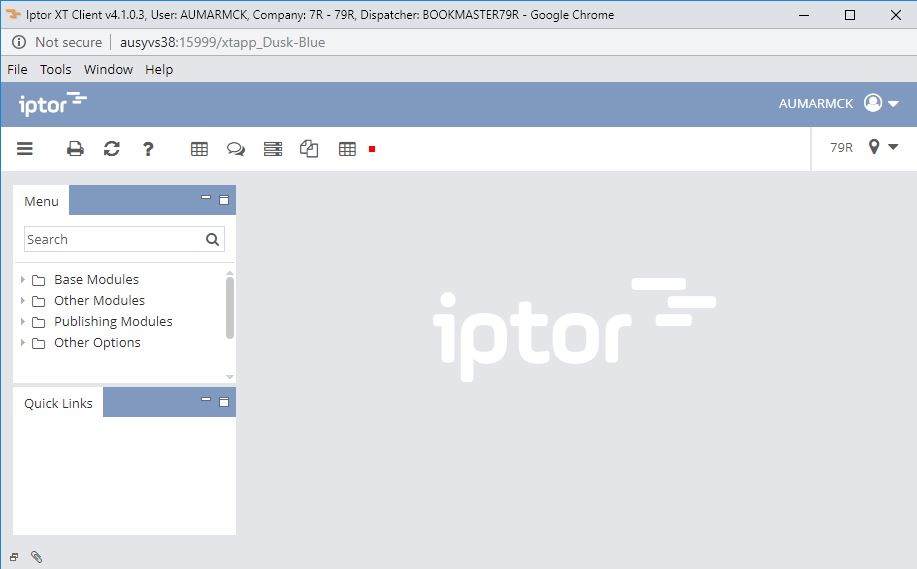
New design and re-brand to Iptor IP1.

Client workbench
F1 help
In XT UI 4.1 pressing F1 help, will activate the URL to the related product documentation on the Knowledge Portal.
View switcher
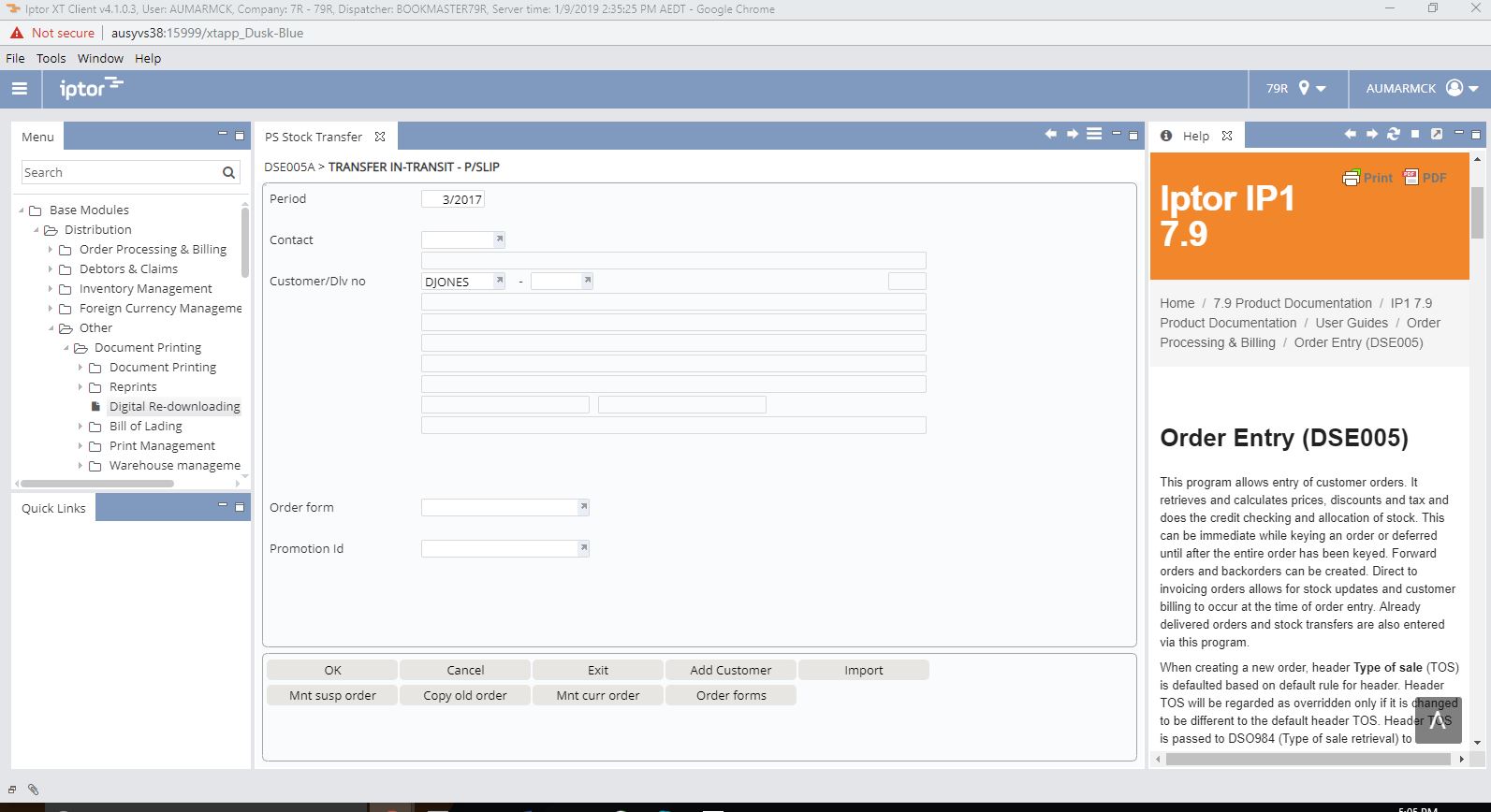
The view switcher window is used to switch between views in the client workbench. The function can be accessed from the ‘Windows’ pull down menu.
You can use Ctrl-Z as shortcut to open the View switcher.
Navigation:
Hold down the Ctrl key and jump between views with the Z key. Switch to the selected view by releasing the Ctrl key.
Alternatively, use Arrow-up, Arrow-Down to scroll. Arrow-Right or Enter to switch to selected view. Arrow-Left or Esc to cancel.
Note!
Releasing the Ctrl-key will not switch view when running the thin client. Press the Enter-key instead.
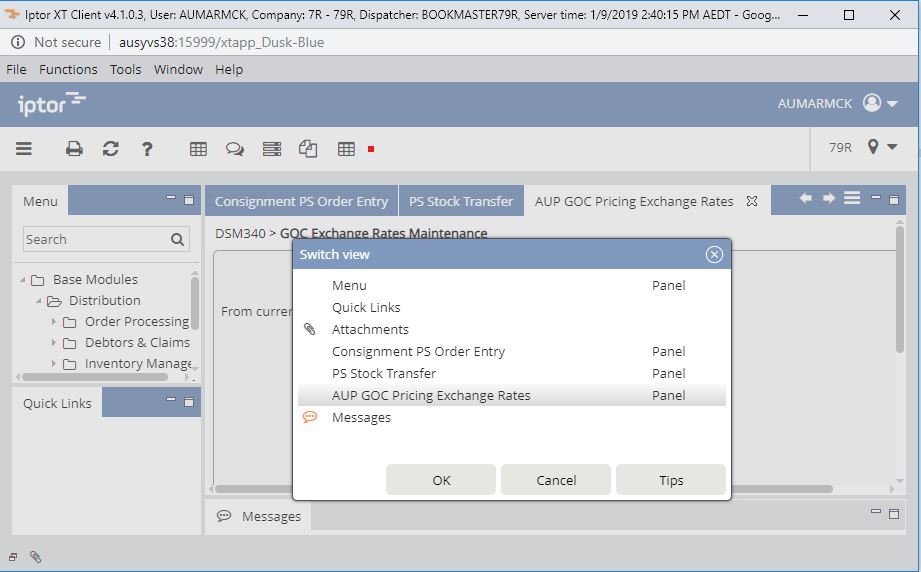
Ctrl-F9 is the shortcut to the client’s main menu. Ctrl-F10 is the shortcut to the panel menu.

The menu structure can now be manually refreshed when required. To refresh manually use shortcut Ctrl + R or select option ‘Refresh menu structure‘ from the main menu (Ctrl + F9).
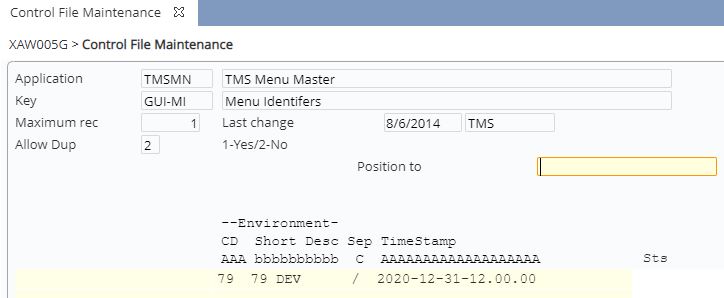
Automatic refresh (refresh on login) is still available if control file TMSMN/GUI-MI is setup accordingly.
XT Dispatcher
Support to run Quick search apps has been added to XT Dispatcher.
XT Admin
The Dispatcher settings have been renamed as below.
A new setting, ‘Active Aperio apps’, has been added. After installing the app on XT Server you need to enter the app name here. The app name can be found in the installation guide of the app.

Miscellaneous
- Uses latest version of Java
- Upgraded Tomcat
- Uses latest version of Apache POI, (MS Office integration)
- Resolved JIRA issues
