
Contents
Introduction
The Iptor IP1 Knowledge Portal (Knowledge Portal) is a web-based repository of Iptor IP1 product documentation and technical information, along with a community-based user forum. The objective of the Knowledge Portal is to act as a single point of access to all relevant user assistance and, ultimately, help you be self-sufficient in solving issues that you may have when implementing and using Iptor IP1. For example, in the product documentation section, you will find the latest release notes, system requirements and installation guides, setup guides and user guides. In the forum, you can solicit assistance from and provide support to other Iptor IP1 users.
The collaborative features of the Knowledge Portal enable you to:
- Help us continuously improve the documentation that is delivered by commenting on pages where you can identify information that you perceive to be inaccurate, indicate whether a particular solution worked for you, suggest alternative ways to achieve a specific outcome and so on.
- Participate in an interactive forum community where you can come to:
- Find answers.
- Exchange ideas.
- Help others.
Use this guide to learn about the Knowledge Portal features and how to use them.
Knowledge Portal access
To access the Iptor IP1 Knowledge Portal, you must be an Iptor employee or an Iptor customer with an active support agreement. There are two ways in which you can access the IP1 Knowledge Portal. You can access the Iptor IP1 Knowledge Portal:
- From a link within the company-wide, Iptor Knowledge Portal (https://knowledgeportal.iptor.com/wp-login.php).
| Note | The Iptor company-wide, Knowledge Portal provides access to Global Unified Support, User Group Communities and all Iptor product Knowledge Portals. |
- Directly from the IP1 Knowledge Portal URL (https://ip1help.iptor.com/)
Logon credentials
To access any of the Iptor product Knowledge Portals, you must have logon credentials, which consist of a username and password. Your username, along with instructions to create your password, will be sent to your email address when your user account is created. You can use the same username and password to access all Knowledge Portals.
There is also an option to log on to the Knowledge Portals using a Google+ account. However, to use that option, your Google username must match your Knowledge Portal user name.
Terms and conditions
Specific terms and conditions for using and sharing information within the Iptor IP1 Knowledge Portal are clearly documented in the Terms and Conditions of Use. By using this site, you agree to the Terms and Conditions of Use.
| IMPORTANT | Be sure to read the terms and conditions before using the Iptor IP1 Knowledge Portal. |
Forum rules
When using the forum, please be sure to review the Forum Rules, which are located on the Iptor IP1 Community Forum Home page.
Knowledge Portal environment
Knowledge Portal Home page
The Iptor IP1 Knowledge Portal Home page is the first page you see when you access the Knowledge Portal. From the Home page, you can access all of the available product documentation and other Knowledge Portal features, such as the forum.
Example: Knowledge Portal Home page
This image illustrates the parts on the Iptor IP1 Knowledge Portal Home page.
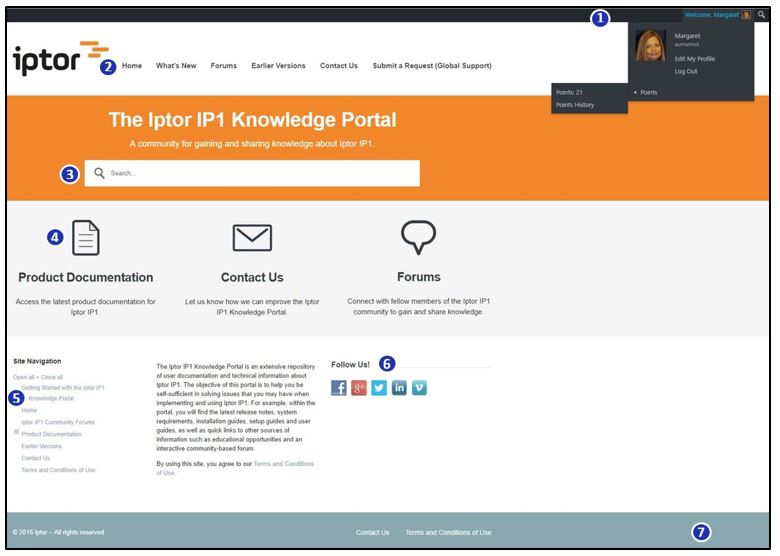
| Key | Part | Description | ||||||||||||
 |
Toolbar |
Appears at the top of every page within the Knowledge Portal. From the toolbar, you can log off of the Knowledge Portal, update your user profile, view your point status and search for information. For more information, see the following topics. |
||||||||||||
 |
Menu |
Appears at the top of every page in the Knowledge Portal, and provides quick access to other areas or features.
|
||||||||||||
 |
Search | Lets you enter search criteria to search for information within the documentation pages, forum and the customer support help center. | ||||||||||||
 |
Widgets |
Let you quickly navigate to other areas in the Knowledge Portal.
|
||||||||||||
 |
Site Navigation Panel |
Appears on all of the documentation pages in the Knowledge Portal. The expandable tree view outlines and provides access to all areas and features of the Knowledge Portal; however, it does not appear in the forum. The forum has a separate navigation panel. |
||||||||||||
 |
Social Media Connections | Helps you stay connected by providing access to other Iptor social media sites. | ||||||||||||
 |
Footer | Appears on every page within the Knowledge Portal to display Iptor copyright information, and provide quick access to the Contact form and the Terms and Conditions of Use. |
Product documentation pages
The product documentation pages in the Knowledge Portal are formatted similarly, and they contain the same navigational tools to make it easier for you to find information.
Example: Product documentation page
This image illustrates the navigational tools on a product documentation page.
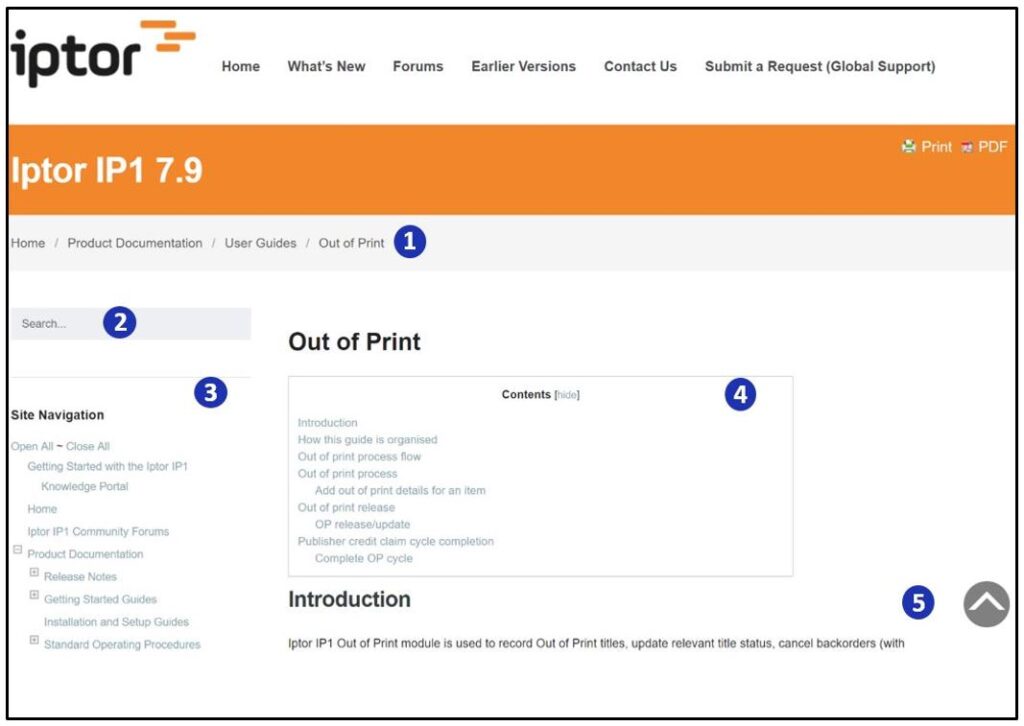
| Key | Navigational Tool | Description |
|
Breadcrumbs | Text links that appear at the top of each page to indicate your location within the hierarchy of the Knowledge Portal. You can click any link within the breadcrumbs to move to the associated page. |
|
Search | Search box that appears above the Site Navigation tree on all documentation pages, and lets you search all documentation within the Knowledge Portal. For more information, see Knowledge Portal Search. |
| |
Site Navigation Panel | Expandable tree view that outlines and provides links to all areas and features of the Knowledge Portal. The Site Navigation panel appears on the IP1 Knowledge Portal Home page and all of the product documentation pages. You can expand (open) or collapse (close) all levels, or expand and collapse levels individually. The Site Navigation Panel does not appear in the forum. |
|
Contents | Table of contents that appears at the top of a documentation page, and provides an outline of the document topics. You can click a link to go to a topic. You can also choose to hide and display the table of contents. |
|
Return To Top | Image link that appears at the bottom right corner of a page whenever you scroll to view content that is below your window’s border. You can click the image to return to the top of the page. The Return to Top image appears in the documentation and forum sections of the Knowledge Portal. |
Knowledge Portal Search
The search function in the Knowledge Portal returns results from the following areas.
- Documentation pages, which includes content from any comments on a page
- Forum topics
- Global Unified Support help center topics
You can also perform a manual search, which will search the content on a specific page, along with any comments added to that page.
Search tools
This image illustrates the search tools that are available for searching in the Knowledge Portal.
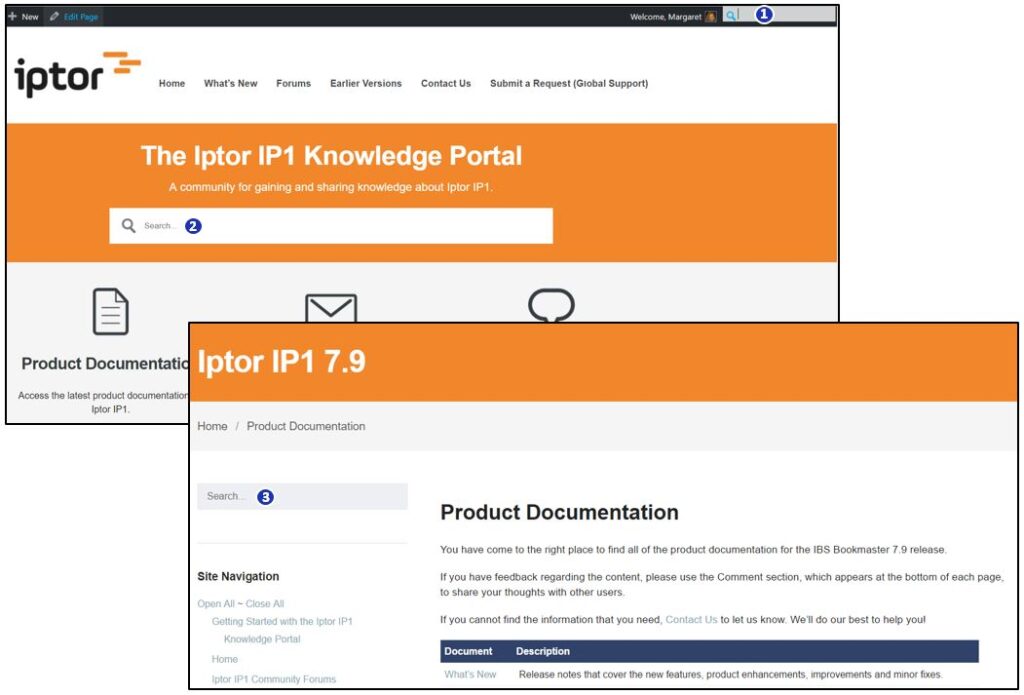
| Key | Navigational Tool | Description |
|
Toolbar Search | Image that appears on all pages in the Knowledge Portal. Click the image to display a search box. |
|
Home Page Search |
Search box that appears only on the Knowledge Portal Home page. |
| |
Site Navigation Panel |
Search box that appears above the expandable tree on all documentation pages. |
Syntax and rules
There are no specific search syntax conventions required when searching for information; however, the search engine in the Knowledge Portal applies the following rules when fetching search results.
- The search engine first looks for all words in your search criteria string.
- If no results are found, then the search engine looks for any word in your search criteria string.
- When a straight search returns no results, the search engine performs a fuzzy search and looks for content that begins or ends with the search terms.
Search results
Search results:
- Are displayed based on relevance, with the most relevant result displayed first.
| Note | For performance purposes, and to aid in determining relevance, the search engine adheres to a list of stop words that exist in the database. Stop words are words that exist in most pages, and they are pointless when searching. Examples of stop words are a, the, these, you and so on. |
- Are limited to 150 results per query for better performance.
- Include page excerpts with search word(s) highlighted to help you determine if a result includes the information that you need. Excerpts from page content are limited to 30 words.
Perform a search
- Take any one of the following actions.
| If you want to search… | Then… |
| All documentation, |
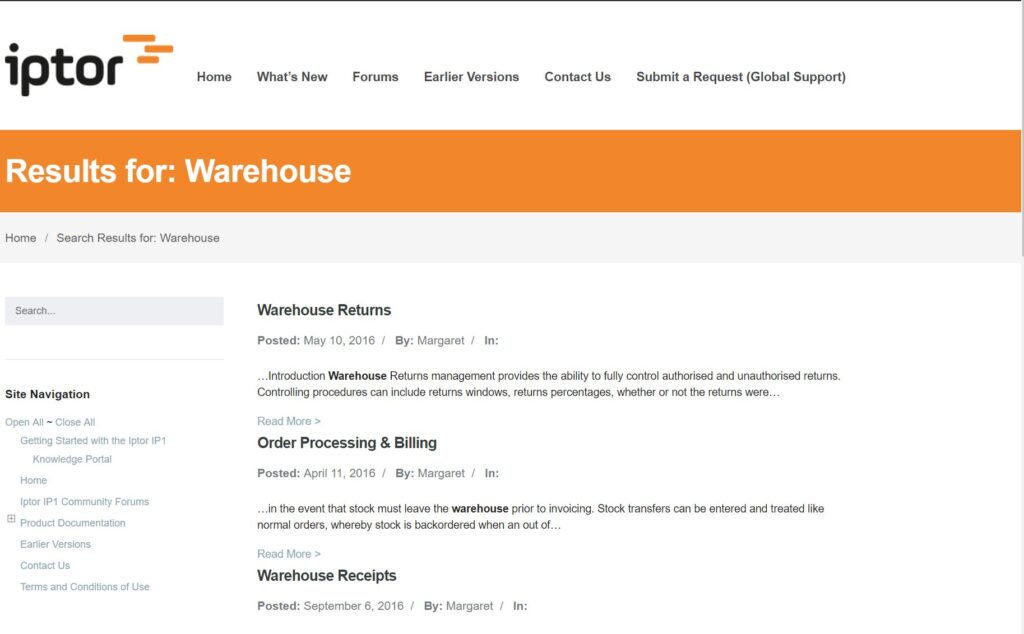
In one of available Search boxes, type your search criteria, and then press Enter A list of pages, with an excerpt that contains the search criteria appears on a new page. The search criteria is highlighted. You can click Read More to view the entire page.
|
| A single page, |
|
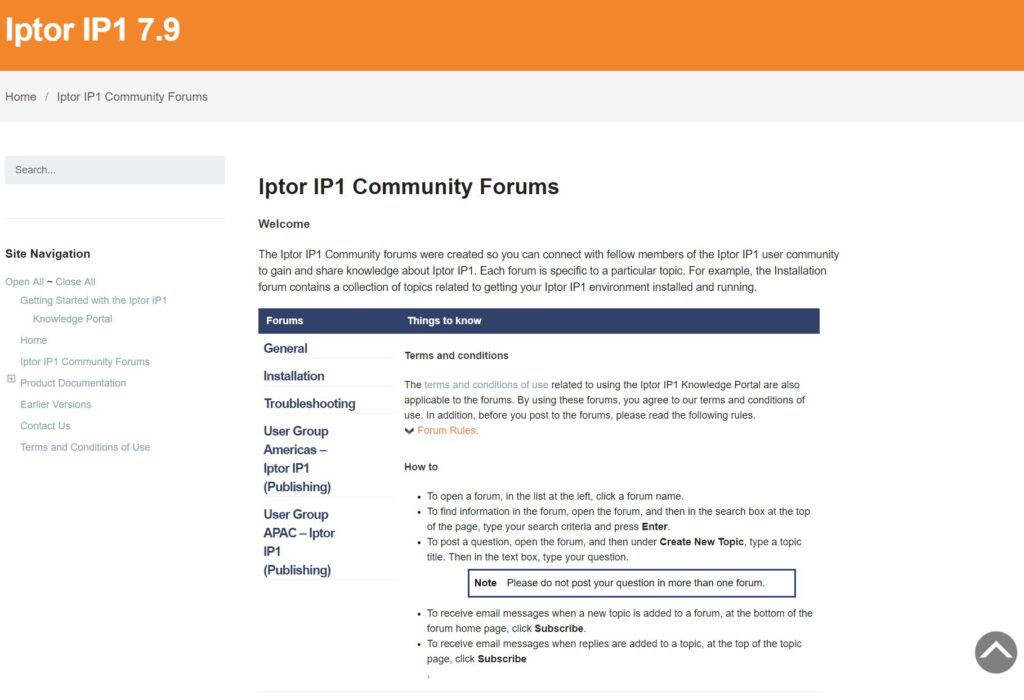
Iptor IP1 Community Forum Home page
The Iptor IP1 Community Forum Home page provides access to:
- All forums.
- The Terms and Conditions for Use, along with the forum rules.
- Brief instructions for using the forums.
For more information about using the forum, see Forums and forum topics.
Example: Iptor IP1 Community Forums Home page
Forums and forum topics
The Iptor IP1 community-based forums were created so you can connect with Iptor and fellow members of the Iptor IP1 user community to gain and share knowledge about Iptor IP1. Each forum is specific to a particular topic. For example, there is an Installation forum for topics related to getting your Iptor IP1 environment installed and running. Specific rules for posting and replying to topics are included on the Iptor IP1 Community Forums Home page.
Notifications
There are two levels at which you can subscribe to receive email notifications related to forum activity. You can subscribe at the:
- Forum level – You will be notified whenever somebody adds or replies to a forum topic.
- Topic level – You will be notified whenever somebody responds to a particular topic.
Forum pages
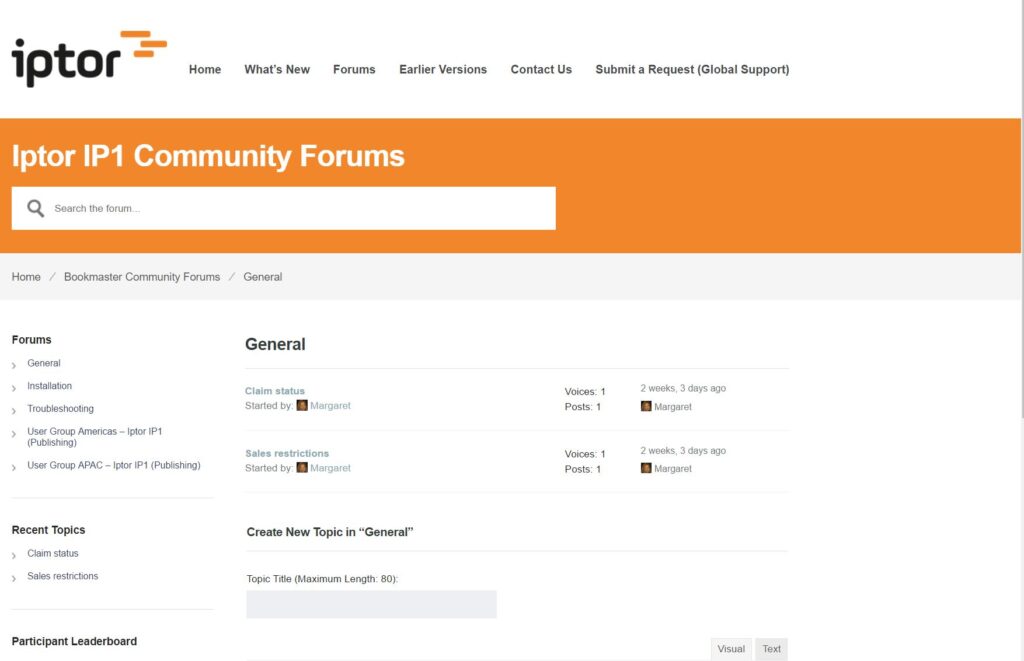
Each forum, which you access from the Iptor IP1 Community Forums Home page, has its own home page. The individual forum home pages display links to the forum topics, and this is where you:
- Use the navigation panel to:
- View a list of and access the other forums.
- View a list of recent topics. Up to five recent topics appear in the navigation panel.
- View a list of users who have the most participation points. Up to five users appear.
- View your current number of participation points.
- Add a new topic to the forum.
- Add tags, which are keywords to make it easier for other users to find the topic.
- Subscribe to the topic that you add (topic-level subscription)
- Subscribe to a topic that another user adds (topic-level subscription)
- Subscribe to the entire forum (forum-level subscription)
Example: Forum home page
Forum topic pages
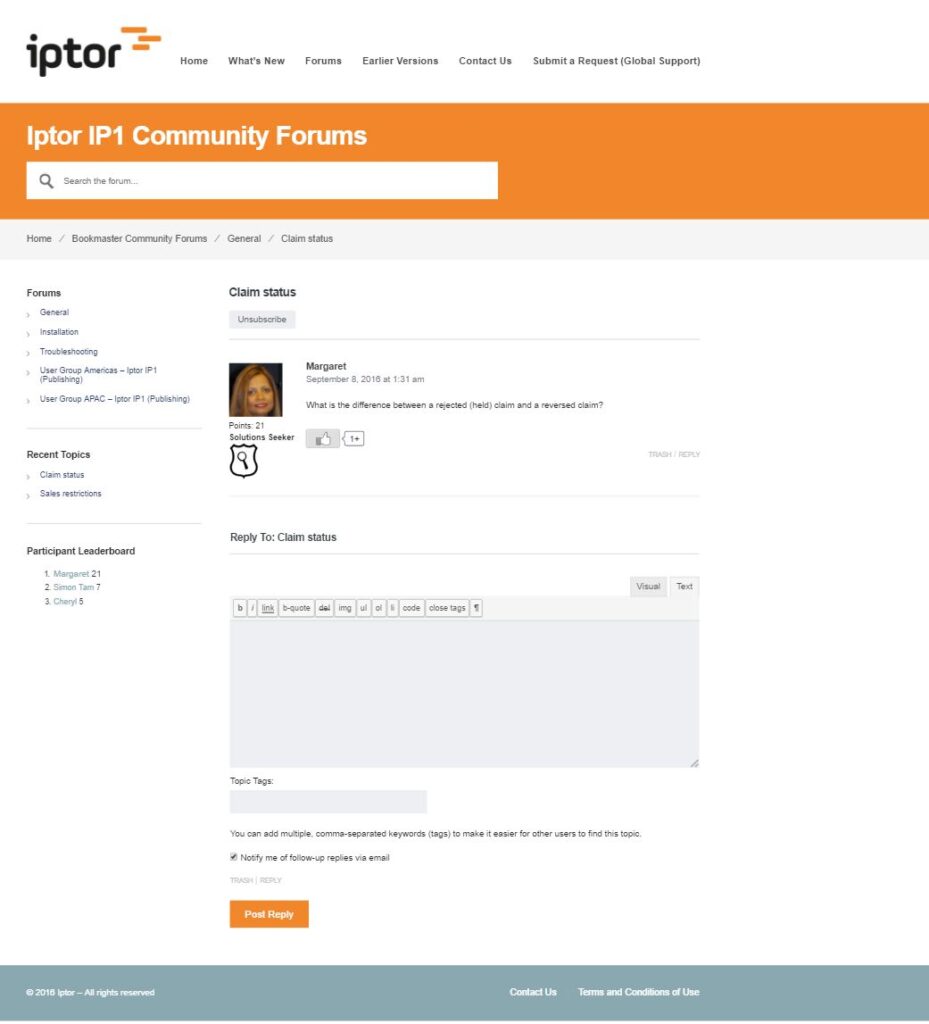
Each topic within a forum has its own page, and that is where all topic replies are added. When a topic is posted, other users have the option to subscribe to the topic so they are notified when a reply is posted.
Feedback
When you post a reply, other users have the option to like your reply and help you accumulate points. For more information about point accumulations, see Participation awards.
Example: Forum topic page
Forum search
You can search in the forum; however, the search results are limited to forum content.
Topic formatting, links and images
A formatting toolbar in the topic text box lets you apply some common formatting options to your new topic and reply text. The toolbar appears when the Visual tab is selected. In addition to text formatting, you can include links to other parts of the Knowledge Portal and other appropriate content as defined in the Forum Rules. Specifically, the following rules apply.
- Linking to any type of illegal or competitive content is strictly prohibited.
- Links for the purpose of advertising are not permitted. This includes member names and links to commercial sites in signatures, or in posts.
- Links for the purpose of soliciting services and donations is strictly prohibited.
- For your own protection, including your email address in a post is strongly discouraged.
Images may be posted as long as they are not explicit, offensive or copyrighted. Images will be embedded, meaning they must be stored on an external image hosting site. To embed an image, click the image link in the formatting toolbar, and then provide a link to the URL at which the image is located.
Participation awards
The success and credibility of the Knowledge Portal and forums relies heavily on the level of user participation. To encourage participation, you will be credited for your input. Specifically, as you add relevant comments and respond to other user’s forum posts, you will be rewarded with points. As you accumulate points, your ranking within the Knowledge Portal will be upgraded. Rankings, along with associated badges, are displayed next to your page comments and forum posts. The visual awards:
- Are in recognition of your performance.
- Build your reputation among other users.
- Identify you as a responsible resource.
Participation points accumulation
You can accumulate points by responding to documentation page comments and replying to forum posts. The following table explains how points are awarded and deducted.
| When… | Then you are… | ||
| Another user likes a comment that you post, |
Awarded 5 points.
|
||
|
An administrator unapproves or marks one of your comments or forum posts as spam,
|
Penalized 5 points. | ||
| You reply to a forum post, | Awarded 5 points. |
Participation ranking levels
The following table describes how many points are required to move to the next ranking level.
| When your point level is… | Your ranking is set to… | And you are awarded this badge… |
| 0 – 100, | Solutions Seeker, |  |
| 101 – 300, | Distribution Discoverer, |  |
| 301 – 500, | ROI Influencer, |  |
| 501 – 700, | Visibility Visionary, |  |
| 701+, | Supply Chain Champion, |  |
View participation points and points history
To view your current participation points and points history, take the following actions.
- On the right side of the toolbar, hover over your name.
- To view current points status, hover over Points.
- To view points history, hover over Points and then click Points History.
| Note | Your point status is also available in your user profile. |
User profiles
A user profile is a visual display of information about you as it relates to using the Knowledge Portal. Typical user profile information includes first and last names, display names, biographical information (if you choose to provide it) and profile pictures.
View and edit your user profile
There are two ways in which you can access your user profile information. You can access:
- Your overall user profile by hovering over your name in the toolbar, and then clicking Edit Profile.
- A subset of your user profile information by clicking your image on a forum topic page.
Any edits that you make will be reflected in both locations.
Editable user profile information
The following table identifies the user profile information that you can edit.
| Attributes | Overall Profile |
Forum Subset Profile |
||
|
Admin Color Scheme
|
 |
|||
|
Toolbar
|
|
|||
| First Name | |
|||
| Last Name | |
|||
| Nickname | |
|
||
|
Display Name
|
|
|
||
|
Email – Only Knowledge Portal administrators will see your email address. It is not publicly available.
|
|
|
||
|
Biographical Info
|
|
|
||
|
Profile Picture
|
|
|||
|
Session
|
|
User profile visibility
In the forum, other users are able to view your profile by clicking your picture, which appears with any topics or replies that you post. However, the information that they see is limited. Specifically, other users are able to see your:
- Forum role
- Number of topics you created
- Number of replies you provided
- Points status
- Biographical information (if you added it)
Profile pictures
The pictures that are associated with your profile are called avatars. WordPress, which is the platform on which the Knowledge Portal is built, supports a specific type of avatar, called Gravatars. Gravatars are globally recognized, they follow you around the web, and they automatically appear when you post a comment or topic in the Knowledge Portal. In order for your unique Gravator to appear in the Knowledge Portal, you must have a Gravatar account with which you have associated a picture. If you do not have a Gravatar account, a default Gravator will appear next to your name.
Create a Gravatar account
If you want to use a unique Gravatar, but you don’t have a Gravator account, you can take the following actions.
- In your browser, open the Gravatar page.
- Click Create Your Own Gravatar.
- Follow the prompts to create your account and add your picture.
After your picture is added, you will see it next to your name and in your profile the next time you log on to the Knowledge Portal.
| Note | Avatars must be in good taste. This means no vulgar or violent images or profanity. Inappropriate avatars will be removed at the discretion of the forum. |
