
Subscription end of day programs generate sweep tickets based on the rule set. Work with sweeps allows you to maintain/view the details of the existing sweeps and set the rule set. You can also view the subscription transactions that generated the sweep tickets.
- In the menu, expand Publishing Modules > Subscriptions Management > Subs Maintenance and then double-click Work with Subs Sweeps. SMW170 Work with Subscription Sweep panel appears.
- Enter the company to maintain/view the sweep details for and click OK. All the available sweeps are displayed.
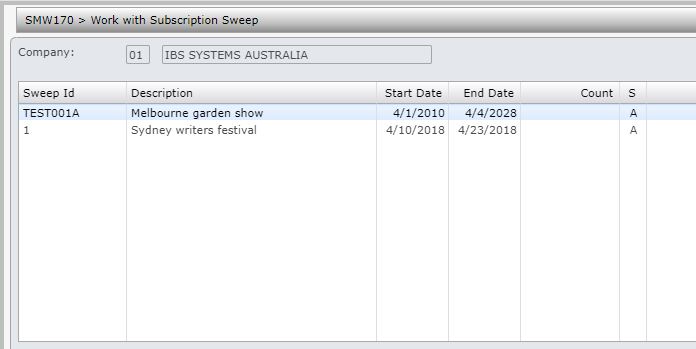
| Option | Description |
| Rule | Displays the rule set to qualify for the sweep tickets. EOD process will generate the sweep tickets only if the conditions in the rule set is satisfied. |
| Transactions | These are the actual subscription orders that generated the ticket. |
Add a new sweep
- Click Add to create a new sweep.

| Field | Description |
| Sweep ID/Description | Unique sweep identifier and its description. |
| Start date/End date | The start and end date indicates the period when the sweep is effective. Valid dates must be entered. |
| Status | Status would default to A=Active when a sweep is created. Tickets would only be generated for active subscriptions. |
| Total count | Count is not an input field; it indicates the number of tickets issued and is updated every time a ticket is issued in the EOD process. |
- Enter the above information and click OK to save the sweep.
- Select the newly added sweep and click option Rule.
- Click Add to add the rule for the sweep.

| Field | Description |
| Sequence | Sequence determines the order in which the rule set will apply. |
| Subscription levels 1 – 5 | Select subscription levels 1 – 5 for the sweep ticket eligibility. |
| Subscription source | Subscription source can be used to apply the sweep tickets as well. |
| Sweep ticket earned | Number of tickets to be earned for the subscription based on the above selection criteria. |
- Enter the above information, as required.
- Click OK to save the sweep rule set.
