
This program enables the user to specify multiple paper usage codes for each book published. The Paper Requirements program enables entry of specific requirement details for each paper usage code. For example: number of colours, finishing and signature.
Based on the print quantity, extent, number of colours and the signature, the system calculates the number of sheets of paper required. This calculation allows for a wastage and setup factor and rounds up the final result. These factors are different based on the division of the book. This can also be set up for rolls of paper
Add materials to a project
- In the menu, expand Publishing Modules > Book Publishing > Entry and double-click BP Work with Project. BPM005 Work with Project main panel is displayed.
- When adding materials by book specifications, select the project then click the option Spec. BPM100 Work with Book Specification screen is displayed.
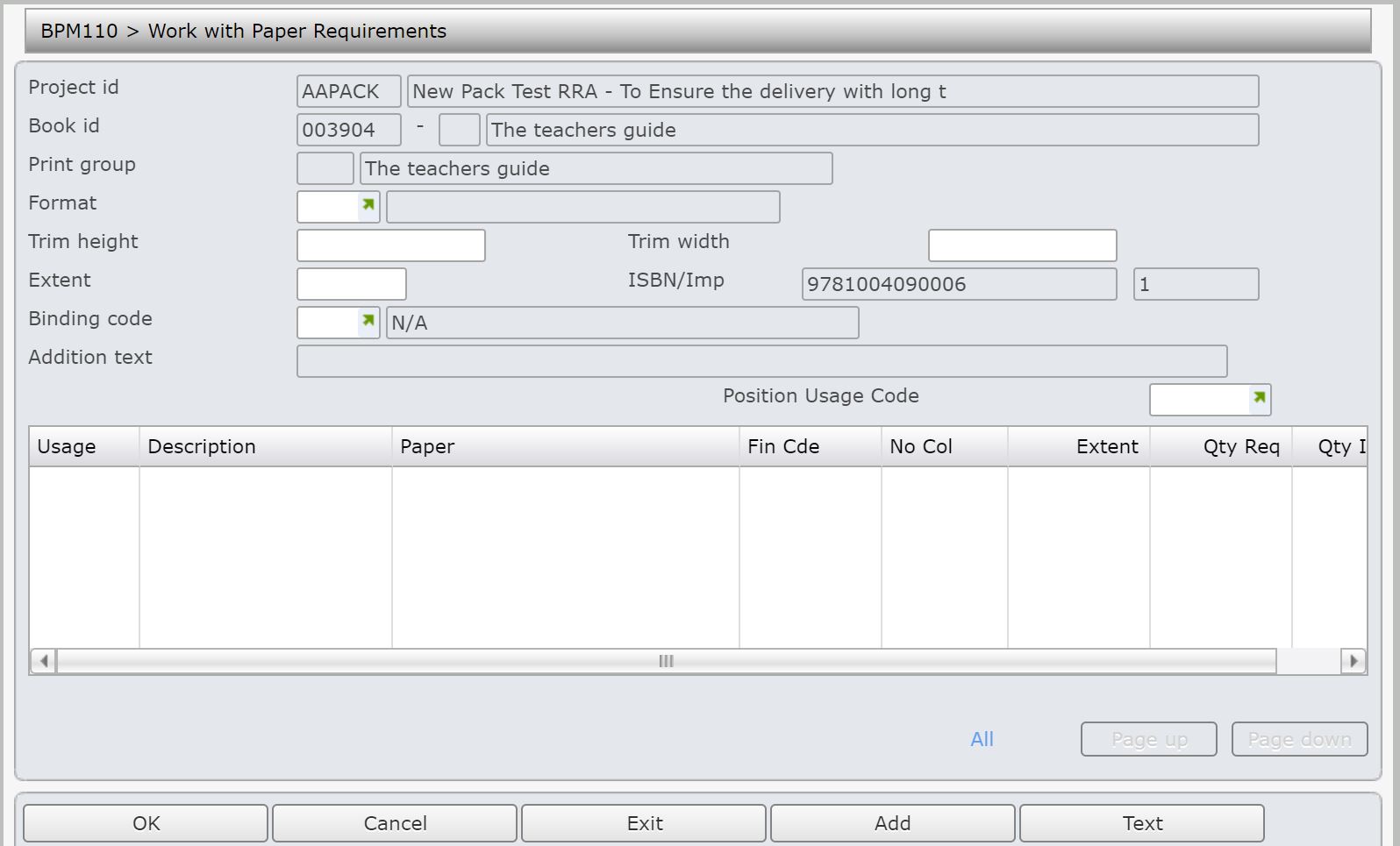
- Select the book specifications and click option Mtrl/Rntl. BPM110 Work with Paper Requirements is displayed.
| Function | Description |
| Add |
Access Work with Paper Requirements in Add mode to add Paper materials to the Project. |
| Text | Access Additional Text (MAT) (BPM900) to add text to the Paper requirement. |
| Invoice | Access Work with Paper Invoice (BPM210) to issue an invoice for paper requirement. |
| Header | Access Work with Paper Requirements in Change mode to maintain the print group. |
| Paper sum | Access Work with Paper Requirements to view paper summary of the total paper quantity required and issued by paper type. |
| Paper return | Access Work with Paper Return (BPM220) where request to return over supply of paper is requested. |
| Option | Description |
| Change | Access Work with Paper Requirements in Change mode to make necessary changes to the paper requirements. |
| Delete |
Access Work with Paper Requirements in Delete mode to delete the paper requirements. |
| Display |
Access Work with Paper Requirements in Display mode to view paper requirement without making any changes. |
| Paper |
Access Work with Paper Requirements (BPM200) in inquiry mode to display identified paper requirements. |
| Stock | Access Title Stock Inquiry (DSI020) where an inquiry of item stock can be made. |
| Movement | Access Paper Movement Inquiry (BPI210) where an inquiry on paper movement of the item can be made. |
| Field | Description |
| Project ID | The Project ID identifies the name and/or number of the Project. This number is used throughout the Book Production system to access all the details of a Project. For example commitments, actual charges, tasks, etc. In order to prevent duplication, new Project ID numbers are validated when added. When adding a Project, the Project ID is converted to capital letters. When using Project Selection enter the Project ID on which to search. If the full Project ID is entered only that project displays on the following screen but if part of the Project ID is entered the system scans for projects that match the criteria and lists the matches. Once found the cursor is positioned to the selected Project ID. When entering timesheets if the task code entered for a timesheet requires entry of the Project ID one must be entered. Note: If the task and Project ID combination do not have the same General Ledger account the following warning message appears, ‘Task/Project combination do not have a valid G/L Account’. |
| Book ID | This is an ID given to a book and its description. On the search screen enter the Book for which to search. The Book ID can be automatically generated as the next sequential number within the project if set up in TMSBP/BS-BID. When a new Book ID is generated or copied, the system checks the Control File to see if IDs are to be allocated automatically. If this is the case, the system allocates the next sequential number available for the project. The Book IDs are unique within the project. |
| Print group | The first print group of each group is always defined as ‘000’. The Print Group is a user defined group which identifies all printing details relating to the printing of a book. The system automatically creates a print group for the Project when the book specifications are added. The details of this print group can be maintained via the Header function. Additional print groups for example for the printing of covers for promotional purposes can also be added via the Header function. |
| Format |
Enter the format to be used with the selected definition. Once a format has been selected the Trim height and width default from TMSBP/BS-FRMAT. Note: The trim height and width are irrelevant for Compact Disk or colour and activity definitions. |
| Trim height | This is part of the book’s physical dimensions which include the actual height of the book. Fractions can be entered (4 decimal places). When within the paper requirements program, the display of the trim height and trim width can be swapped on the screen via a flag in TMSBP/PM-PRGP. |
| Trim width | This is part of the book’s physical dimensions which includes the actual width of the book. Fractions can be entered (4 decimal places). When within the paper requirements program, the display of the trim height and trim width can be swapped on the screen via a flag in TMSBP/PM-PRGP. |
| Extent | This is the number of pages in the book. When adding materials to a Book Specification an extent for each paper type can be entered and once added, the paper quantity required for the paper type being added is calculated. Note: If paper calculation does not calculate check the Book Spec has a Supplier, Print quantity and a Distribution ISBN linked to the paper type being added |
| ISBN/Imp | The International Standard Book Number (ISBN) identifying the book. |
| Binding code | The binding code identifies how the book is bound. For example, in hard cover, soft cover, spiral, cloth. On the search screen enter the binding code for which to search. |
| Addition text | comment relevant to the text of the book. When using the Materials option the Additional text any text added to the Materials by using the Text function key. |
| Usage | Paper usage codes are used to identify different types of paper codes, which may be used to produce a book. For example, cover, jacket, text. |
| Description | Meaningful description for the usage code. |
| Paper | Meaningful description for the paper type used. |
| Finishing code | This identifies how the paper is finished. For example if the paper has a laminate finish. |
| Num of colours | This is the number of valid paper colours to be used. Prompt to select the valid colour type from TMSBP/PM-COLOR. For example to produce a book colour type 6X6 colour is required. |
- Click Add to add materials to the project and book spec.

| Field | Description |
| Paper usage | Paper usage codes are used to identify different types of paper codes, which may be used to produce a book. For example, cover, jacket, text. |
| Paper printer | The name of the printer where the item will be printed. |
| Cost type | The cost type identifies the type of cost to be used. For example: editorial costs, author fees etc. This also includes cost description. Cost type must be set up in TMSBP/PM-DFLT. |
| Paper type | The paper type identifies the type of paper to be used. For example: glossy or matt paper. This may also include height, width and description of the paper. Paper codes must be set up on the Bookmaster Title Masterfile and in TMSBP/PM-PTC. |
| Signature | The number of folds on the paper selected nominated in Paper Code for use in Paper Usage. On the search screen enter the signature for which to search. |
| Finishing code | This identifies how the paper is finished. For example if the paper has a laminate finish. |
| Num of colours | This is the number of valid paper colours to be used. Prompt to select the valid colour type from TMSBP/PM-COLOR. For example to produce a book colour type 6X6 colour is required. |
| Extent | This is the number of pages in the book. When adding materials to a Book Specification an extent for each paper type can be entered and once added, the paper quantity required for the paper type being added is calculated. Note: If paper calculation does not calculate check the Book Spec has a Supplier, Print quantity and a Distribution ISBN linked to the paper type being added |
| Paper qty req | The paper quantity required for the print group defined. |
| Calc paper qty | The paper quantity that is automatically calculated based on the type of paper selected to be used. |
- Enter the required information.
- Click OK to confirm.
