
Contract maintenance is used to set-up and maintain all contracts. A Contract template can be used to default all the standard contract information. Different contract templates are setup for Payment, Collections and Collection Submissions contract.
The following must already be set up in the system before a payment contract can be created.
- The ISBN must already exist in the Title masterfile
- Works must be defined and linked to the ISBN
- The Payees and Agents must already exist in the Creditor masterfile
- Movement types must be defined in Royalties Rights & Permission
A payment contract must exist for the payee before a collection contract can be created.
View/maintain contracts
- In the menu, expand Publishing Modules > Rights & Permission > Management and double-click Work with Royalty Contracts. RYW010 Work with Royalty Contracts selection panel appears.
- Enter the selection variables and click OK. The selected royalty contracts are displayed.
- Select the contract and click option Maintain. Various functions and tabs are available to work with the selected contract.
| Tabs/Functions | Description |
| Balance | Payment contracts – displays the details including the advances, sub-ledger transaction inquiry and royalty balances by payee. If a payee ID is highlighted, it indicates the payee is held for AP payments. If payments are to be released then the hold flag must be turned off in creditor masterfile.
Collection contracts – shows the charges and royalty amounts (sales) as well as advance brought forward, current advance, advance offset and advance carried forward by period by subrights. |
| Works | Accesses RYM180 Royalty Works panel to link works for the contract. |
| Rights | Access RYM190 Work with Rights to view/maintain the sub-rights linked to the works in the contract. |
| Returns | For payment contract only: accesses Returns Provision Maintenance to enter multiple returns provision rules by titles and packaging types. |
| Movement | Allows you to maintain movements for the selected contract. RYM120 Movements Maintenance |
| Payee | For payment contract only: accesses RYM110 Payee Shares Maintenance panel to enter the payee/agent and the percentage share in royalties, income and deductions they are entitled to. The total payee share should always equal 100%. Advances by payee can be entered from this panel using option Advance details. |
| Advance | For payment contract: accesses RYM140 Advance Maintenance panel to view advances against payees for payment contracts.
For collection contract only: accesses RYM440 Charge Details panel to maintain one-off invoice charges for collection contracts. |
| Text | Accesses RYM100 Royalty Contract Text, a tracking screen to display all the contract texts in descending order of tag/date/time. If there is only one group, the program can go directly to that group (without showing the tracking screen). You can enter new texts with a free form index and sort the texts by tag. |
| Contacts | Accesses RYW224 Work with Royalty Customer Contact to add or maintain contacts for the contract. |
Add a new contract
- To add a new contract, click function Add. RYM010 Contract Masterfile Maintenance panel appears in add mode.
- If you are
- using a template then enter the contract template and click OK (the template defaults will be loaded into the new contract, making contract entry easier).
- creating a contract against an item then enter the item code and click OK. With this option work will be automatically created and allocated to the item. And any subsequent contract created will have the work already linked.
- otherwise click OK.
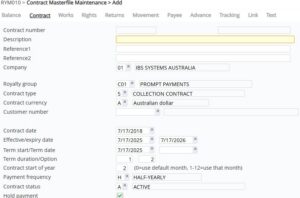
| Field | Description |
| Contract number | Contract number is a non-input field. It is automatically populated on creation from control number file key: RY-CTNO |
| Description | A descriptive name for the contract must be entered to identify the contract. |
| Reference 1 | Reference field; can be used to link with other contracts with the same reference (if setup in TMSRY/RY-RRLK) for stepping i.e. rising royalty purposes. On conversion this field can be populated with the old contract number. |
| Reference 2 | Another reference field for the contract; can be used for information purposes only or can be used to link with other contracts with the same reference (if setup in TMSRY/RY-RRLK) for stepping i.e. rising royalty purposes. |
| Company | The operating company under which the contract will be created. This is a mandatory field. |
| Royalty group | Royalty group is a user defined optional field that can be used to group contracts for specific conditions. It can be used to process priority contracts. Contracts belonging to the same royalty group can be selected for processing in the statement print and interface to Accounts Payable. User access to royalties can be set by Royalty group. |
| Contract type | Contract type identifies the type of contract being created. Royalties would be generated depending on the contract type. |
| Contract currency | This is the currency the contract operates in and is mandatory. The statement to the IP owner would be presented in this currency. All accruals would be in this currency and all sales transactions would be converted to this currency before being stored. Payments to the creditors would be converted to their currency before the payments are made. |
| Customer number | This is for collections contract only, it is the 3rd party customer utilising the subright and its mandatory for collection contracts (contract type =5). The system will recognise collections contracts by the presence of a customer. Note: The customers company and currency must be the same as contract. |
| Contract date | This is the date the contract is established. Contract date is for information purposes only. |
| Effective date | The Effective date is important and used to determine which transactions are to be included in the Royalty calculations. Any sales and other applicable transactions prior to this effective date are not included in the Royalty calculations. For example, if a publisher has bought the rights from another publisher, liability for royalty payments only starts from a specific date.
This date is important for Returns Provisions processing. For example, if it is decided to take up a Returns Provision in the first and second Royalty Periods, the system needs to be able to determine what the first Period would be. For a template, this field is usually left as 00/00/00 and when the Contract is created using a template, the actual date is entered. |
| Expiry date | The Contract Expiry Date is used to determine when royalties are no longer to be calculated. Any sales and other applicable transactions after this date are not included in Royalty calculations. Royalties are therefore no longer paid.
In a template, this date is usually left as 00/00/00 and when a Contract is created using a template, the actual expiry date is entered. Note: Expiry date will be updated whenever the Term start date and the Term duration is updated. |
| Optional effective date flag | This is an information only field. It does not affect the effective date of the contract or the royalty calculations. |
| Term start/canc date | Term start date is the start date for the current term. It will default to the Effective date initially and can be updated to reflect the start date of any subsequent term. Cancellation (Termination) date is for information only. |
| Term duration/Option | This is the term of the contract; number of years the contract is valid for. Contract term is used in the calculation of the expected reversion date. The optional term is the extension of the original term. This would be the case when the publisher wishes to extend the term. When you add or update the Term duration or the Term start date, the Expiry date will be updated to reflect the new Contract term. |
| Contract start of year | A Royalty cycle can start in any Financial Accounting Period. The Financial Year and Royalty cycle do not have to have the same starting and ending periods. The valid choices are: 0=use default month or 1-12=use this month.
If the Royalty cycle is the same as the Financial Year, enter 0. A default Start of year can be set-up in TMSRY/SOY. If this field is left blank or a 0 is entered, the default is used. For example, if the Start of year value is 1 (January) and the Royalties are paid every six months (Payment Frequency Code H) then Royalties are calculated for payment at the end of June and December. |
| Payment frequency | Payment frequency represents the frequency in which the royalty statements would be generated. The standard frequencies are Monthly, Quarterly, Half Yearly, Yearly. This is system defined and mandatory. |
| Contract status | This determines the status of the contract. The default is A=Active and may be overridden. When the status is Active, royalties would be processed and paid out. When the contract is on hold, royalty will be calculated, but it would not be paid out i.e. the balances would be carried forward. In Closed status royalties will not be processed. A contract cannot be closed if balances exist. |
| Hold payment | This flag can be used to carry forward all royalty payments instead of paying it out via Accounts Payable interface. |
- Enter the above information and click Page down.
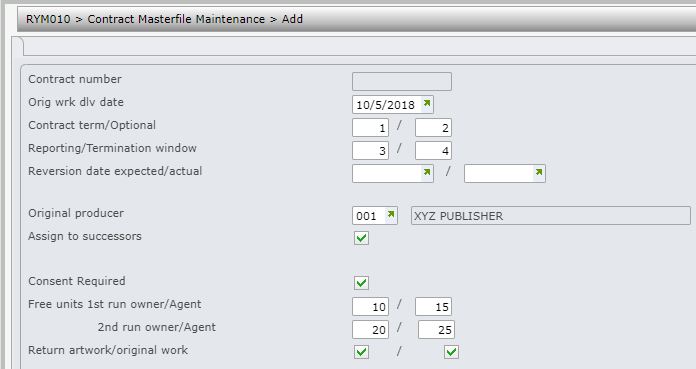
| Field | Description |
| Orig wrk dlv date | Original work delivery date is for informational purposes. |
| Reporting/Termination window | The reporting window is for information only. It specifies the number of months before the statement has to be sent to the IP owner/payee. Termination window is the number of months the IP owner of the contract has to be advised prior to the termination of contract. |
| Original producer | The original producer or the editor; for informational purposes. |
| Assign to successors |
This flag indicates if a successor to the IP owner is to be assigned. |
| Consent required | This flag indicates if the IP owner should be consulted for permissions required for extracts of the products. |
| Free units 1st run owner/Agent | Represents the number of free copies the owner/agent is to receive on completion of the first production run and is for informational purposes only. |
| Free units 2nd run owner/Agent | Represents the number of free units the owner/agent is to receive on completion of the second production run and is for informational purposes only. |
| Return artwork/original work | Determines whether to return the artwork/original work to the author, defaults to Y=Yes and can be overridden to No, to be kept by the publisher. This is for informational purposes only. |
| Imprint | Publisher’s imprint, i.e. trade name of the publisher of a title/book. (Optional) |
| Right | Free text relating to the rights of the contract e.g. territorial rights etc. (Optional) |
| Term | Text relating to terms and conditions of the contract. (Optional) |
| Copyright notice | Text for the copyright notice. (Optional) |
- Enter the above information and click Page down.

| Field | Description |
| URL domain/URL parameter | For any digital works the domain name and any applicable parameters can be entered to define its location. (Optional) |
| Physical location | The physical address for the works under this contract can be entered. (Optional) |
- Enter the above information and click OK. RYM180 Royalty Works panel appears.
- Click Add and follow the steps in RYM180 Royalty Works to add works to the contract.
- Click OK. RYM170 Royalty Returns Provision panel appears. (Note: Royalty returns provision is only applicable for payments contracts).
- Follow the steps in RYM170 Royalty Returns Provision to enter the returns provisions for the items in the contract.
- Click OK. RYM120 Movements Maintenance panel appears.
- Follow the steps in RYM120 Movements Maintenance to enter the movements and the stepped royalties as applicable.
- Click OK. RYM110 Payee Share Maintenance panel appears. (Note: Payee shares maintenance is only applicable for payments contracts).
- Follow the steps in RYM110 Payee Shares Maintenance to enter all the payee shares.
- Click OK. The contract is created and the new contract number is populated in the contract number filter.
