Introduction
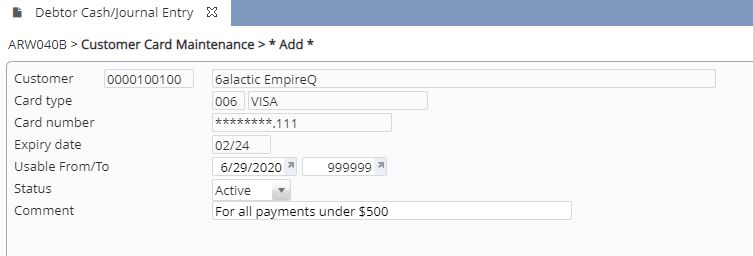
Card on file facility in IP1 allows customers to make payments using a card that has been previously used. This is achieved by utilising tokens already captured from the payment gateway and stored on the system from a previous payment. The customers using this facility must be configured in control file TMSAR/PM-COF. After a new credit card information is captured by the payment gateway during Order entry, AR Cash entry or AR Collections maintenance, the system will bring up Work with Card on File program allowing you to store the card information on file. Multiple cards can be stored for a customer with usable date range and the card can be inactivated or re-activated as required.
Business rules/Other setup
The following business rules have to be setup to handle Card on File. These business rules must be setup with support from Iptor IP1 consultants. It is critical to understand the setting of control files and how it works. Control files must be setup correctly for the system to operate as intended. Any changes to the control files setup should be addressed cautiously and in consultation with Iptor IP1 consultants.
| Note | This document does not cover customised setup tasks of specific companies. Deviations from this setup should be covered by setup tasks written by individual companies. |
| Control files/Other | Setup |
| TMSAR/PM-COF Card on File |
Setup this control file to define which debtor class and customers are allowed to use card on file facility. |
| Standard Payment manager control files and Merchant details for credit card processing |
Ensure all the payment manager control files for the service provider and the merchant details is setup accordingly. |
| Java agent |
Ensure the Java agent is running. |
Procedure
It is your responsibility to ensure that you understand this procedure before performing the following tasks.
| Note |
Deviations from this procedure should be covered by procedures written by your company. Before performing any tasks please ensure all the business rules are set-up accordingly. |
| Process | Steps |
|
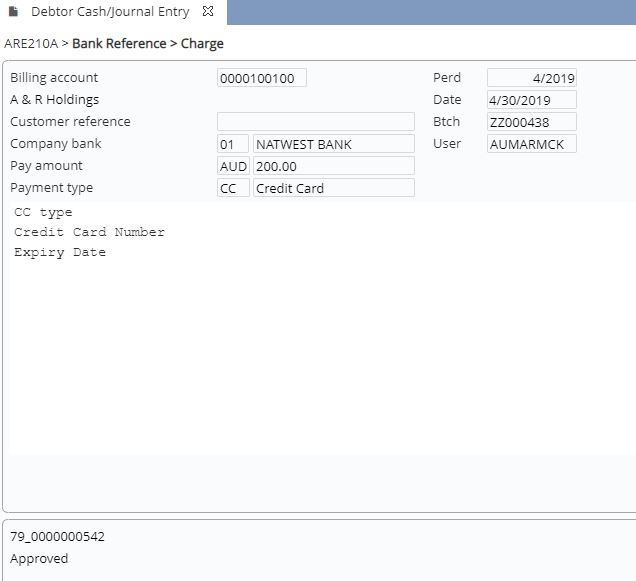
Capture & store new credit card information via AR entry. Note: New credit card information can be captured when the Payment handler is called via any of the following.
|
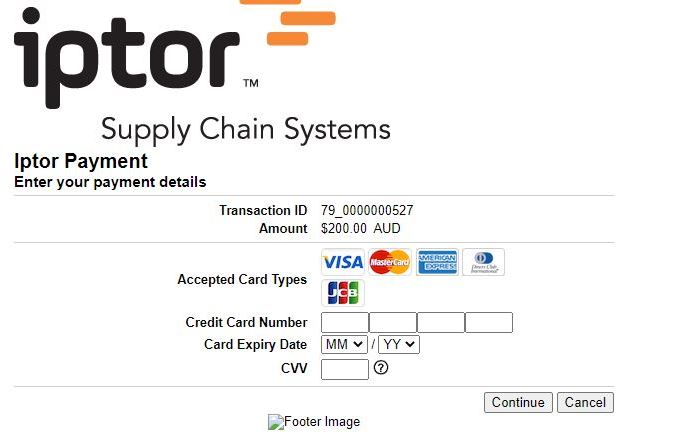
When there is no COF for the customer, the system will bring up the service providers landing page to enter the credit card information. For customers with existing COF see next section: Utilising existing COF.
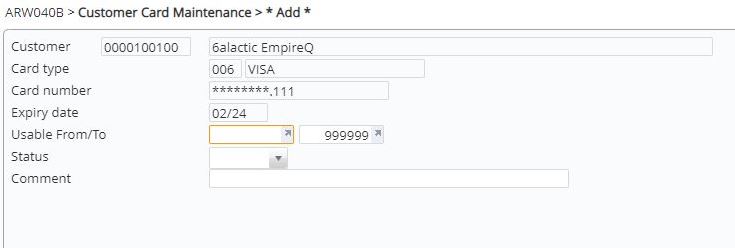
It would then transfer back to iSeries and bring up the following panel, allowing you to add the card to COF.
|
|
Utilising an existing COF on Order Entry Note: When a COF already exists, the system will bring up the list of existing COF(s) and allow you to choose one of the cards. |
Note: You can opt to use a new card instead of using an existing COF, to do this click function New card on ARW040 instead of selecting an existing card. The system will bring up the service providers landing page to enter the new credit card information. Once the new card details are entered on the landing page as in the previous section, you again have the option to store the new card into COF, or use it for just one payment. |
| Suspend/Re-activate COF |
To prevent an existing COF from being used or to suspend it for a period, you can change the usable date range or change the status to closed. A closed COF can be activated anytime and the usable date range can also be changed to use the card again. Refer to Work with Card on File on how to suspend or re-activate a COF. |