Introduction
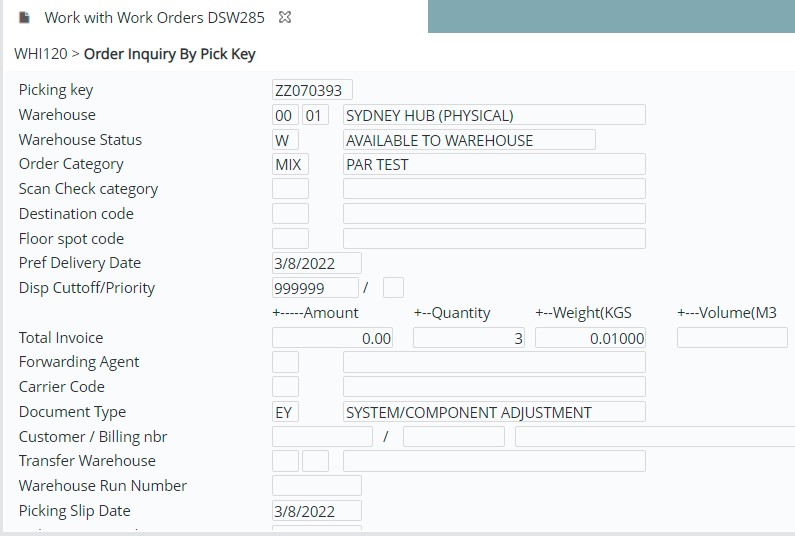
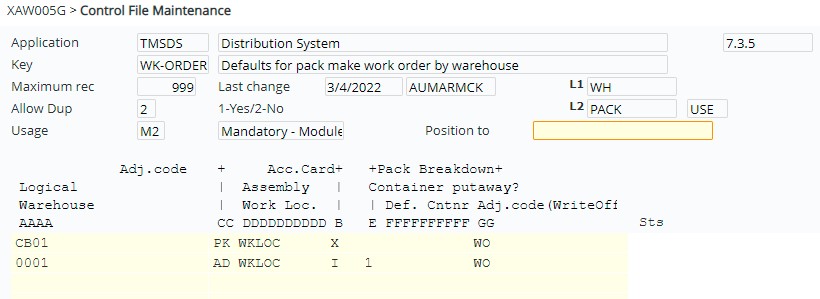
Iptor IP1 allows Packs/Bins to be assembled or disassembled via a work order. Control file TMSDS/PACK-ICC must be setup with Pack/System rule code to allow Packs/Bins assembly/disassembly via work order. If the Pack/Bin rule is via work order then the system will create an adjustment order with the adjustment code defined in control file TMSDS/WK-ORDER. Pick confirmation of the work order will move the picked components/pack stock to the assembly/disassembly location defined in TMSDS/WK-ORDER. Work with Work order process then allows you to complete the Pack/Bin order; this will confirm the Pack/Bin has been assembled/disassembled. The components and the Pack/Bin stock will be updated in the assembly location as the Packs/Bins is assembled/disassembled.
If any components are short picked for assembly, other components will still be moved to the assembly location. The number Packs/Bins made up will be limited by the stock of components that has been moved to the assembly location. If any of the components are short picked then you may end up with some components left over in the assembly location. These left overs can be utilised in other work order make ups, or, you could do ad-hoc movements to put back in normal stock.
Business rules
The following business rules have to be set up for Packs/Bins makeup via work order.
| Control file |
|
TMSDS/PACK-ICT Pack/System make rule – item class type This control file defines an Item Class Type for pack make rule and default rule codes(TMSDS/PACK-ICC) for items that do not have an item class code against the nominated type. It can be defined by logical warehouse. System will search by specific warehouse code first and if not found, then search by blank warehouse code.
Note: All item class types defined here should be a subset of TMSDS/PACK-ICC. If there is a record for a specific logical warehouse but Item Class Type is blank, system will hardcode to ‘TMSDS/IC-PACKA’. |
|
TMSDS/PACK-ICC Pack/System make rule code Determines how Systems/Packs/Bins should be made up when stock is required for Normal Orders, Outstanding Orders or Order Form orders.
Auto make rule when parent item is not available: ‘0’ = Do not automatically make. ‘1’ = Automatically make always during order entry for Normal Orders or stock allocation for Order Form Orders or auto pack make for O/S orders(DSO395). ‘2’ = Automatically make ONLY during auto pack make for O/S orders. Substitute to components (this option is used only when doing stock allocation for order form orders): ‘S’ = Substitute to components if parent item is not pre-made. Work order (This option is relevant only if a pack or a bin.): ‘W’ = A pack/bin is to be made via work order. A pack stock will be increased after all components are picked / confirmed for the work order. Blank or ‘I’ = A pack/bin is to be made immediately whenever pack assembly is requested. Notes: When it is set as ‘Substitute to components’ it is recommended to set ‘Auto make’ as follows depending on pack types:
When it is set as ‘Auto make always’ with ‘Work Order’ if Packs or Bins, system will not try to auto make during order entry or stock allocation for order form orders. |
|
TMSDS/WK-Order Defaults for pack make work order by warehouse TMSDS/WK-ORDER only comes into play where pack items are classified as ‘work orders’ (TMSDS/PACK-ICT). Adjustment code: System will generate Work Order with this adjustment code. Assembly work location: The pick confirm process will basically move any pick confirmed components into this location and then deplete from here to make up packs in this same location. Access card: For digital items within the pack, you will need to specify how it should be printed. Container putaway: If you want to do container put-away after disassembling pack items then the system will ask for a open container when a pack is disassembled. If you are not using the container put-away, then the disassembly occurs immediately and puts component stock into same location as the pack. WK-ORDER no longer allows choice of pick method. All work orders will be PCKM=P. |


Procedure – Packs/Bins via work order
| Task | Instructions |
| Enter request to assemble/disassemble Pack/Bin |
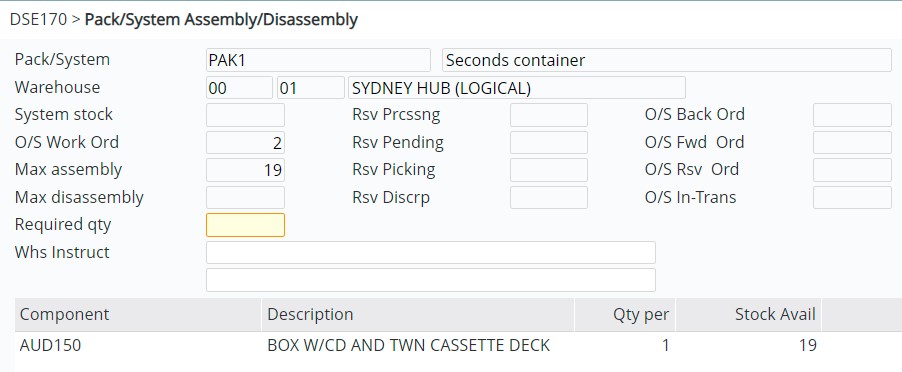
In this example, only component AUD150 is required to makeup pack PAK1 and the available stock for this component is 19, therefore up to 19 packs can be made.
|
| Release work order to warehouse |
|
| View Work order for Pack/Bin assembly/disassembly |
|
| Release order to pick |
|
| Pick confirm |
|
| Confirm Pack/Bin |
This would complete the Pack/Bin assembly/disassembly process. Component stock would be updated in the assembly location and the Pack/Bin stock would be updated by the number assembled/disassembled. The number of Packs/Bins made up will be limited by the stock of components that has been moved to the assembly location. |