
Publishers with the grant of rights can exploit subrights to market in different languages, territories, formats etc. They can do this via marketing campaigns etc. and issue tenders seeking submissions for the exploitation of the subrights. The submissions from vendors (sub-agents) for the exploitation of these subrights can be captured into the system for review.
This program allows you to create the submission header with the Rights that is for exploitation and manually enter submissions received from the vendors for it. Submissions can also be uploaded from an excel file. The vendor submissions are entered as a submissions contract with a specific contract type (6). Once entered the submissions contract can be reviewed and approved or rejected or cancelled by the vendor. On approval the submissions contract will be converted into a collection contract (contract type=5).
Add a submission & a submissions contract
- In the menu, expand Publishing Modules > Rights & Permission > Other Income > Collection Contracts > Submissions Contract and double-click RY Work with Submissions. RYW420 Work with Contract Submission selection panel appears.
- Click OK. All the existing Subrights with active submissions are displayed.
| Function/options | Description |
| F10=Closed/All/Active | Allows you to view only the closed (with status = cancelled or finalised) submissions or all or only the active submissions (status = open). |
| F6=Add | Use this function to create a submission header with the Rights ID for exploitation. |
| Detail | Lists all the existing submissions contracts for the subright. The highlighted contracts are already approved and has been converted to collection contracts. Use this option to view/create new submissions contracts for the subright. Multiple submissions contracts from multiple sub-agents can be entered for review. |
| Text | Any relevant text for the Rights submission can be entered here. |
- To enter a new submission header click Add. RYW420 Work with Contract Submission appears in Add mode.
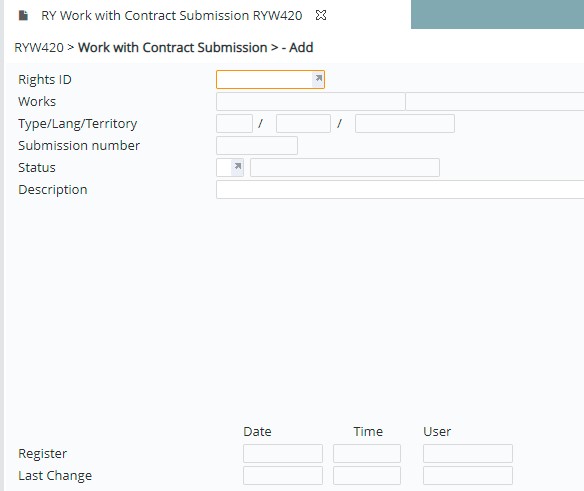
| Field | Description |
| Rights ID | ID of the subright you want to create a submission for. The subright must already exist in the system. Use search function to search and select the Rights ID. |
| Works | This is the works for the above Rights and it will default when the Rights ID is selected. |
| Type/Lang/Territory | Type of the subright being exploited, the language and the territory it can be exploited in. This will default from the selected Rights ID. |
| Submission number | System generated number to uniquely identify the submission being created. |
| Status | The status of the submission as defined in control file TMSRY/SBM-STS; on creation it should be open and active. |
| Description | A brief description of the subright submission. |
- Enter the above information and click OK to save the submission header information.
- Select the submission header and click option=Detail to enter submissions from the vendors. RYW420 Work with Contract Submission details panel appears.
- Click Add to create a submissions contract with the vendor submission details. RYM010 Contract Masterfile Maintenance appears in Add mode.
- Enter the contract template ID for the submission contract and click OK. Templates for contract submission can be maintained via RYM020 Contract Template maintenance. The default setup from the template would apply to the Submission contract, which can be overwritten. The Contract type must be 6 and the Contract status ‘P’ for Pended.
- Update all the Submissions contract details as required. For explanation of the fields and information on the contract entry panel see RYM010 Contract Masterfile Maintenance.
- Once the submissions contract details are entered via Contract Masterfile Maintenance, click OK and enter the following mandatory fields.
| Field | Description |
| Customer | Customer code for the customer submitting the submission (mandatory). |
| Contact | The contact for the submission to follow up with. |
| Follow up date | This is an information only field to allow follow up on the submission by a specific date. |
| Status | The status of the submission as setup in control file TMSRY/SBM-CSTS. |
- Click OK to save the submissions contract. The entered submission contracts will be available for maintenance and approval or rejection.
Approve a submissions contract
- In the menu, expand Publishing Modules > Rights & Permission Other Income > Collection Contracts > Contract Submission and double-click RY Work with Contract Submission. RYW420 Work with Contract Submission panel appears. All the existing Subrights with active submissions are displayed.
- Select the submission header and click option=Detail. Contract submissions for the selected subright is listed.
- Select the submission contract and click option=Approve. On approval, the system will display the message ‘Contract is approved’ and the submissions contract will be converted to collections contract with contract type = 5.
