
Within the Accounts Payable module, there are following three methods of effecting payments to creditors.
- Computer produced cheques by automatic selection.
- Manually raised cheques (Prompt Payment/Already Paid Invoices).
- Electronic Funds Transfer by automatic selection.
See further information on these payment methods.
- In the menu, expand Base Modules > Accounts Payable > Other > Payment Cycle > Payment Cycle menu and double-click AP Multi-Cycle Pay Run. APW005 Work with Payment Cycle panel appears with the most recent payment cycle displayed first.
| Function | Description |
| Add | Allows you to select invoices due for payment. |
| Filter | Filter function allows you to narrow down the selection of payment cycles to work with based on the values entered for the selection fields: Company/Group, Creditor Type or the Currency. |
| Regen | Regen function will list all the payment cycles that are closed and flagged for stage 7(Regenerate bank file), thus giving you the option to regenerate the bank file for a closed payment cycle.
Note: After taking the Regen function, on working with a payment cycle, the only option you can use is 7 = Regen Bank File |
Select invoices due for payment
Using the Work with payment cycle, payment due selection can be made by: Company, Creditor Type or Currency. You have the option to select invoices for all companies, creditor types and currencies in a single run. Multiple overlapping processes can co-exist. The user interactively nominates invoices for payment using the maintenance option.
| Note | If a Payment cycle is in process and this option is selected the following message will be displayed: Due for payment selection not valid at this time. |
- From APW005 Work with Payment Cycle panel click Add. APW010 Due for Payment Selection panel appears.
| Field | Description |
| Run number | Payment cycle run number will be automatically generated as the next number from the current value in control number AP-PYRN. |
| Company/Group | Enter either the company or the company group code for which invoices due for payment are to be selected. You can select invoices for all companies (‘**’) or enter a specific company or you can select companies belonging to a specific company group. |
| Creditor type | Select the Creditor type for the Payment cycle being produced. You can select invoices for all creditor types (‘***’) or enter a specific creditor type. |
| Currency | Select the currency of the invoices that are to be selected for this Payment cycle. You can select invoices for all currencies (‘*’) or enter a specific currency. |
| Description | Enter a description that will relate to this specific Payment cycle. |
| Payment method | The Payment method selected determines whether or not auto banking is required for this run which entails the system automatically nominating the cheque number and/or cheque and payment number. If auto banking is being selected then only creditors with valid bank accounts are selected.
This caters for processing EFT payments. This also uses TMSAP/BNK-PPRG. For SEPA payment method the transfer of funds would be initiated automatically when the program is run. |
| Select due date | This is the due for payment date of the invoice or the due to be taken up date of the Credit Note, based on the calculation made when the invoice/credit note was originally entered in the system. The calculation is based on the Invoice date and the Payment terms conditions and the current processing period. In Credit Note processing it is the date a particular Credit note was taken up.
Transactions up to and including the date entered will be selected. When the invoices were entered on the system the Due date was either calculated according to the Invoice Date and Payment Terms or overridden by the operator. The Due for Payment Maintenance program can be used to amend due dates of transactions if necessary. Prompt payments have a Payment terms code of 00 which defaults a Due Date of 00/00/00. If a prompt payment run is to be processed, enter zero in this field. |
| Limit no. of payments | An optional field used to specify the maximum number of payments to be made in the Payment cycle. |
| Allow negative payment | Negative payments can be allowed to offset any credits against the creditor. |
| Creditor number (From/To) | A Payment run can be processed for one creditor, or all creditors that match the rest of the selection criteria. |
| Creditor name (From/To) | An optional entry field allowing a Payment run to be processed by Creditor name. |
| Payment amount (From/To) | A range of values can be selected for inclusion on this Payment cycle. |
| Tax category list (I/O) | Up to 12 Tax Categories can be included or omitted when selecting a Payment Cycle. If the columns are left blank, the full range will be selected. |
| Total no of invoices | When <ENTER> is pressed, the system goes through the files selecting the transactions that match the selection criteria entered. The total number of invoices selected displays here. |
| Total no of payments | The number of payments printed by the Remittance/Cheque Print menu option displays here. If this stage of processing was not reached, this is 0. |
| Total payment amount | When <ENTER> is pressed, the system goes through the files selecting the transactions that match the selection criteria entered. The total of the invoices less the credit notes, gives the Total Payment amount for this Payment Run. If a foreign currency was part of the selection criteria this amount will display in that currency with an indication of the nominated currency displayed alongside. The total payment amount will not display if multiple currencies have been selected. |
- Enter the above information as required.
- Click OK.
- Press <ENTER> to confirm. From the panel that is displayed, you can view the total number of invoices due for payment, the total number of cheques received and the total payment amount.
| Note | For EFT Batch Payment the system will select invoices by using the same criteria although it will only select from creditors with bank numbers entered on the masterfile. Cheque Batch is run first if you want to pay a creditor with Bank details held on the masterfile, by cheque. |
Produce cash requirements report
This option is selected to print a report that lists all transactions selected in the previous step of the payment cycle, which was due for Payment selection. This is an optional step. The payment cycle can be cancelled before or after this Report is printed. There are options that determine the details that print on the cash requirements report .
- In the menu, expand Base Modules > Accounts Payable > Other > Payment Cycle > Payment Cycle menu and double-click AP Multi-Cycle Pay Run. APW005 Work with Payment Cycle panel appears.
- Click Filter. APW005 Work with Payment Cycle panel appears.
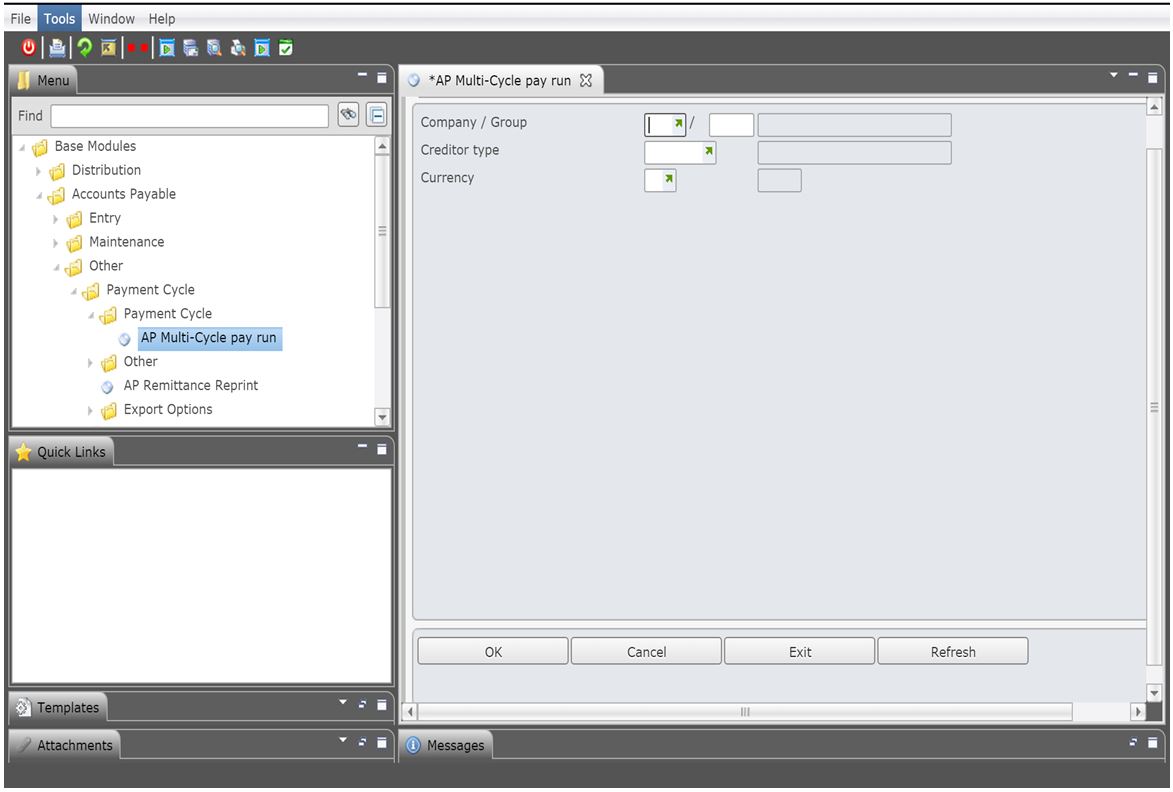
- Specify one or all of the following criteria. This will narrow the selection of a specific Payment Cycle with which to work.
- Company/Group
- Creditor Type
- Currency
- Click OK or press <ENTER> and you are returned to the previous panel.
- Select the relevant line and click option Work with Cycle. The following Work with Payment Cycle panel appears.
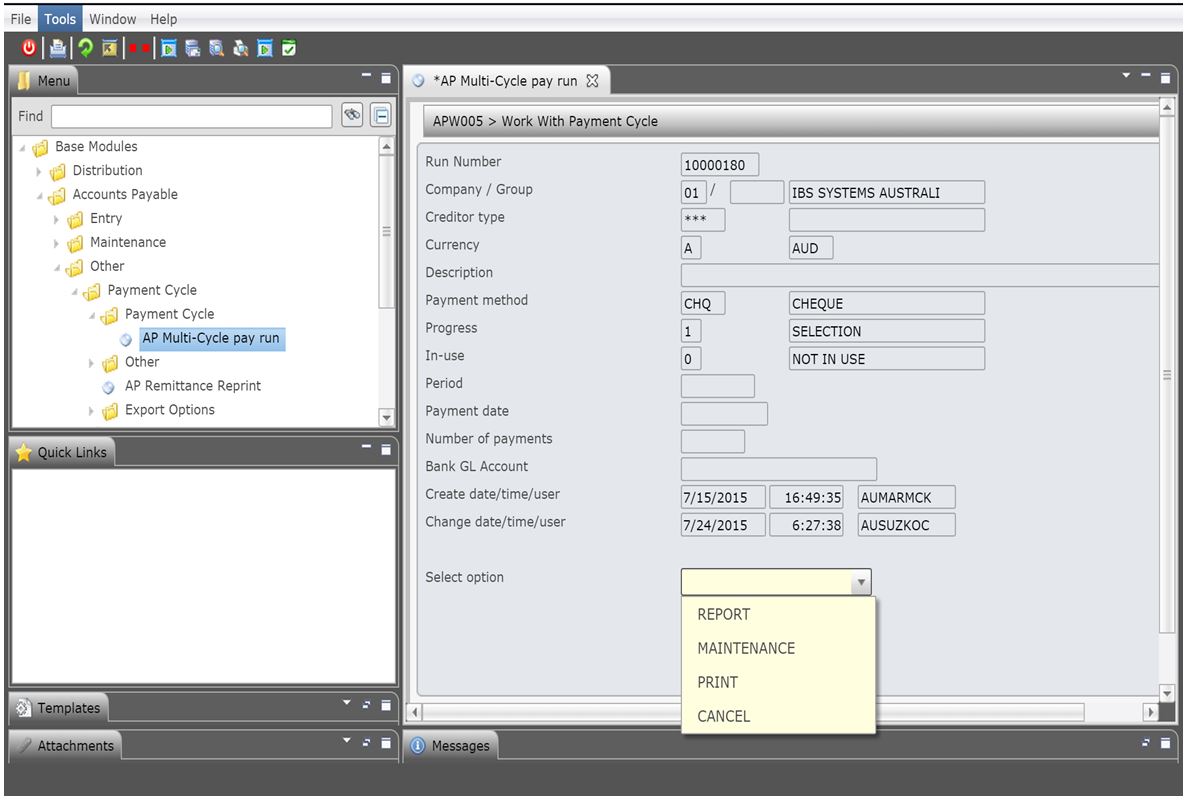
| Field | Description |
| Progress | This is the current stage in the payment cycle. |
| In-use | If a user is attempting to select an option in the payment cycle to run while it is being run then this flag will display the stage that is currently being run by the other user. |
| Select option | The options that display are the stages of the payment cycle that follow the current option i.e. option in progress. The work flow of these stages should be setup accordingly in control file TMSAP/BNK-PMT1. The stages are dependent on the payment method and whether or not payment acknowledgement is required from your bank.
2= Report – Cash requirements report 3=Maintenance – allows you to maintain individual payments for a creditor or hold all payments for a creditor. New creditors can be added as well. 4=Print – this stage is for printing cheques and remittance advices, it is not applicable for EFT payment methods. 5 = Finalise – generates the bank report and either
6 = Cancel – will cancel the run anytime before final update and cycle close. 7 = Regenerate – regenerates bank report after any maintenance and rejections of payment transactions. The bank file can also be generated for the closed payment cycles if setup as part of the payment cycle workflow. 8 = Reject – allows you to reject individual creditor payments before finalisation. Any failed transactions (not accepted by the bank) can be rejected at this stage. When the payment transaction is rejected the status will change from U=unapproved to R=rejected. The rejected transaction will not be included in the regenerated bank report. 9=Accept/Cancel – this will acknowledge bank’s acceptance and finalise and update the AP balance, unlock the invoices to future payment and close the current cycle. |
| Note | Depending on the set up in TMSAP/BNK-PMT1 Report will be part of the Cycle Flow and therefore displayed as an option. The report is sequenced by creditor name or creditor number and lists all transactions selected in the previous step of the payment cycle, which was due for Payment Selection. This is an optional step. The payment cycle can be cancelled before or after this Report is printed.
There are also options that determine the details that print on the Cash Requirements Report. For instance all creditors selected for this payment cycle or specific creditors. |
- Select Report from Select option dropdown and click OK. APW015 Cash Requirements Report panel appears.
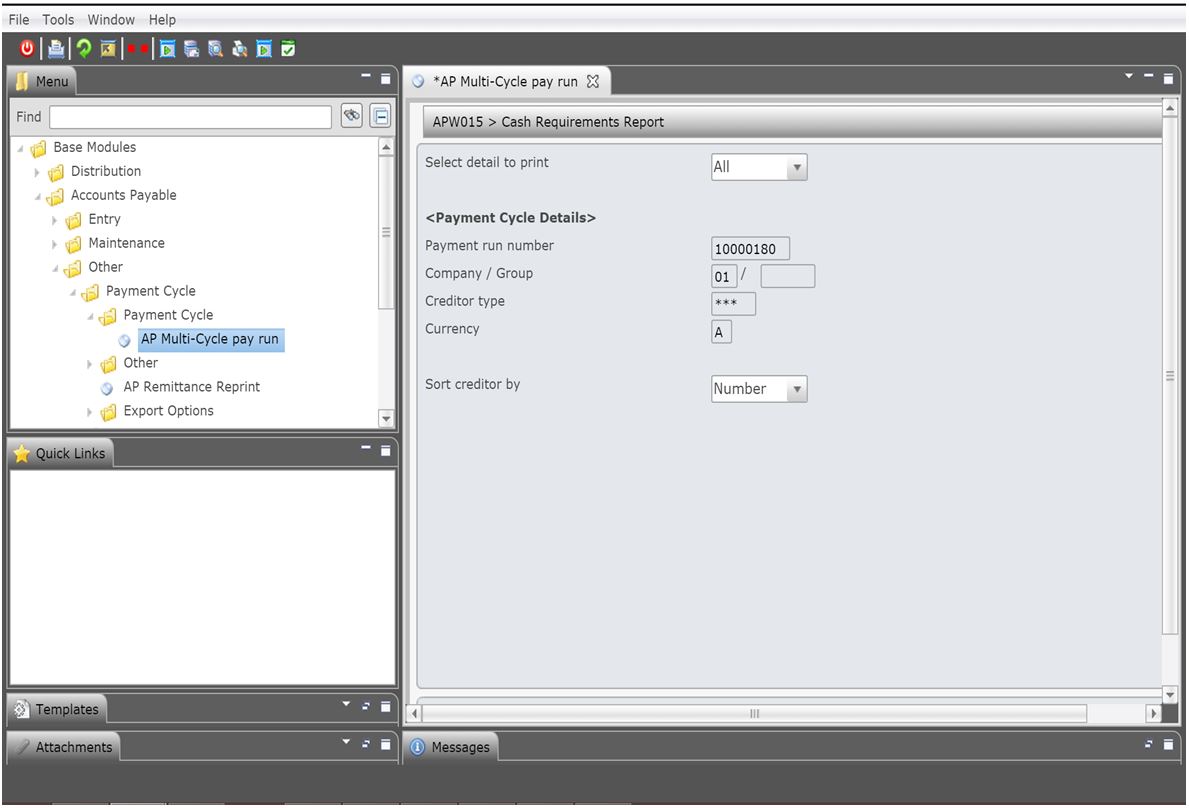
- Select the details to print and click OK. The report gets generated.
| Note | To run the remaining stages after Cash requirements report, follow the above steps and select the required option. |
