
The incident levels in an incident determine which activities get assigned to an incident. Work with CRM activity allows you to define all the activities and its associated routes for different combinations of incident levels. Routes within an activity has its own tasks and actions. The initiating route in an activity does not have any tasks or actions, it just kickstarts the activity automatically.
When an incident is created the related activities and routes are automatically assigned to the incident. Work with CRM incidents functionality allows you to view the current activity and routes and action it.
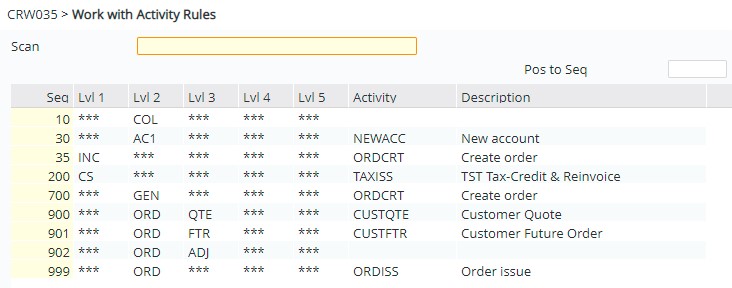
- In the menu, expand Publishing Modules > Customer Relationship Management > CRM Maintenance and double-click Work with CRM Activity. CRW035 Work with Activity Rules panel appears. All the existing incident level combinations and associated activities are displayed.
| Function/Option | Description |
| Add | Allows you to assign an activity to the incident levels. See section Assign activity to incident levels. |
| Activities | Lists all the existing activities and allows you to add new activities as required. |
| Route |
This option lists the route currently assigned to the selected activity. From this panel you can add additional routes as required and use Tasks function to view all the current tasks and add new tasks.
|

Create an activity & add routes
- From CRW035 Work with Activity Rules panel (above) click function Activities. All the existing activities are displayed.
- Click function Add to create a new activity.
- Enter a descriptive name for the activity and a description.

- Click OK to save the activity. You can now add routes to the new activity.
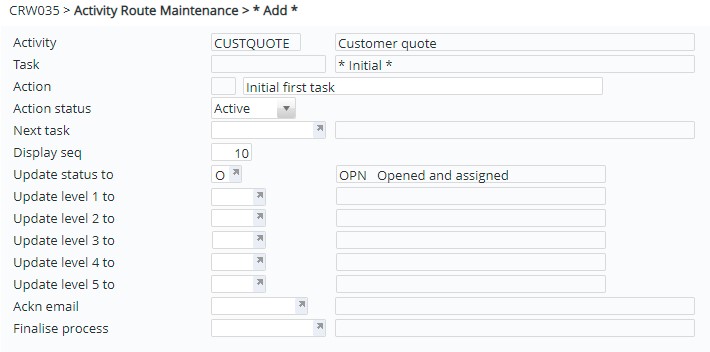
- Click Add. CRW035 Activity Route Maintenance panel appears in Add mode.
- Enter the initial/starting route. All activities must have a starting/initial route. This initial route will be automatically started by the system when the incident is created.
 .
.
| Field | Description |
| Activity | Activity for which the new route is being created. |
| Task | This is the task for the route. For the starting/initial route the Task and Action is blank as it will be automatically started by the system. |
| Action | Action code and description for the action to be taken for the task. Action code is not needed for the starting/initial route, as it will auto start. |
| Action status | When creating a new route Action status will default to ‘Active’ to activate the route. To remove a route from an activity change the Action status to ‘C’ for closed. |
| Next task |
This is the next task that will be activated when the current task is completed. Select from the available tasks; if the task does not exist then use function Add to create a new task:
Function: An applicable function for the new task can be selected. The functions are defined in TMSCRM/CRO495A with pre-defined command string that will be activated for the task. Function label: If a function is selected then a meaningful label for the function must be entered. |
| Display seq | Sequence in which the tasks will be displayed by default. |
| Update status to | On completion of the task for the route, this is the status the incident would be promoted to. |
| Update level 1 to Update level 5 | On completion of the task for the route, the incident levels can be promoted to the levels specified here. |
| Ackn email | If an email is to be sent on acknowledgement then enter the appropriate template for the email. |
| Finalise process | You can select a process defined in TMSCRM/CRO495A to be called to run the specified program to finalise the task. |

- After entering the initial route, click Add again to the next route for the activity until all the routes are entered for the activity.
Assign activity to incident levels
- From CRW035 Work with Activity Rules panel click Add.
- Enter the sequence and select applicable Levels 1-5.
- Select the activity for the entered levels and click OK to save. When an incident is created with the entered levels, this new activity along with its tasks will be automatically assigned to the incident.
