
Incident management in CRM allows you to create and manage all your incidents when a customer calls or raises a issue that needs to be attended to or resolved. The nature of the incident determines what information is required to log an incident. Subjects defined on the templates specify what values are to be captured for an incident. For example if you want to create an incident on a purchase order, you can specify creditor number and the purchase order number as subjects that would be prompted on the incident. Subjects that are not pre-set on the templates can be entered directly on the incident to hold additional information. Subjects for the sub-incidents are the same as the main incident. If the subject is changed in a main incident, the change will be reflected in the sub-incident.
An incident can have sub-incidents (also known as tasks) linked to it. These sub-incidents or tasks are created using same templates as incidents but does not get an incident number generated for it. It is linked to the main incident it was created against. An incident can have multiple sub-incidents/tasks attached to it.
Contents
Work with all incidents
Work with All Incidents has a filter option which allows selection of different types of filter templates. The user can use the filter function to view different set of incidents such as Royalty incidents, opportunities, seminar/training incidents or all incidents etc. You can view the details about the incident such as the auto generated incident number, incident description, due date, incident owner, assignee, status and the priority given to the particular incident among other incident specific information.
- In the menu, expand Publishing Modules > Customer Relationship Management > Incident Management and double-click Work with CRM Incidents. CRW005 Work with all Incidents panel appears, listing all the incidents for the default filter by due date.
The incidents can be flagged with any of the following:
‘>’ – if the incident has an email attachment
‘*’ – if the incident has an attachment
‘L’ – if the has a linked transaction i.e. an order or a AR transaction
| Option | Description |
| Add sub incident | Access Work with Sub Incidents (CRW010) in Add mode to add a new sub-incident/task to the selected incident. |
| Resend | Allows you to resend an email. |
| Toggle | This option is used for linked incidents. It hides/expands all the linked incidents for the selected incident. |
| Activity | Provides access to the current activity and associated route/tasks for the selected incident which can be actioned on. See below: Work with Incident Activities. |
| Function | Description |
| Add | Access Work with Incidents (CRW010) in Add mode to add a new incident. See below. |
| Detail | Access Work with Tasks in change mode to make changes to the details for the selected incident. |
| Expand all/Collapse All | Toggles between displaying the various linked incidents for all the incidents and hiding or collapsing those linked incidents. |
| Filter | Displays the the filter values for the current filter/template. |
Create a new incident
- From Work with All incidents (CRW005) panel click Add function.
- Select a valid template and click OK. Templates are maintained in Work with Manual templates (CRW030). CRW010 Work with Incidents appears in Add mode.
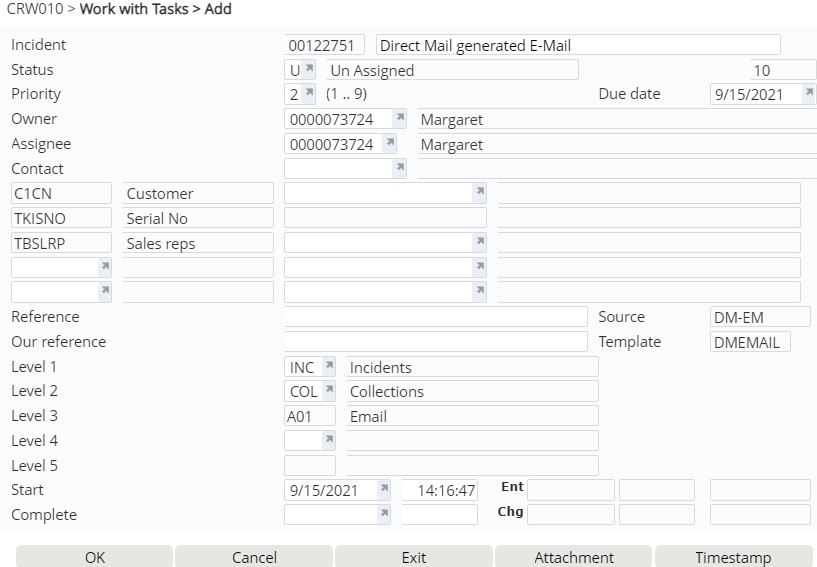
View incident fields
| Field | Description |
| Incident | System generated number to identify the CRM incident in IP1. |
| Status | The status of the incident would indicate the current state of the incident. The status codes are system defined and setup in control file TMSCRM/ISS-STS. |
| Priority | Incidents are prioritized with a number in the range of 1 to 9 with 1 being of highest priority. |
| Owner | In Work with Incidents this is the person who owns the incident, its value is dependent on the template setup; whether its defaulted from the template or parameter and whether it can be overridden. |
| Assignee | Assignee is the user who is responsible to address the incident once the incident is assigned to them. The assignee can be the same as the owner. Both Owner and Assignee will be able to access their incident and change the details. |
| Contact | Contact on an incident is the representative of the customer or the customer's contact person for the incident. |
| Customer | Customer account number for the customer raising the incident. This field is one of the preset subjects of the incident as defined on the template used to create this incident. The subjects are defined in control file TMSCRM/ISS-KEY. |
| Serial No | Serial number for the item. This field is one of the preset subjects of the incident as defined on the template used to create this incident. The subjects are defined in control file TMSCRM/ISS-KEY. |
| Sales rep | This is the sales rep for whom the incident is being raised, when the incident becomes an opportunity the sales rep becomes the owner of the incident. . This field is one of the preset subjects of the incident as defined on the template used to create this incident. The subjects are defined in control file TMSCRM/ISS-KEY. |
| Reference | The reference given by the customer. |
| Our reference | An internal reference given to the incident being raised. |
| Level 1-5 | Levels 1- 5 refers to the types of the incidents; Level 1 normally refers to the nature of the incident, levels 2 and 3 is used to identify the area and actions or activity while levels 4 and 5 further classify the incidents as required by the customer. |
| Due date | This is the due date the incident must be completed by. Due date can be preset in the template as number of days or weeks from the incident entry date. Due date along with start date and completion date is important to work out response/turnover times of incidents for management analysis. |
| Start | In Work with Incidents start date, duration and status are updated when completing or updating an incident. |
| Complete | This is actual date when the incident is completed. An Incident with tasks attached can only be completed or flagged as finished when all tasks have been flagged as finished or closed. |
| Function | Description |
| Attachment | Allows you to attach a document to the incident. Java agent must be running to attach a file, otherwise the system will prompt for Java Connection ID. The incident will be marked with an ‘*’ when an attachment is linked to the incident. |
| Timestamp | Allows you to view the timestamp changes on the incident. |
| OE | Opens up Sales order entry panel (DSE005) for order entry. The incident number will be used as customer reference on the sales order so the order can be related back to CRM incident on order inquiry. |
- Enter the details of the incident. The information required for the incident is depended on the selected template.
- After entering the incident details Page down.
- Enter any text or notes for the incident as required and click OK to save the incident. A notification will be sent to the assignee with the incident number.
Work with incident activities
The incident levels in an incident determine what activities and routes are assigned to an incident (this is setup in CRW035 -Work with Activity Rules). When an incident is created the related activities and routes are automatically assigned to the incident. The assigned routes can be viewed and actioned on as the tasks get completed for each activity.
- From Work with All incidents (CRW005) panel select the incident and click option Activity. CRW010 Work with Incidents – Activities appears. The current activity and the current task is displayed along with the list of completed tasks.
| Field | Description |
| Current activity | The current activity for the incident. |
| Current task | Current task for the above activity. |
| Action | Allows you to take action on the route by selecting from the list of available actions for the task. The action taken will determine the next task and the status of the incident. Tasks and actions for the routes are set up in CRW035 Work with Activity Routes. |
| Function | Description |
| Text | Allows you to view or add text to the current activity. |
| F9=Flexible function | This function is dependent on the current task for the activity as setup in CRW035 Activity Task Maintenance. E.g.:
The function will execute and call the program (and parameters) defined for it on control file TMSCRM/CRO495A. |
- From this panel you have the option to take the appropriate action for the current task. Select the appropriate Task/Action for the route. If you select a route where Action is blank then the task will be automatically completed by the system
Create a sales opportunity from an incident
An incident should be created using a sales opportunity template for it to be to be converted into a sales opportunity.
- In the menu, expand Publishing Modules > Customer Relationship Management > Activity Management and double-click Work with CRM Incidents. CRW005 Work with all Incidents panel appears, listing all the incidents for the default filter by due date.
- You can use the filter to list sales opportunity incidents.
- Select the appropriate incident and click Detail option. CRW010 Work with Incident panel appears with a function Sls Opp.
- Click Sls Opp function. CRW080 Sales Opportunity panel appears. See Work with Opportunity for details for this process.
