
Contents
Purpose
This procedure describes the handling of the incoming ONIX Rel.3.0 data to create or update product data in IP1 via AIDA platform.
Process
The ONIX feed is received from the Presses (Trading Partners) into Iptor iSeries AIDAHUB. The program Iptor Exchange (AIDA) assigns the feed a ‘Batch Id’, which is the value of the ‘sentdatetime’ segment in the feed with a three-character identifier for the press. It then maps the feed into files where each record contains the information about a single value and the File/Field/ISBN in IP1 to be updated. The mapping is controlled by translation tables which specify the translation from an ONIX value to an IP1 value.
The resulting file is sent to the customer where it is used to update the IP1 database. A report is produced for each feed listing any problems in the mapping including suggestions as to how to correct the problem by updating ONIXAIDA control records. When the ONIXAIDA control records have been updated in IP1, the batch can be reprocessed. This sends
- the ONIXAIDA records to AIDA to refresh the translation tables
- the batch id to be reprocessed. The reprocessing is done over a copy of the ONIX data which is kept within AIDA
The reprocessing is repeated until there are no issues with the batch. When processing is finished an email will be sent to email addresses as specified in control records with message of completion or further action required.
Scope
| Included | The setup within IP1 to manage the incoming ONIX AIDA feed and the procedures to review/manage errors and control records for re-processing as required for a successful update of ONIX data.
Monitoring of ONIX AIDA Hub. |
Prerequisites/setup
| IP1 Business rules | For a complete list of ONIX AIDA control records that must be maintained for this process please refer to the control files for ONIXAIDA application on IP1. Business rules for ONIX AIDA import must be setup with support from Iptor IP1 consultants. It is critical to understand the setting of control files and how it works. Control files must be setup correctly for the system to operate as intended. Any changes to the control files setup should be addressed cautiously and in consultation with Iptor IP1 consultants. |
| ONIX Mapping | ONIX feed from the presses is mapped to the IP1 files by Iptor Exchange (AIDA). The configuration for this mapping comes from the control files application ONIXAIDA in IP1. For details of the mapping please see ONIX Mapping and Control records document. |
| Work with Active jobs | Add the background job in IP1 system for the incoming ONIX feed from AIDA Hub. |
Procedure
It is your responsibility to ensure that you understand this procedure before performing the following tasks.
| Note | Deviations from this procedure should be covered by procedures written by your company. Before performing any tasks please ensure all the business rules are set-up accordingly. |
ONIX management
| EDI ONIX queue management | This allows you to start and stop the ONIX queue i.e. the background job that manages the incoming data from AIDA Hub and outgoing data from IP1 to AIDA Hub.
|
||||||||||||||||||||
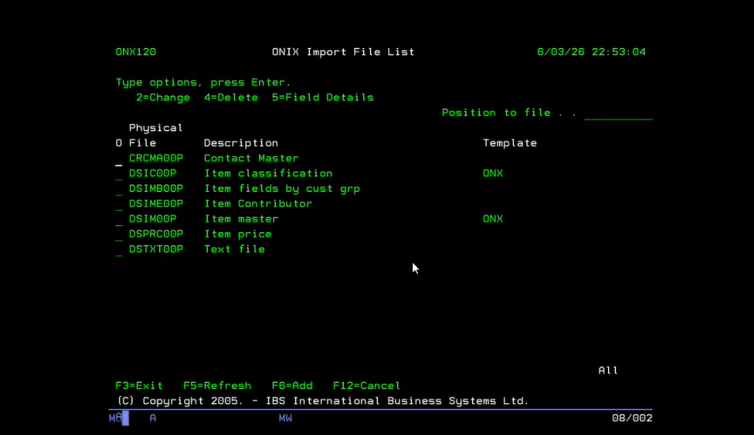
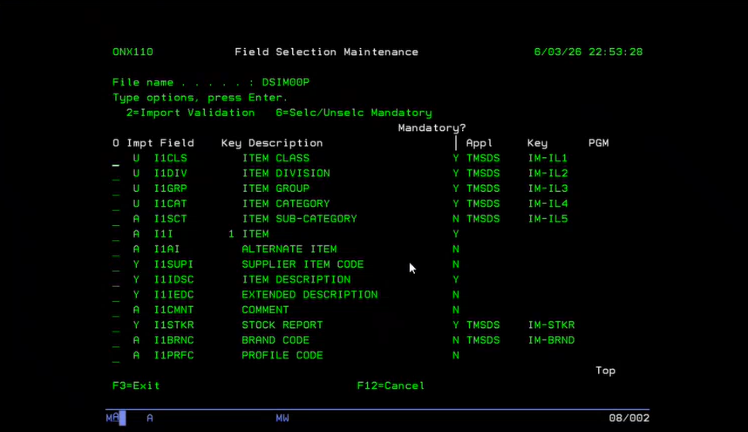
| ONIX item file list | This is a list of files that needs to be maintained for incoming OINX data. Each file would have a list of fields with validations and whether the field is mandatory or not. The list would normally be maintained by Iptor consultants.
|
||||||||||||||||||||
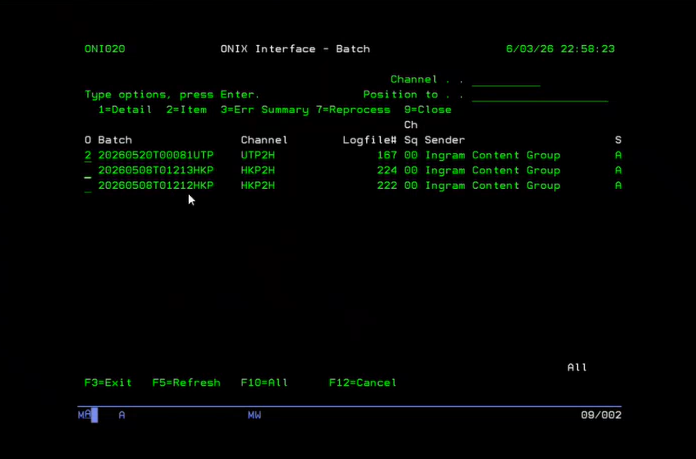
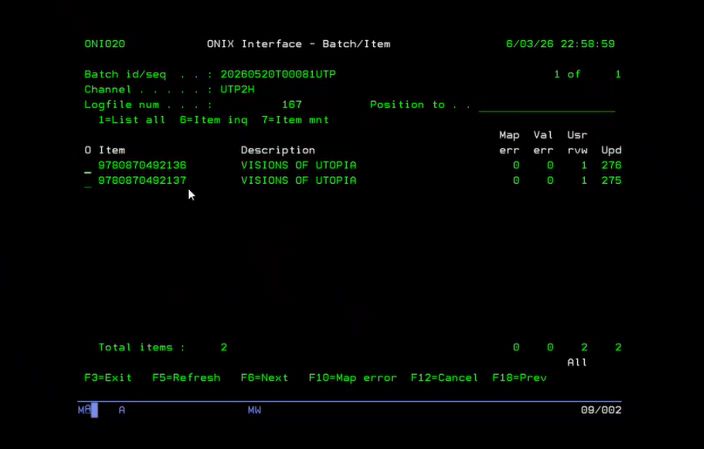
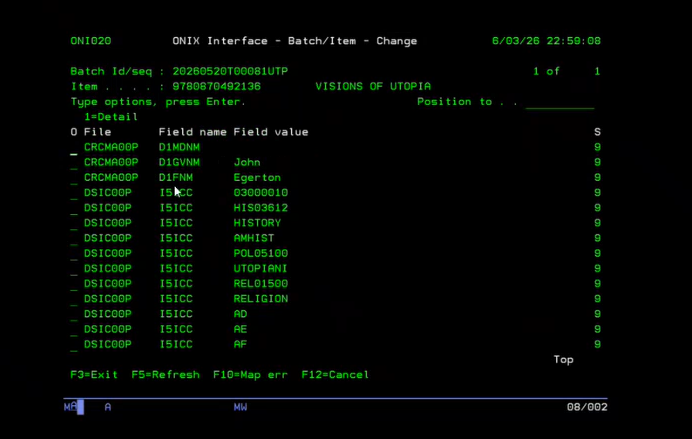
| Work with ONIX import batches | This is a batch inquiry program that is used to identify and review the batches with the errors to take appropriate actions as required.
Initially the active batches (i.e. batches with errors) for all channels (presses) will display.
From this panel, you can see if the errors are mapping errors, validation errors or errors for user review using Function 10=Map err/Val err/Usr rvw.
|
||||||||||||||||||||
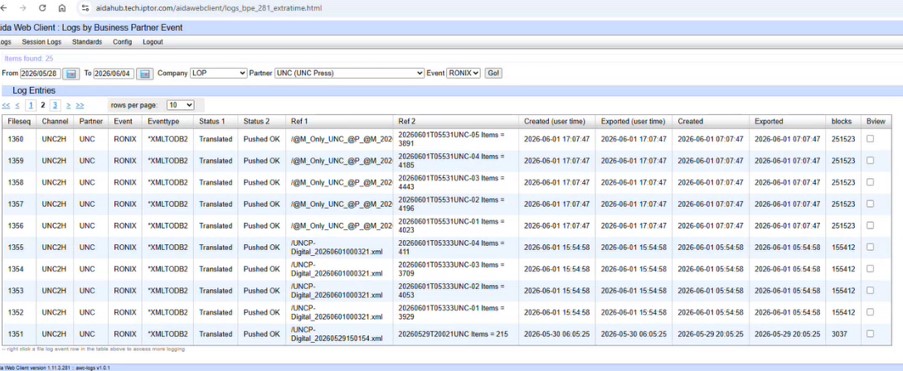
| Monitoring ONIX AIDA Hub | Web client is available for Iptor Exchange administration & monitoring incoming ONIX files.
The URL for the Hub is https://aidahub.tech.iptor.com/aidawebclient/. You need to be setup as a user to gain access. Restrictions are placed on users so a non-administrator user can only access specific companies, business partners and events.
Each line represents an ONIX file coming in. Column Ref 1 holds the file name. Column Ref 2 is the Batch ID assigned by AIDA; it also shows the number of items in the batch. If a file is too large it can be split be into 2 batches. Status 1 & 2 indicates if it was translated without any errors and pushed into IP1 system. Note: You can right click on any of the lines and view the XML message. |
ONIX reports
| Publisher/imprint relationships | Publisher name and imprint name from the ONIX feed determine the item levels. This report lists the item levels for the publisher and imprint relationship. |
| Collections/series relationships | This reports on the relationship between the incoming collections and the series. |
