
This process provides the facility to upload data (excel file) from a stand alone PC system or package (for example a budgeting package) to a IP1 General Ledger Budget File or GL Interface file. An exception report is generated at the end of this process. If there are any errors, you will need to go back to the excel file, correct the errors and then upload the file again.
Setup
The following should be setup prior to running this program.
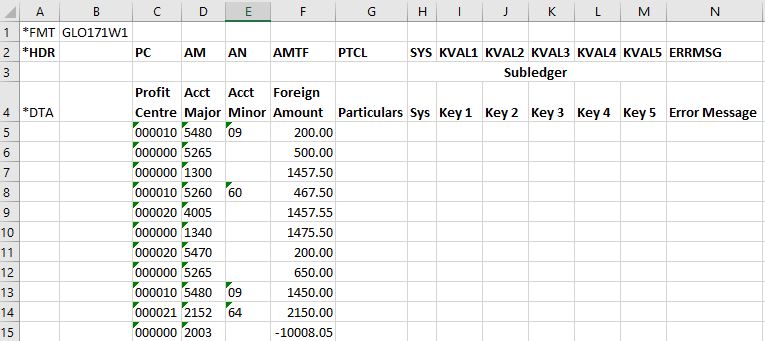
- Create the budget in an Excel spreadsheet
- The profit center, major & minor accounts must be preceded by the ‘ to identify as a text field, which can be easily confirmed with the green triangle in the upper left of the cell.
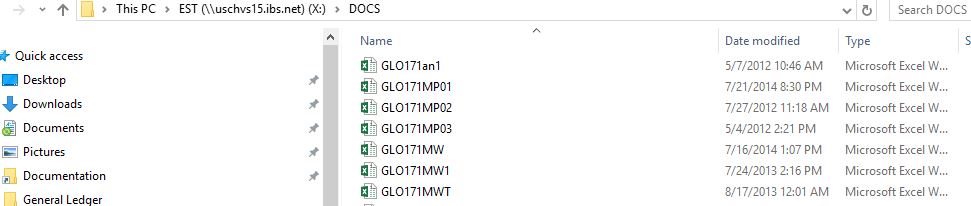
- Place the upload file in the correct folder on the server.
- Setup control file (Menu: Other options>Cross Applications Support>Control File Maintenance)
- On control file ********/SVR, identify all the server settings.


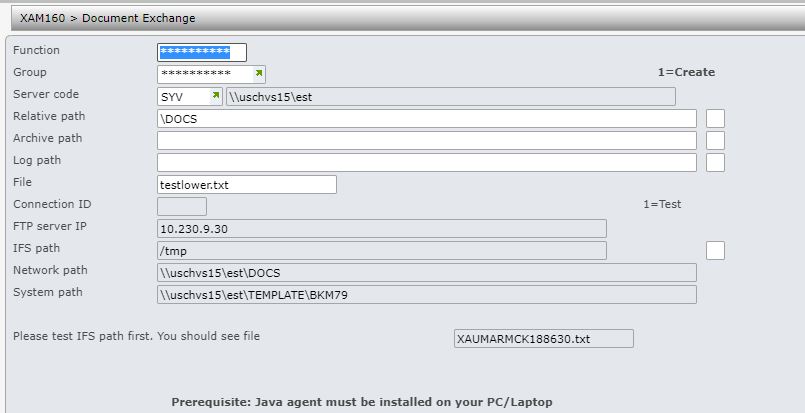
- Setup Document exchange (Menu: Other options>Cross Applications Support>Rebuilds>Document Exchange Maintenance). Only the first 4 fields are required; for details of these fields please see Document exchange maintenance.

Upload file
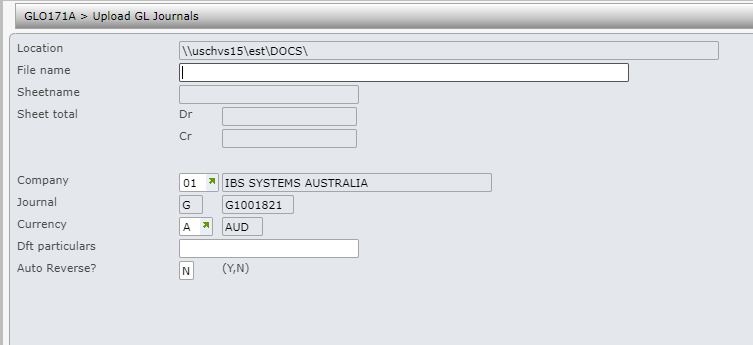
- In the menu, expand Base Modules > General Ledger > Entry and double-click Import GL Journals. GLO171A Upload GL Journals panel appears.
| Function | Description |
| Location | Location of the excel upload file on the server. |
| Filename | Name of file being uploaded, it must be full file name plus extension. |
| Sheetname | If there is more than one sheet in the excel upload file then enter the sheetname with the data to be uploaded. |
| Sheet total | This is a display only field. On upload the system will check if the debits & credits equal and display it. If it doesn’t equal the error would be highlighted on the excel and the upload will not proceed. |
| Company | This is used primarily for multiple company sites. The company defaults but can be overridden. |
| Journal |
This entry defaults to G = General Journals and can not be overridden. This is type of journal entries which are uploaded from excel file to General Ledger. User can enter a specific journal number next to the journal type and the system performs a validation check to ensure no duplicates are entered. However if a record exists in the TMSGL/JNLT control file for the journal type, the journal numbers will be auto generated. |
| Currency | This is the currency in which journal entries exists. This field defaults but can be overridden. |
| Dft particulars | A description/text (particulars) for the journals can be entered. |
| Auto reverse | This flag defaults to N and identifies a journal as accrual. If this field is flagged as Y, the system creates an automatic reversal of the general journal in the nominated accounting period. |
- Enter all required information and click OK to confirm. Connection ID panel (XAO255) appears. Ensure the Java Agent is running on your laptop.

- Enter the connection number and click OK. Primary read confirms DR & CR are equal and the format is correct. If it comes back and hangs then there are errors in the upload file. An excel document will pop up with the errors.
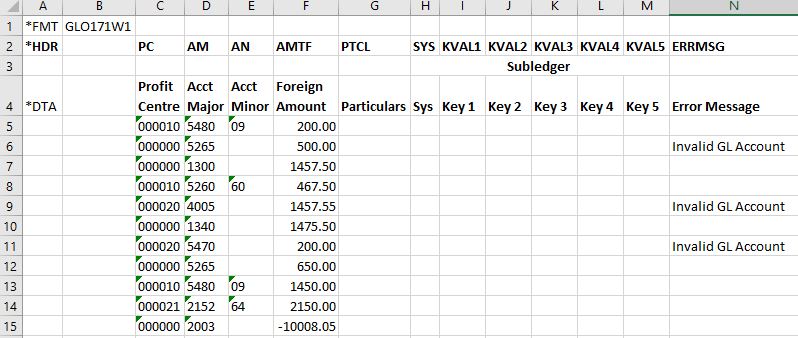
- To see the errors on green screen, go to command line and run query ‘runqry *n qtemp/glo171w1’. Use shift F8 to see the errors on the last column.
- If successful the process will update the General Ledger Interface file. The transactions generated in the interface file will then be processed during the end of day process. The results can then be viewed in the general ledger inquiries.
