
Contents
Introduction
Royalties Rights & Permission system is a fully integrated set of programs, designed to effectively provide the means to manage contracts by securing and recording the primary rights, subsidiary rights and permissions that have been requested by external parties within the system. It identifies the works associated with the contract along with the contractual details and the rights owner for the payment of royalties.
This document describes the setups and processes involved in the management and the processing of Payment contracts.
Business rules
Business rules for Royalties, Rights & Permission – Payments must be setup with support from Iptor IP1 consultants. It is critical to understand the setting of control files and how it works. Control files must be setup correctly for the system to operate as intended. Any changes to the control files setup should be addressed cautiously and in consultation with Iptor IP1 consultants.
| Note | This document does not cover customised setup tasks of specific companies. Deviations from this setup should be covered by setup tasks written by individual companies. |
The following control files have been changed or newly created for the new Royalties Rights and Permission module.
| Business rules | Setup |
|
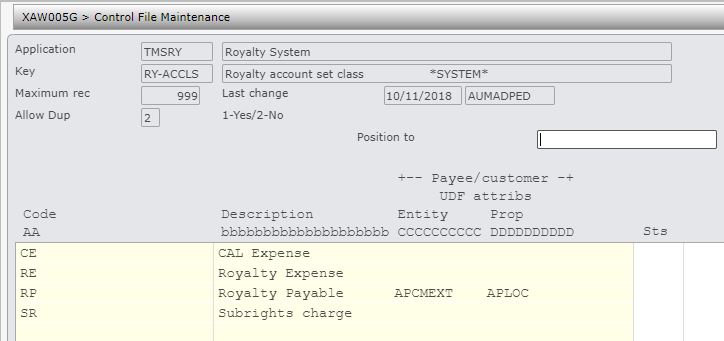
TMSRY/RY-ACCLS Royalty account set class |
This is a system defined control file to classify the royalty account set into expense group and payee group.
|
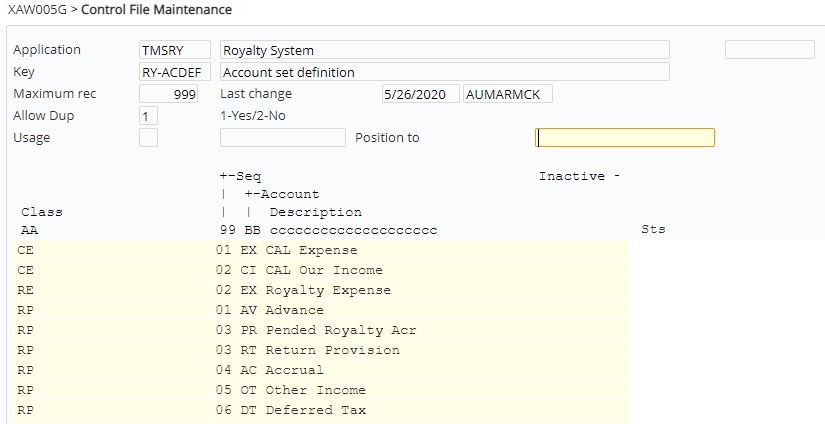
| TMSRY/RY-ACDEF Account set definition |
Each royalty account set class has its own accounts which can be deactivated if required.
|
|
TMSDS/TM-STS Works status |
This is a system defined control file that holds all the work statuses.
|
|
TMSDS/TM-CTYP Works content type |
Define all the various types of work contents (information only).
|
|
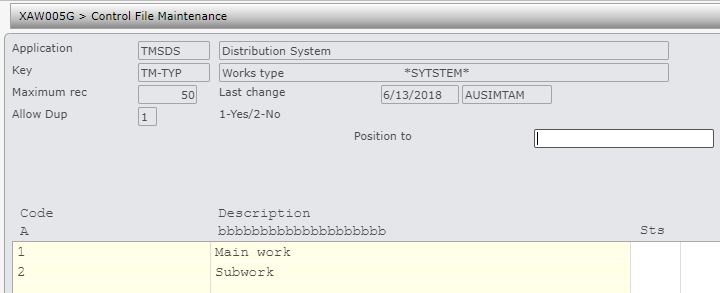
TMSDS/TM-TYP Works type |
This system defined control file differentiates between work and subwork.
|
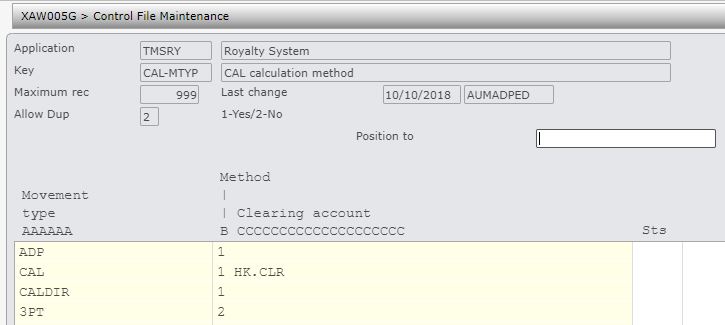
| TMSRY/CAL-MTYP CAL calculation method |
Define the calculation method (CAL or Distributor sales) by movement types.
|
|
TMSRY/RY-CTYP Type of royalty contract |
Define all the royalty types used by the system, with a short description.
|
|
TMSRY/RY-BMVT Royalty Basis of Movement
|
Determine if you want to use order or delivery quantity for the movement types. Note: Royalty movement type is 6 characters.
|
| TMSRY/RY-MVTGP Movement Group |
Setup movement group codes. Note:Movement group code is 6 characters.
|
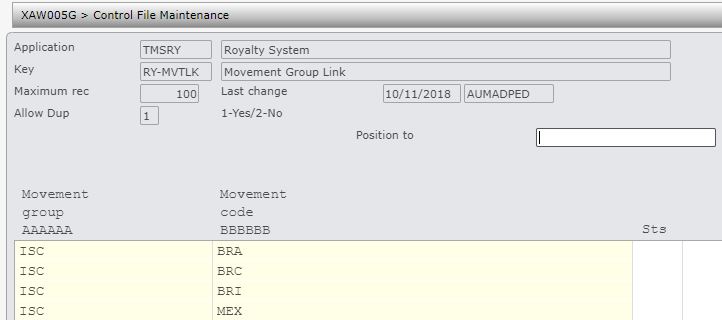
| TMSRY/RY-MVTLK Movement Link |
Link 6 character movement codes to movement groups.
|
| TMSRY/RY-OPT Royalty options |
Setup Royalty tab options used by various Royalty payment/co contracts.
|
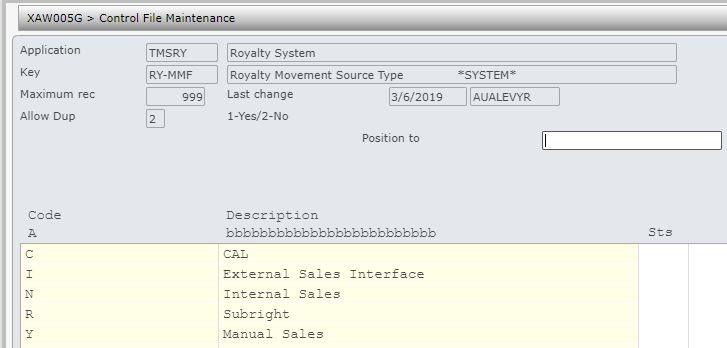
| TMSRY/RY-MMF Royalty Movement Source Type |
This system control file holds the various movement source types.
|
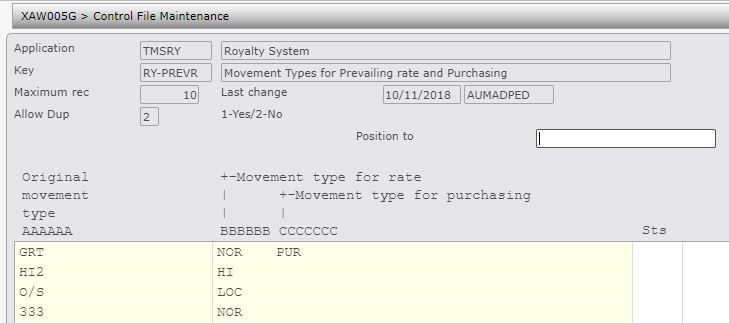
| TMSRY/RY-PREVR Movement Types for Prevailing rate and Purchasing |
Change movement type to 6 characters.
|
| TMSRY/RY-RGRP Royalty Grouping |
Setup Royalty grouping and add new column to suppress AP interface.
|
| TMSRY/RY-TTYP Text type headings |
Item has been removed from showing in any of the royalty text headings and text type CLT is added.
|
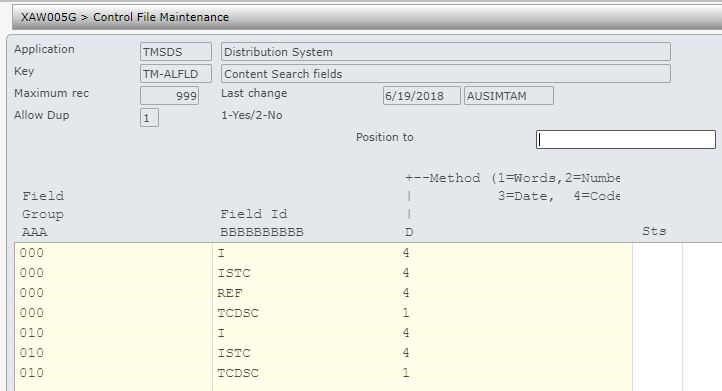
| TMSDS/TM-ALFLD Content Search fields |
Include search field ‘REF’.
|
| TMSDS/TM-ALSET Content Alpha search set |
Include prompt search fields TCTYP, TCCTP, LNGID, & STS.
|
| TMSRY/UA-ACC User access – applicable accounts |
Royalty user access has been changed to remove the Items levels and add Company group and Royalty group. All royalty processes are controlled by user access in TMSRY/UA-ACC and TMSRY/UA-ACT.
|
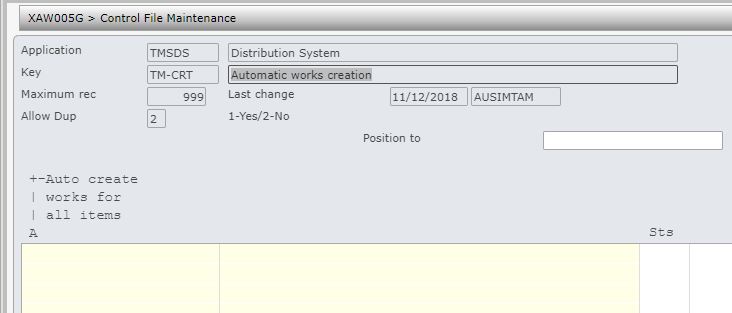
| TMSDS/TM-CRT Automatic works creation |
Set the flag to ‘1’ to always auto create work on item creation (without checking TMSRY/RY-HRCHY).
|
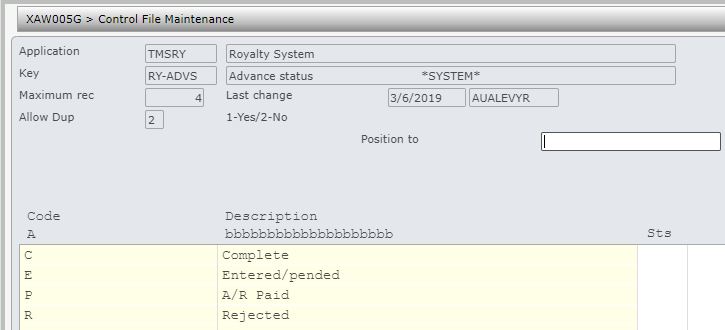
| TMSRY/RY-ADVS Advance status |
This system defined control file holds the different statuses of an advance payment.
|
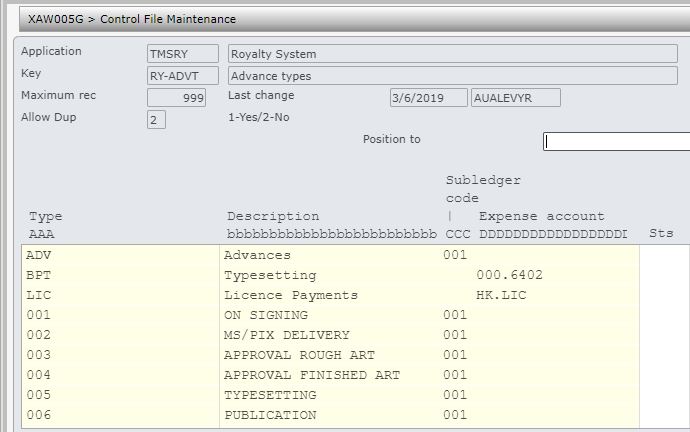
| TMSRY/RY-ADVT Advance types |
Maintain all the different types of advances applicable to royalties.
|
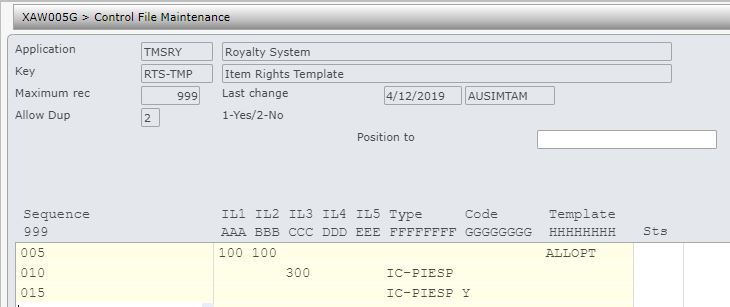
| TMSRY/RTS-TMP Item rights template |
Holds rights templates by item hierarchy, for automatic rights creation on item creation.
|
| TMSRY/RTS-LNG Rights language |
Maintain all the languages for the rights.
|
| TMSRY/RTS-RECT Rights record type |
This is the rights record identifier; granted rights or exploited subright (system defined).
|
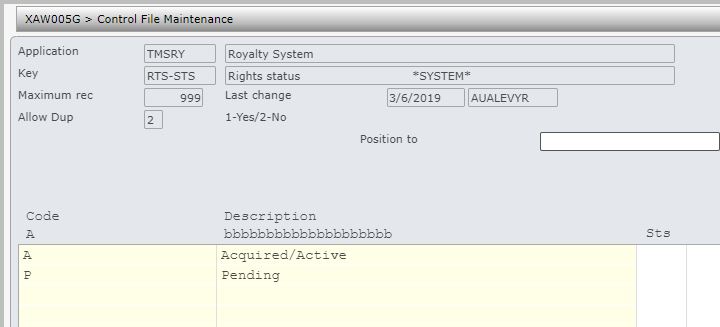
| TMSRY/RTS-STS Rights status |
Holds rights statuses (system defined).
|
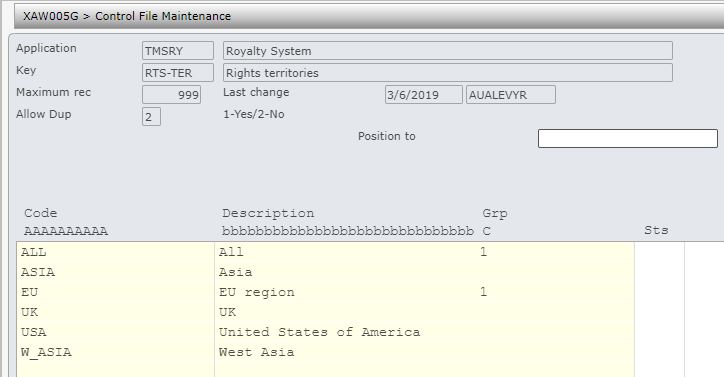
| TMSRY/RTS-TER Rights territories |
Maintain all the rights regions.
|
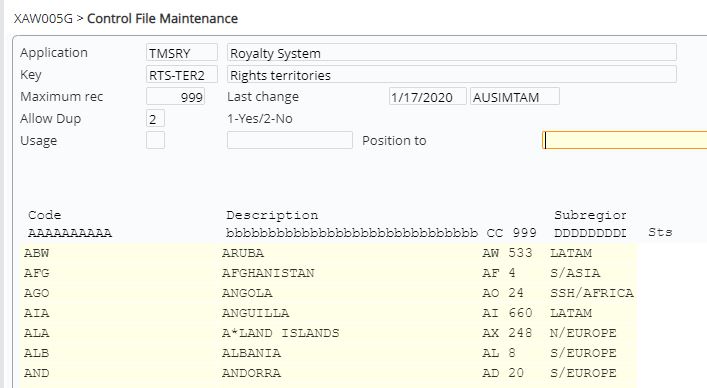
| TMSRY/RTS-TER2 Rights territories |
Maintain all the rights sub-regions.
|
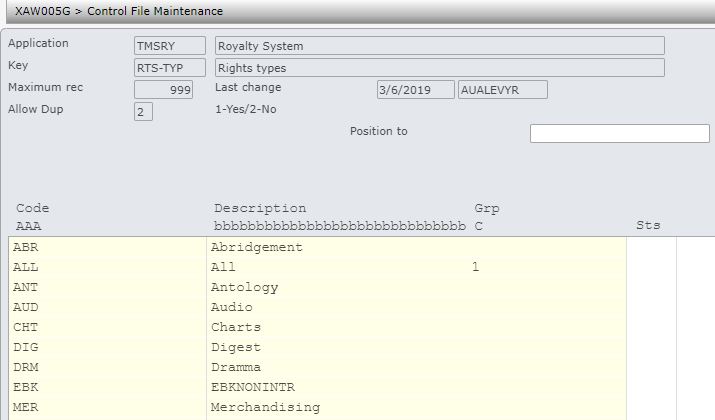
| TMSRY/RY-TYP Rights types |
Maintain all the rights types.
|
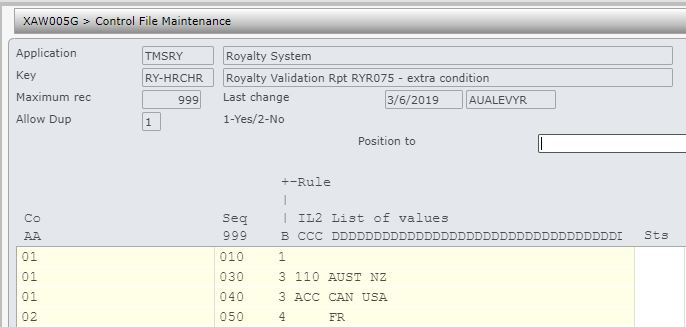
| TMSRY/RY-HRCHR Royalty Validation Rpt RYR075 – extra condition |
Holds conditions for Royalty unallocated sales report.
|
| TMSRY/RY-BCAL Basis of calculation |
Update price basis type codes; price basis codes define the unit price for royalty calculations.
|
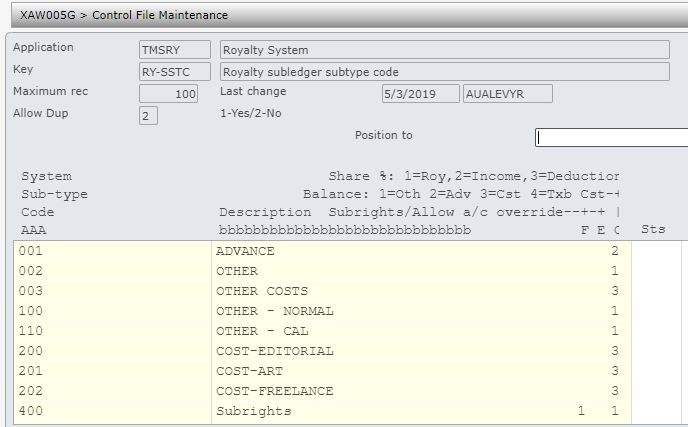
| TMSRY/RY-SSTC Royalty subledger subtype code |
Add subledger sub type code for subrights and add columns Subrights & Allow a/c override.
|
| DS-ISTC International Standard Text Content | Setup the control number file for DS-ISTC for automatic generation of Works ID, if required. |
| RY-CTNO Royalty contract number | Setup the control number file for RY-CTNO for contract number generation. |












Setup account sets
Setup the GL expense accounts to form the link between the Royalties module and the Accounts Payable/General Ledger systems
(Refer to Royalty Accounts Set for details on setting up royalty accounts sets)
Setup movement types
Movement Types are used by the system to determine which sales transactions are to be used in the calculation of Royalties payment. Sales extraction will extract the transactions based on the movement type and transfer to Royalties, Rights & Permission for calculation of royalty amounts payable to specified payees and agents.
(Refer to Movement Definition Maintenance for details on setting up movement types)
Setup templates
Templates can be created for contracts and subrights. Refer to Contract Template and Rights Template for details on setting up contract & rights templates.
Royalties R & P payments process
It is your responsibility to ensure that you understand this procedure before performing the following tasks.
| Note |
Deviations from this procedure should be covered by procedures written by your company. Before performing any tasks please ensure all the business rules are set-up accordingly. |
| Process | Steps | ||||
| Create/setup works |
All works must be defined and linked to a product before royalty contracts can be created for it.
|
||||
| Link items to work |
Multiple items can be allocated to a work.
|
||||
| Create subrights for work |
|
||||
| Create Royalty contracts |
Create Royalty contracts and link to the related works. Note: Royalty contracts now links to works instead of an ISBN. (Refer to RYW010 Work with Royalty Contracts on how to create and maintain a contract and the related details)
|
||||
| Manage milestones |
Milestone management allows early payments or advances against a contract, which is offset against future royalties. To enter an advance payment:
To approve/reject/display an advance payment:
For additional details (including field descriptions) for Milestone Management please refer to Milestone Management |
||||
| CAL Processing |
Each CAL upload into IP1 system is identified by a batch number, with the upload being either CAL or 3rd party payment (as configured in control TMSRY/CAL-MTYP). For CAL uploads if a payee is provided then the transaction will be treated as CAL direct and paid fully to the nominated payee otherwise it will be picked up by the system and split by creditors and the publisher based on the % split specified on the contract. To upload and process CAL transactions;
|
||||
| GDM Processing |
GDM processing is for sales transactions from 3rd party companies with subsidiary rights. These are uploaded into IP1 using an excel file and validated for royalty calculations. This must be run before monthly royalty calculations.
|
||||
| End of month Royalty processing |
|
||||
| End of Royalty period |
|
