Introduction
This Subscriptions SOP is for PAYG subscriptions directly related to Direct Mail campaigns. The subscription key code in a campaign links the subscription list to a campaign. The Subs list (Subscriptions list) is linked to a Product list made up of generic items that can be substituted before delivery. The price is maintained at Product list level. Therefore when the Product list price is changed, all the linked subscriptions are affected. The system allows for the following incentives.
- payments for shipments can be made in arrears
- bonus item giveaways by shipment
- total price and discount override by shipment
- sweeps based on subscription levels
The monthly subscription release can be run up to four times in a month. The release is based on the subscription selection, subscription order status, customer subscription status and the subscription joining date. Multiple subscriptions can be combined and delivered in the earlier week. Special freight deals with nominated carriers can be setup along with combined shipping for multiple orders generated from a single release and with the same delivery address. The charge for combined shipping will be a combined cost that will appear as a non-stock charge item in the first order (non zero charge only).
Business rules setup
The following business rules have to be setup to handle Campaign Subscriptions. Business rules for Campaign Subscriptions must be setup with support from Iptor IP1 consultants. It is critical to understand the setting of control files and how it works. Control files must be setup correctly for the system to operate as intended. Any changes to the control files setup should be addressed cautiously and in consultation with Iptor IP1 consultants.
| Note | This document does not cover customised setup tasks of specific companies. Deviations from this setup should be covered by setup tasks written by individual companies. |
| Control file | Setup |
| TMSDM/CPGN-LTY Campaign List Type | Campaign list type identifies the nature of the campaign, along with the source of the campaign and what the campaign is linked to e.g. subscription.
Link to column in this control file must be to a subscription for all campaigns linked to subscriptions. Subs src is used in the subscriptions order to classify the order for service analysis purposes. |
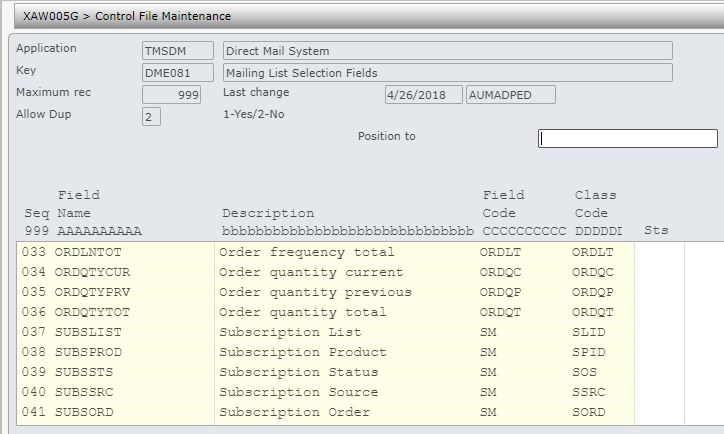
| TMSDM/DME081 Mailing List Selection Fields | All the selection fields that are to be used to create a mailing list must be defined in this control file. The following new fields are added for additional selection criteria for campaign related subscriptions.
|
| TMSDS/TEXT-TYP Distribution text types | Add new Text type ‘SBC‘ for collation text, this is for the text message that gets printed on the subscription shipment invoice.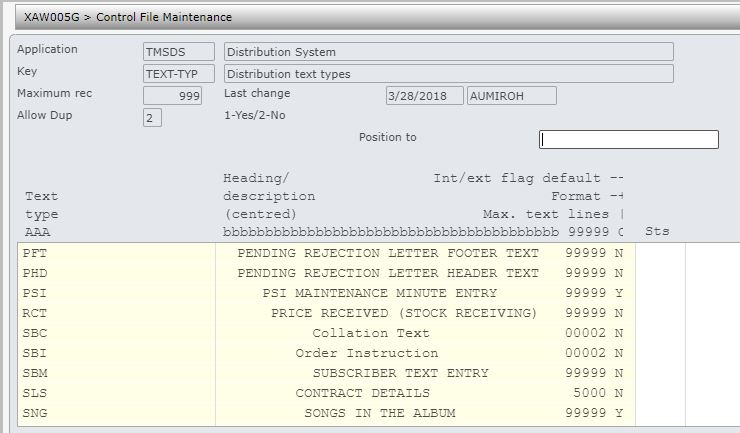 |
| TMSSM/SL-COLN Collation code | Setup all the collation codes to be used by the system. Text messages maintained against these collation codes can be printed on the shipment invoice. |
| TMSSM/SL-SCM Charge method | Specify the number of shipments that can be paid in arrears before the subscription delivery is stopped(Shipment limit) column. Entry of 2 indicates the first 2 months of subscription can be delivered without any payment; if there is no payment before the 3rd delivery, it will not be delivered.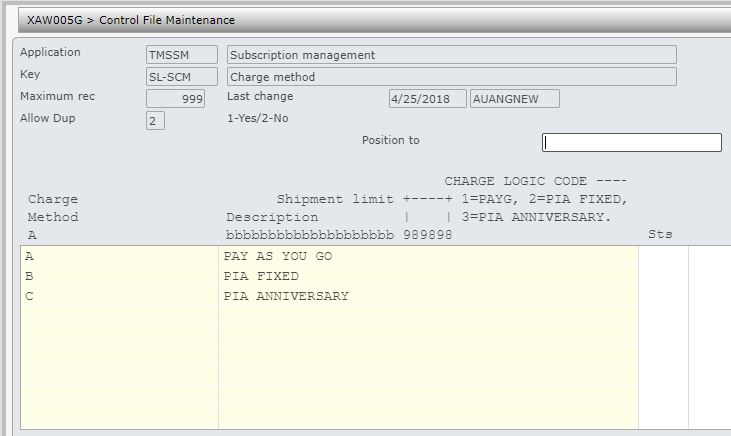 |
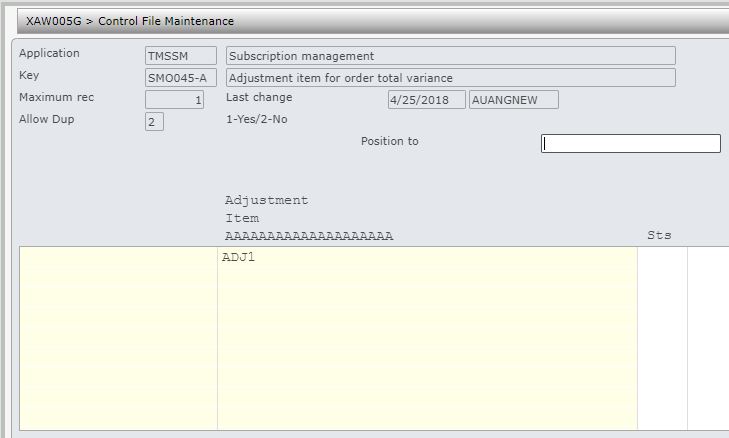
| TMSSM/SMO045-A Adjustment item for order total variance | Define the adjustment item for any price rounding as a result of splitting the product list price to individual items.
|
| TMSSM/SMO045-C Subscription customer class selection for SMO045 | Define customer classification type and the codes to include or omit in the subscription order release via SMO045. |
| TMSSM/SMO045-F Subscription order special freight/carrier | Define all the special freight charge deals when releasing subscription orders. For special freight deal with the nominated carrier specified, the subscription order must be flagged as H=header (Type 1). Combined delivery (Type 2) is applicable for customers with multiple orders with same delivery address. Source of transaction can be overridden as specified.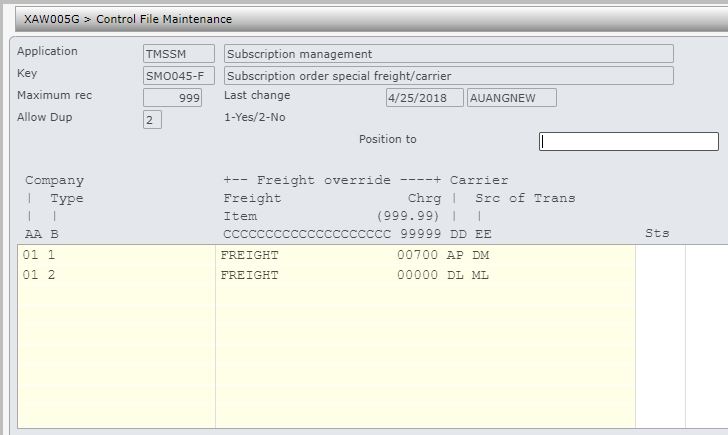 |
| TMSSM/SMO045-S Subscription order status selection for SMO045 | Define all the subscription order statuses for subscription order release via SMO045.
Add new column ‘EOT status’ & ‘EOT reason code for end of term status for fixed term PAYG subscription. |
| TMSSM/SMW015-C CRM option for customer | New control file to add CRM option for customer in Subscription order maintenance. This link will allow the user to view and maintain customer details.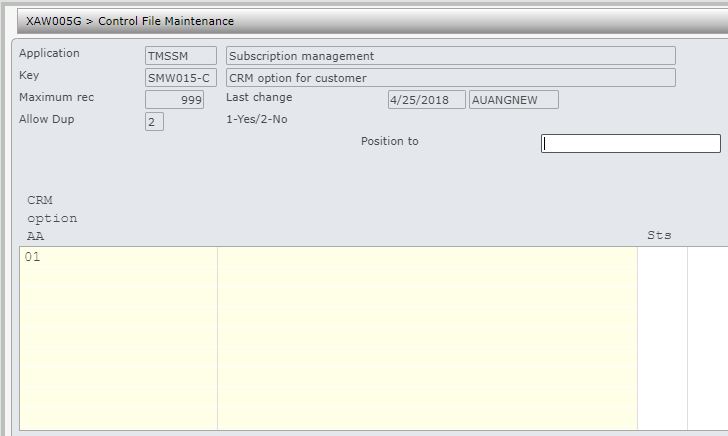 |
| TMSSM/SL-STRMT Subscription term type | Define the subscription term and the frequency, for example if the subscription is to be sent every quarter then the Time type must be 2=month and the length of the term 003. The length of the term must be greater than zero, otherwise the order will not be released. |
| TMSDS/TR-TXT Transaction text type | Add new transaction text type ‘LSB‘. This will hold the Subs run number, Product ID, Subscription ID, Subs ref for the subscription transaction. It will create the link between the transactions created from the Subscription release and the run / subscription / product ID.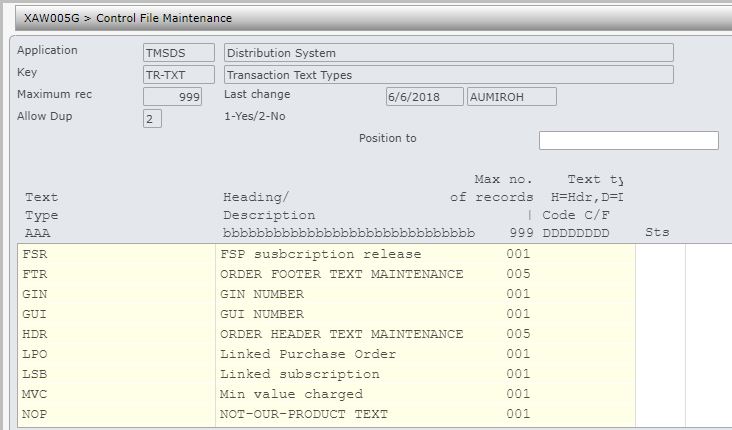 |
| TMSAR/CH-TYP Customer history entry types | Add new entry type ‘SB’ to add subscription notes to customer history file. |
| TMSAR/CH-TYPD Cust Hist: Notes gen for field value chg(type dfn) | Additional fields (SUBADD, SUBCLS, SWSOS) are added to this control file so notes can be added to customer history file when the subscription order is added, closed or the subscription order status is changed. |
| TMSDS/CFM-ACT Generic action messages | Add new entry for program ‘SMW060D’ & option=’4′ |
| TMSDS/CFM-MSG Generic confirm screen messages | Maintain the message keys used. |
| TMSDS/CFM-PGM Programs that call the confirm screen program | Add new entry for program ‘SMW060D’ |
Procedure
It is your responsibility to ensure that you understand this procedure before performing the following tasks.
| Note | Deviations from this procedure should be covered by procedures written by your company. Before performing any tasks please ensure all the business rules are set-up accordingly. |
| Process | Steps | ||||||
| Plan/create subscription list | Subscription lists are company specific, so customers can subscribe only to their company specific subscriptions. Create the subscription list for the campaign subscription:
|
||||||
| Create product list & add items |
|
||||||
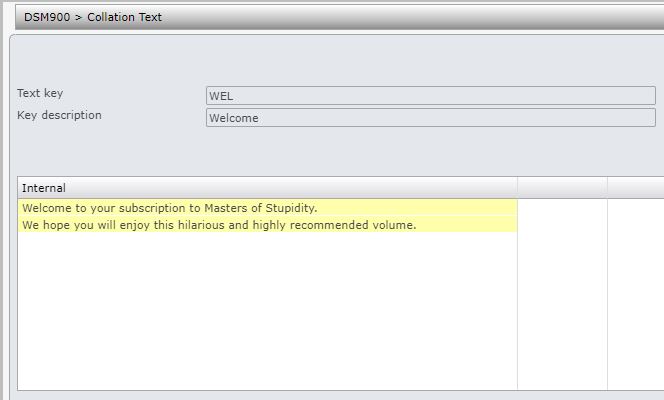
| Enter/maintain messages to be printed on the shipment invoice | Enter/maintain any messages (collation text) to be printed on the shipment invoice. The messages are entered against collation codes, which are defined in control file TMSSM/SL-COLN.
|
||||||
| Create/maintain sweep rules | Sweep tickets are generated for sweeps based on the rule set defined for each of the sweeps. The sweeps are generated by the end of day process. Create the sweeps and the associated rules:
|
||||||
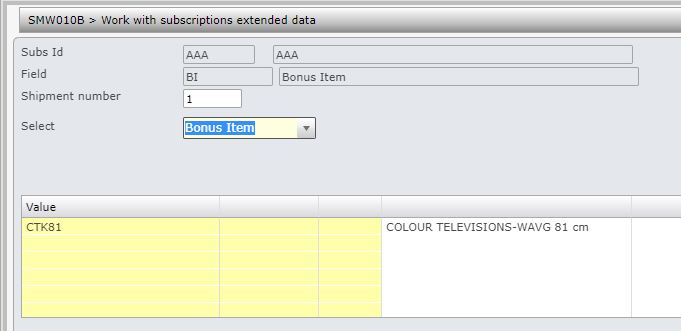
| Enter extended data for the subscription list | The following extended data for a subscription list can be added. All the extended data for a subs list is by shipment.
|
||||||
| Link product list to subs list |
|
||||||
| Start the campaign |
|
||||||
| Create a campaign list |
|
||||||
| Generate a mailing list for the campaign |
|
||||||
| Enter/maintain all contacts for the campaign list | From the results of the campaign enter all the contacts against the campaign list.
|
||||||
| Link contacts to customers | Check and create customer links for all the contacts on the campaign list. If a customer does not exist then create the customer in the customer masterfile, then link it to the contact. Subscription order can not be generated unless there is a customer linked.
|
||||||
| Generate subscription orders |
|
||||||
| Release subscription orders | Campaign subscriptions orders must be released only via below menu option. It can be run more than once during the month. With delivery based on the joining date, reference date on the release panel is used to work out which subscription orders will be released for delivery.
This would release the selected orders to Distribution for delivery. Refer to SMW045 Subs Order Monthly Release in Subscriptions user guide to see the selection rules, whats included in the released order and additional information regarding the release process.
|
||||||
| Manage subs release run | Release run management allows you to manage the subscriptions order run where you can
Refer to SMW060 Subs Release Run Management in Subscriptions user guide for information on this process. |
||||||
| EOD process | Subscriptions End of day process automatically generate sweep tickets based on the rule set for each of the sweeps. All subscription orders for a customer are evaluated and programs specified on control file TMSSM/RULE-SOS does the following.
|