
Introduction
A cash sale is a business transaction in which the buyer pays for goods or services at the time of the purchase. In IP1 Accounts Receivable your cash sales payment will appear as a credit and the invoice as a debit. Your entries will vary if you use a combination of payment methods. (e.g. part Check, Voucher and Credit Card). Usually for a Cash Sale Account, you would give a refund to the Credit Card Merchant or and Refund to the Accounts Payable.
IP1 also allows you to create a Credit value in the form of a voucher for the Cash Sale account where there has been an error in the processing of the order or in the case of converted data where there is no credit card token, a refund by check is not acceptable, and or the Customer will not provide a new credit card.
Business rules setup
The following business rules have to be setup to process Cash Sale Voucher Credits. Business rules for this process must be setup with support from Iptor IP1 consultants. It is critical to understand the setting of control files and how it works. Control files must be setup correctly for the system to operate as intended. Any changes to the control files setup should be addressed cautiously and in consultation with Iptor IP1 consultants.
The purpose of this setup is to assist Iptor IP1 consultants and customers setup appropriate business rules at a customer site for the specified process.
| Note | This document does not cover customised setup tasks of specific companies. Deviations from this setup should be covered by setup tasks written by individual companies. |
| Control file | Setup |
| TMSAR/BK-PFNL Payment types by payment function | Setup ‘VCR’ Voucher refund payment type |
| TMSDS/OM-PAYTL Payment type list for program | Set up payment type ‘Voucher refund’ on CLE005A |
| TMSDS/OM-PAYT3 Payment types allowed for payment type list | Set up payment type ‘Voucher refund’ on CLE005A |
Procedure
Create credit voucher for the cash invoice
- In the menu, expand Base Modules > Distribution > Debtors & Claims > Claims Control > Entry and then double-click Claim Entry/Approval. CLE005 Claim Entry/ Maintenance panel appears.
- Enter the Customer Account Number and click function Select inv list to search for the invoice to be credited.

- Select the invoice.
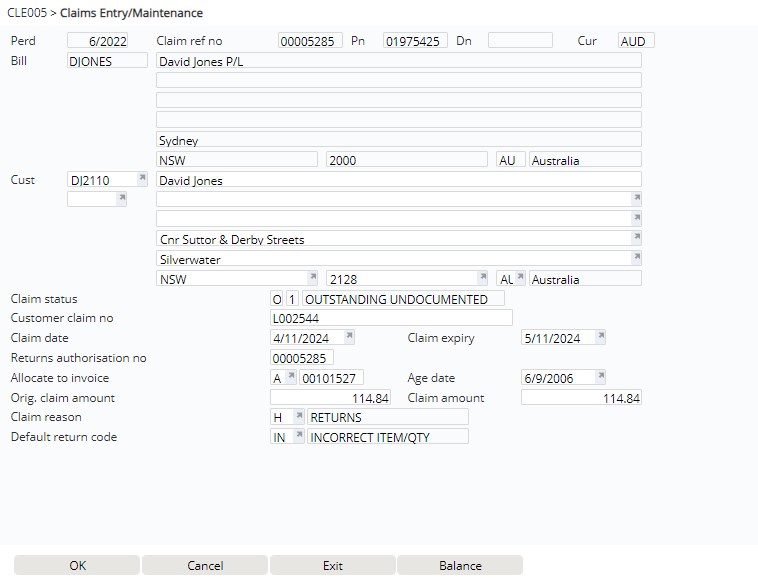
- Enter the Returns authorisation number and select the Claim reason/return code.
- Page down and verify Payment terms code is ‘PP’ (prompt payment) and Warehouse is correct.
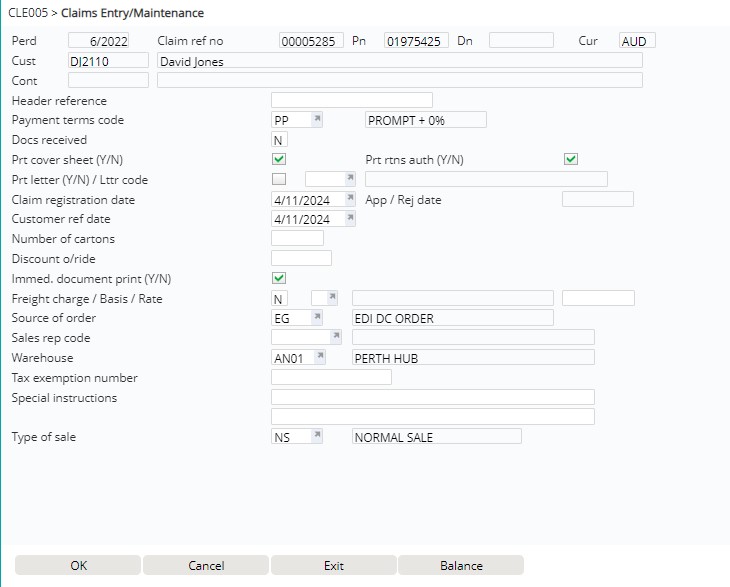
- Click OK. Claims details is displayed.

- Verify the Price and the Claim Total and click Release. DSE131 Payment entry panel would then display to refund the payment.

- Select new payment method ‘VCR‘ Voucher refund and click OK.

- Enter/update the Voucher Name and address for the Voucher to be allocated to the right person. The system will default the name and address if previously purchased through IP1 Credit Card.
- Click OK to return to the DSE131 Payment Entry panel.
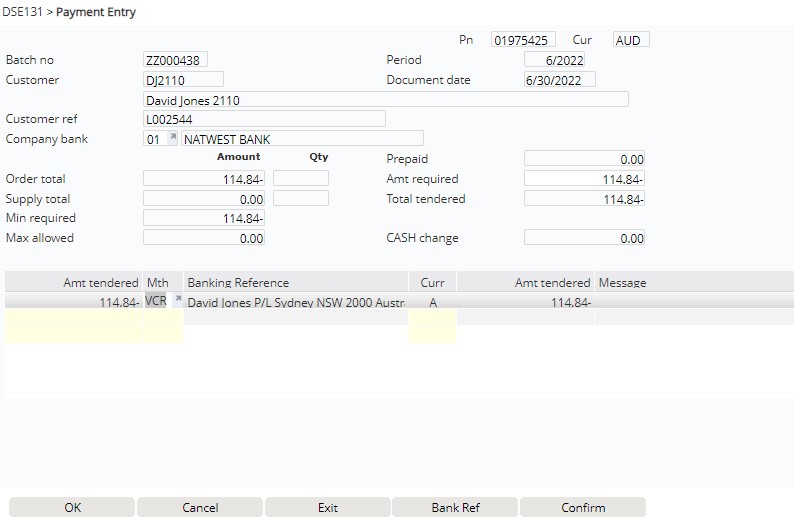
- Click Confirm to complete the process. Voucher for the refund amount gets created against the claim.
