
The royalty transactions extracted from the transaction files are summarized at the end of each month into a history file. This updates into the royalties movement and update programs awaiting the royalties run. The royalty history details are fully maintainable.
In this program, for a selected Royalty period, the calculated movement values can be accessed and maintained by Movement type.
Add new movement value
- In the menu, expand Publishing Modules > Royalties, Rights & Permission > Management and double-click Royalty Monthly Summary Maint. RYM070 Royalty Maintenance selection panel appears.
- Enter the item and contract number and click OK. RYM070 Royalty Maintenance main panel appears.
| Function | Description |
| Add header |
To add royalty history header. |
| Option | Description |
| History header |
Allows you to maintain royalty history header for the royalty period. |
| History detail |
Allows you to maintain royalty history details for the royalty period. |
- Click Add to add a new movement value. RYM070 Royalty Maintenance panel appears in add mode.

| Field | Description |
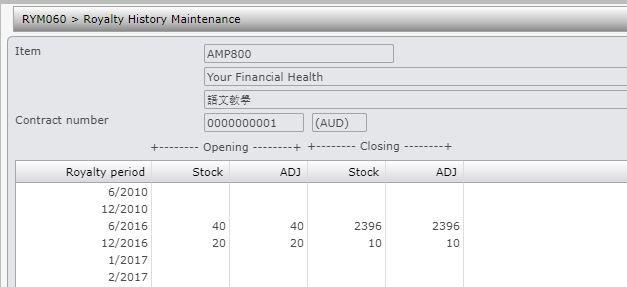
| Royalty period | Period for which royalty is being maintained. |
| Opening stock qty | This is the opening stock balance at the beginning of the period. |
| Opening stock adj | This is the adjusted stock quantity at the beginning of the period. |
| Closing stock qty | This is the closing stock balance at the end of the period. |
| Closing stock adj |
This is the adjusted stock quantity at the end of the period. |
- Enter the required information and click OK. RYM060 Royalty History Maintenance panel appears to add history details.
| Field | Description |
| Mov Typ | The movement type being maintained. |
| Step | The step number for the rising stepped royalties, |
| This period qty | This is the quantity for this period for the . |
| This period amount | This is the amount for this period. |
| Prev period cuml qty | The quantity cumulated from the previous period. |
| Prev period cuml amount | The amount cumulated from the previous period. |
- Enter the required information and click OK.
New history header and history details are added for the selected item and contract number.
