
The Order Processing & Billing module is linked to the Accounts Receivable module to allow for cash with order entry. Cash payments can be allocated to an order at the time of order entry. On completion of the order the debtors file will be updated immediately with the payment. To keep interruptions to a minimum, the option is available to directly access the Customer masterfile and the Item masterfile for the addition of new customers and new items, during order entry. Direct access is also available to the Stock Inquiry and Price and Availability Inquiry, for each individual line item. Centralised invoicing, whereby invoicing allows for alternate debtors is useful for head office and store accounting.
User access through the internet to enter orders is catered for. The User ID and the customer number must be entered in a control file for access to be allowed. The customer number will then be defaulted and the header panels bypassed. This will allow entry of the item, quantity and type of sale. Order period for web orders will be forced to be current period to avoid incorrect period when orders are keyed on the last day of the month but paid and processed the next day.
Non-inventory costs can be included in a sales order where the cost is reflected in the sales profitability but does not affect the inventory cost. To do this the non-stock item is set up as a component belonging to a system. When an order is processed for a system with a non-stocked item as a component, a sales transaction is generated with only the non-stock item cost. The cost is derived from the buying price field of the non-stock item in the Item masterfile.
Component breakdown for cost is based on the buying price (control file TMSDS/PACK-CST determines the buying price ID by warehouse). If the component prices are not found or is zero then the system will use the company of sales to look up the main warehouse in TMSDS/CONO and retrieve the last receipt price. If still not found or zero then it will revert back to the warehouse inventory cost.
Component break down for sales is based on control file TMSDS/PACK-BRK. If set at component selling price and none of the components prices are found, then the system will revert back to component price allocation % in the Item masterfile.
For example Pack (price $100) has 2 components C1 (price $75) and C2 (price $50). If sold individually, C1 and C2 would be $125 and hence a pack offer a discount indirectly as 20% off.
Hence the break down of the pack will be:
Pack $100
C1 $ 60
C2 $ 40
Already delivered entry permits customer billing and stock updates to occur regardless of balances or quantities. This is useful in the event that stock must leave the warehouse prior to invoicing. Stock transfers can be entered and treated like normal orders, whereby stock is backordered when an out of stock/insufficient stock situation exists. A special dummy customer number should be allocated to this type of order, so that orders can be easily tracked and backorders can be isolated. This stock transfer facility is in addition to the Stock Transfer module in Inventory Management, which does not backorder stock. Direct to Invoice allows for immediate stock updates at the time of order entry. Drop shipments can be processed to cater for backorders being placed with stock being supplied directly to the customer by the supplier. The goods do not physically enter the warehouse but logical transactions in and out of the warehouse will be processed. Multiple warehouses can be used when processing customer’s orders for drop shipment.
TMSDS/OE-DWH defines the rules for default multiple warehouses which can also be used at Branch or Company level. This is used in conjunction with TMSDS/OE-FMTPM which contains the user defined menu order types to be used in multiple warehousing. The Purchasing module links a purchase order to a sales order by referencing the customer account number and reference number on the purchase order.
There is facility to have the originally ordered item automatically substituted with a nominated item in an out of stock/out of print situation, pending for customer approval. The copy function is used to copy and then maintain a previously entered order. This function also applies to old orders regardless of their status such as completed or rejected.
An order can be suspended using the suspension function if the entry process has to be interrupted. The order can be re-activated at a later stage. To cater for direct mail campaigns and large buying group orders, pre-printed/standard order forms can be set up, which eliminates the need for repetitive and extensive keying.
If credit limit guidelines have been exceeded a warning message displays and you have the option to confirm or complete the order. Credit card sales do automatic credit card payment processing and update Accounts Receivable. For claims with a credit card detail refunds are processed via credit card. If an invoice is not allocated to any payment and a debtor class of the customer allows payment by credit card then attempt to allocate the invoice to any existing credit. This is controlled by TMSDS/CM-CLS. There is a facility to calculate promotional allowances by business unit and have this credited to the customer during order entry.
The warehouse diversion facility allows for stock to be ordered from multiple warehouses. If sufficient stock is not available in the first nominated warehouse, the (remaining) stock is retrieved from the second nominated warehouse. One of these warehouses is also defined as the warehouse for which any back orders will be recorded. The pending routine checks the customer’s credit limit, overdue balances, valid prices and discounts and various company policies. If an order fails to comply it is held in pending for management to review/approve/reject. Batch printing of picking slips allows for order to order and order to backorder merge function, which merges separate orders for the same customer into one single invoice/dispatch to save on delivery costs. Orders will only merge if conditions are valid, and only with customer approval. Order consolidation can be specified for individual orders. This will minimise freight cost.
To further minimise freight costs, the facility is provided to have orders below a predefined minimum value held until they are merged with another order for the same customer. The orders will automatically release once their total balance exceeds the minimum value, or if the orders have been held for longer than a predetermined retention period. Batch printing of picking slips/invoices allows for order grouping and sorting, based on user-defined criteria. For order entry via picking slip, the posting to the customer account occurs after the goods are picked and dispatched and the invoices have been produced.
Once an order has been confirmed it goes through any one of the following processes.
- Pending checks are performed and the order could pend for approval for a variety of reasons. Stock is still reserved for Pending orders. Refer to the Pending User Guide for details
- If not in pending the orders are released to the warehouse
- The warehouse will release the order for picking
- Picking slip prints in the warehouse
- The warehouse can send an order back to customer service
A date stamp provides a history of the order as it goes through the various processes.
A status K order can be maintained by customer service. Once K status has been passed the warehouse maintains the order if necessary and can send it back to customer service if required.
Contents
- 1 Picking methods
- 2 Order types
- 3 Order formats
- 4 Print on demand
- 5 Held orders
- 6 Status flags
- 7 Stock transfer
- 8 Write off
- 9 Suspended orders purge
- 10 Line based bonus
- 11 Order based incentives
- 12 Reservations & entitlements
- 13 Depositories
- 14 Extended payment term by customer classification
- 15 Consolidated/Deferred invoicing
- 16 Transaction date/Time stamp
- 17 Duplicate title checking
- 18 Quantity warning limit
- 19 Next month processing
- 20 Delivery window
- 21 Digital product sales
- 22 Subscription orders
- 23 Inter-company sales
- 24 Process flow
Picking methods
View available picking methodsThe Order Processing & Billing module has three picking methods.
| Picking Method | Description |
| Picking from Invoices | In this case the Order entry option, Direct to Invoice is selected. Stock is immediately updated at the time of order entry. For items that require serial number tracking on dispatch, Serial Entry program WHM280 is called to capture the serial numbers. An invoice is produced and the transaction is updated to the debtors system. The system allows automatic dispatch on re-invoicing of direct to invoice orders, this is dependent on control file TMSDS/WH-DSPRI. |
| Picking from Picking Slips | In this case the Order entry option, Picking Slip is selected. A picking slip is produced which allows for orders to be corrected for invoice printing if variances exist between the computer stock and the actual stock. The posting to the debtors system occurs after the ISBNs are picked and the invoice has been produced. |
| Already Delivered | This is used in the event that stock must leave the warehouse prior to invoicing. Customer billing and stock is updated regardless of balances and quantities and serial numbers are captured for items that require serial number tracking. |
Order types
View available order typesThe following order types are available in the Order Processing & Billing module.
- Normal orders
- Consignment orders
- Complimentary orders/samples
- Quotations/proformas
- Backorders
- Forward orders
- Reservations
- Loan stock
- Monthly standing orders
- Stock transfers
Order formats
There is a variety of Order header formats. The format most appropriate to your company can be nominated as a parameter in the menu option.
TMSDS/OE-FMTPM holds the actual detail format. This allows for the Header format to be selected separately from the Detail format. For example Format D which has an agent code can be used for the header and Format C which caters for item location extensions can be used for the detail.
Manual override of agent codes can be prevented in order entry with a setting in control file TMSDS/OE-FMTPM. Agent column in TMSDS/OE-FMTPM should be set to 2 to prevent the manual override.
Control file TMSDS/OE-OREF has a value ‘3’ in the Type of validation column to specify that Our Reference field requires an entry.
Iptor IP1 consultants will discuss these requirements and set up the parameters as required.
In this table each field is marked as Format 1, 2, or B etc, then screen 1, 2, 3 or 4 then positions on that screen. For example Format 1 field Source of order shows as 1.6 where 1 is the screen and 6 is the position down the screen in which the field Source of order displays.
In the header screen the fields display down the screen, and in the line detail screens the fields display across the screen.
View available order header formats.| Formats > | 1 | 2 | 3 | 4 | 5 | 6 | 7 | 8 | 9 | A | B | C | D |
| Period | 1.1 | 1.1 | 1.1 | 1.1 | 1.1 | 1.1 | 1.1 | 1.1 | 1.1 | 1.1 | 1.1 | 1.1 | 1.1 |
| Contact (I) | 1.2 | 1.2 | 1.2 | 1.2 | 1.2 | 1.2 | 1.2 | 1.2 | 1.2 | 1.2 | 1.2 | 1.2 | 1.2 |
| Customer/Dlv (I) | 1.4 | 1.4 | 1.4 | 1.4 | 1.4 | 1.4 | 1.4 | 1.4 | 1.4 | 1.4 | 1.4 | 1.4 | 1.4 |
| Billing (I) | 1.11 | 1.11 | 1.11 | 1.11 | 1.11 | 1.11 | 1.11 | 1.11 | 1.11 | 1.11 | 1.11 | 1.11 | 1.1 |
| Order form (I) | 1.13 | 1.13 | 1.13 | 1.13 | 1.13 | 1.13 | 1.13 | 1.13 | 1.13 | 1.13 | 1.13 | 1.13 | 1.1 |
| Promotion (I) | 1.14 | 1.14 | 1.14 | 1.14 | 1.14 | 1.14 | 1.14 | 1.14 | 1.14 | 1.14 | 1.14 | 1.14 | 1.1 |
| Period (O) | 2.1 | 2.1 | 2.1 | 2.1 | 2.1 | 2.1 | 2.1 | 2.1 | 2.1 | 2.1 | 2.1 | 2.1 | 2.1 |
| Pn (O) | 2.1.2 | 2.1.2 | 2.1.2 | 2.1.2 | 2.1.2 | 2.1.2 | 2.1.2 | 2.1.2 | 2.1.2 | 2.1.2 | 2.1.2 | 2.1.2 | 2.1.2 |
| Cur (O) | 2.1.3 | 2.1.3 | 2.1.3 | 2.1.3 | 2.1.3 | 2.1.3 | 2.1.3 | 2.1.3 | 2.1.3 | 2.1.3 | 2.1.3 | 2.1.3 | 2.1.3 |
| Cust del (I) | 2.8 | 2.8 | 2.8 | 2.8 | 2.8 | 2.8 | 2.8 | 2.8 | 2.8 | 2.8 | 2.8 | 2.8 | 2.8 |
| Bill (O) | 2.2 | 2.2 | 2.2 | 2.2 | 2.2 | 2.2 | 2.2 | 2.2 | 2.2 | 2.2 | 2.2 | 2.2 | 2.2 |
| Contact (O) | 2.14 | 2.14 | 2.14 | 2.14 | 2.14 | 2.14 | 2.14 | 2.14 | 2.14 | 2.14 | 2.14 | 2.14 | 2.1 |
| Email address (I) | 2.15 | 2.15 | 2.15 | 2.15 | 2.15 | 2.15 | 2.15 | 2.15 | 2.15 | 2.15 | 2.15 | 2.15 | 2.2 |
| Cust ref/date | 2.16 | 2.16 | 2.16 | 2.16 | 2.16 | 2.16 | 2.16 | 2.16 | 2.16 | 2.16 | 2.16 | 2.16 | 2.2 |
| Our ref | 2.17 | 2.17 | 2.17 | 2.17 | 2.17 | 2.17 | 2.17 | 2.17 | 2.17 | 2.17 | 2.17 | 2.17 | 2.2 |
| Source of order | 2.18 | 2.18 | 2.18 | 2.18 | 2.18 | 2.18 | 2.18 | 2.18 | 2.18 | 2.18 | 2.18 | 2.18 | 2.2 |
| Type of sale | 2.19 | 2.19 | 2.19 | 2.19 | 2.19 | 2.19 | 2.19 | 2.19 | 2.19 | 2.19 | 2.19 | 2.19 | 2.2 |
| Period (O) | 3.1 | 3.1 | 3.1 | 3.1 | 3.1 | 3.1 | 3.1 | 3.1 | 3.1 | 3.1 | 3.1 | 3.1 | 3.1 |
| Pn (O) | 3.1.2 | 3.1.2 | 3.1.2 | 3.1.2 | 3.1.2 | 3.1.2 | 3.1.2 | 3.1.2 | 3.1.2 | 3.1.2 | 3.1.2 | 3.1.2 | 3.1.2 |
| Cur (O) | 3.1.3 | 3.1.3 | 3.1.3 | 3.1.3 | 3.1.3 | 3.1.3 | 3.1.3 | 3.1.3 | 3.1.3 | 3.1.3 | 3.1.3 | 3.1.3 | 3.1.3 |
| Cust (O) | 3.2 | 3.2 | 3.2 | 3.2 | 3.2 | 3.2 | 3.2 | 3.2 | 3.2 | 3.2 | 3.2 | 3.2 | 3.2 |
| Accept incentive payments | 4.16 | 3.10 | 4.16 | 4.18 | 4.16 | 4.18 | 4.18 | 4.17 | 4.18 | 4.18 | 4.17 | ||
| Actual due date | 3.18 | 3.5 | 3.9 | 3.7 | 3.7 | 3.14 | 3.13 | 3.14 | 3.7 | 4.11 | 3.18 | 3.18 | |
| Agent code | 3.7 | 3.10 | |||||||||||
| Allow for substitution | 3.15 | 3.14 | 3.13 | 4.6 | 4.6 | 4.3 | 4.3 | 4.3 | 4.6 | 3.13 | 3.19 | 3.15 | |
| Allow partial delivery | 3.16 | 3.15 | 3.6 | 4.7 | 4.7 | 4.4 | 4.4 | 4.4 | 4.7 | 3.14 | 4.3 | 3.16 | |
| Auto freight charge | 4.13 | 4.14 | 4.13 | ||||||||||
| Backorder release priority | 4.6 | 4.6 | 4.6 | 4.9 | 4.9 | 4.7 | 4.7 | 3.7 | 4.9 | 4.3 | 4.10 | 4.6 | |
| Carrier | 3.19 | 3.18 | 3.18 | 3.4 | 3.4 | 3.4 | 3.4 | 3.8 | 3.4 | 3.16 | 3.11 | 3.19 | |
| Carrier instructions | 3.13 | ||||||||||||
| Carton quantity only | 3.8 | ||||||||||||
| Check duplicate items | 4.17 | 4.17 | 4.17 | 4.19 | 4.17 | 4.2 | 4.19 | 4.19 | 4.18 | 4.19 | 4.19 | 4.18 | |
| Customer backorder acceptance | 4.7 | 4.7 | 3.7 | 3.9 | 3.1 | 4.9 | 4.10 | 4.1 | 3.10 | 4.12 | 3.9 | 4.7 | |
| Cut-off-date | 3.3 | 3.16 | 3.3 | 3.12 | 3.13 | 4.16 | 4.15 | 4.15 | 3.14 | 3.3 | 3.3 | ||
| Default firm sale | 3.8 | ||||||||||||
| Delivery run number | 4.11 | 4.12 | 4.11 | 4.13 | 4.12 | 4.11 | 4.12 | 4.12 | 4.13 | 4.13 | 4.12 | ||
| Delivery stop number | 4.12 | 4.13 | 4.12 | 4.14 | 4.13 | 4.12 | 4.13 | 4.13 | 4.14 | 414 | 4.13 | ||
| Discount o/ride | 3.5 | 3.6 | 3.14 | 3.5 | 3.5 | 3.5 | 3.5 | 3.17 | 3.5 | 3.6 | 3.10 | 3.5 | 3.8 |
| Email address | 3.6 | ||||||||||||
| Forwarding agent | 4.3 | 3.19 | 3.19 | 4.8 | 4.8 | 4.19 | 3.9 | 3.9 | 4.8 | 3.17 | 3.12 | 4.13 | |
| Freight charge basis | 4.14 | 4.15 | 4.14 | 3.13 | 3.15 | 3.9 | 3.7 | 3.6 | 3.16 | 4.16 | 4.16 | 4.15 | |
| Freight rate/value | 4.15 | 4.16 | 4.15 | 3.14 | 3.16 | 3.1 | 3.8 | 3.7 | 3.17 | 4.17 | 4.17 | 4.16 | |
| From warehouse | 3.7 | 3.7 | 4.6 | 3.8 | 3.8 | 4.17 | 4.16 | 4.16 | 3.8 | 4.4 | 4.5 | 3.7 | 3.5 |
| Header reference | 3.3 | 3.3 | |||||||||||
| Hold for minimum value | 4.1 | 4.11 | 4.1 | 4.12 | 4.11 | 4.1 | 4.11 | 4.11 | 4.12 | 3.7 | 4.12 | 4.11 | |
| Immed picking slip | 3.12 | 3.11 | 3.4 | 3.3 | 3.3 | 3.18 | 3.18 | 3.19 | 3.3 | 3.4 | 3.15 | 3.12 | |
| Minimum charge applies | 3.14 | 3.13 | 3.12 | 4.16 | 4.14 | 4.13 | 4.14 | 4.14 | 4.15 | 3.12 | 4.13 | 3.14 | |
| Not after date | 3.5 | 3.4 | |||||||||||
| Not before date | 3.4 | 3.3 | |||||||||||
| Order consolidation | 4.9 | 4.1 | 4.9 | 3.15 | 3.17 | 3.15 | 3.14 | 3.15 | 3.18 | 4.9 | 4.9 | 4.10 | |
| Order priority | 4.5 | 4.5 | 4.5 | 4.17 | 4.15 | 3.10 | 3.10 | 3.12 | 4.16 | 3.19 | 3.6 | 4.5 | |
| Order received date | 3.3 | ||||||||||||
| Order total | 3.4 | ||||||||||||
| Payment terms code | 3.17 | 3.4 | 3.8 | 3.6 | 3.6 | 3.13 | 3.12 | 3.13 | 3.6 | 4.10 | 3.17 | 3.17 | 3.7 |
| Phone/Fax number | 3.3 | ||||||||||||
| Preferred delivery date | 4.4 | 4.3 | 3.18 | 4.4 | 4.4 | 3.17 | 3.17 | 3.18 | 4.4 | 3.18 | 4.4 | ||
| Print document (Quotations) | 4.8 | 4.9 | 4.8 | 4.8 | 4.10 | 4.8 | 4.8 | 4.8 | 4.10 | 4.7 | 4.7 | 4.8 | |
| Release date (Forward orders) | 3.4 | 3.17 | 3.17 | 3.19 | 3.19 | 3.15 | 3.15 | 3.16 | 3.19 | 4.6 | 4.11 | 3.4 | |
| Reserve O/S stock | 4.8 | 4.9 | 4.8 | 4.11 | 4.10 | 4.8 | 4.9 | 4.9 | 4.11 | 4.8 | 4.8 | 4.9 | |
| Sales rep code | 3.6 | 3.3 | 3.15 | 3.11 | 3.12 | 3.12 | 3.11 | 3.11 | 3.13 | 3.15 | 3.16 | 3.6 | 3.9 |
| Special instructions | 3.10 | 3.9 | 3.11 | 3.1 | 3.11 | 4.5 | 4.5 | 3.5 | 3.11 | 3.10 | |||
| Tax exemption number | 3.9 | 4.7 | 3.10 | 4.3 | 4.3 | 3.16 | 3.16 | 3.10 | 4.3 | 3.9 | 4.4 | 3.9 | |
| To warehouse (Transfers) | 3.8 | 3.8 | 4.7 | 3.9 | 3.9 | 4.18 | 4.17 | 4.17 | 3.9 | 4.5 | 4.6 | 3.8 | 3.6 |
| Formats > | 1 | 2 | 3 | 4 | 5 | 6 | 7 | 8 | 9 | A | B | C | D* |
| ISBN | 1.1 | 1.1 | 1.1 | 1.1 | 1.1 | 1.1 | 1.1 | 1.1 | 1.1 | 1.1 | 1.1 | 1.1 | |
| Order qty | 1.2 | 1.2 | 1.2 | 1.2 | 1.6 | 1.2 | 1.2 | 1.2 | 1.2* | 1.2 | 1.2 | 1.2 | |
| Dlv qty | 1.3 | 1.3 | 1.3 | 1.6 | 1.2 | 1.5 | 1.6 | 1.5 | 1.6 | 1.5 | 1.5 | 1.4 | |
| B/O qty | 1.4 | 1.4 | 1.4 | 1.7 | 1.7 | 1.6 | 1.7 | 1.6 | 1.7 | 1.6 | 1.6 | 1.5 | |
| TOS | 1.5 | 1.5 | 2.3 | 2.1 | 2.1 | 2.1 | 2.1 | 2.1 | 2.1 | 2.1 | 2.1 | 3.9 | |
| Price | 1.6 | 1.6 | 2.1 | 1.4 | 1.4 | 1.3 | 1.4 | 1.3 | 1.4 | 1.3 | 1.3 | 1.6 | |
| Disc | 1.7 | 1.7 | 2.2 | 1.5 | 1.5 | 1.4 | 1.5 | 1.4 | 1.5 | 1.4 | 1.4 | 1.7 | |
| Stk status | 1.8 | 1.7 | 1.7 | ||||||||||
| Total | 1.9 | 1.8 | 1.6 | 1.8 | |||||||||
| Rep | 2.1 | ||||||||||||
| Ord ref | 2.2 | 2.1 | 1.5 | 1.3 | 1.3 | 2.2 | 2.2 | 2.2 | 1.3 | 2.2 | 2.2 | 2.1 | |
| R# | 1.8 | 2.3 | 1.8 | 2.3 | |||||||||
| Pkg | 1.8 | 1.8 | |||||||||||
| Dis Cls | 1.7 | ||||||||||||
| W/H | 1.7 | ||||||||||||
| Release Date | 1.8 | 1.8 | |||||||||||
| Item Ext | 1.3 | ||||||||||||
| UOM | 3.1 | 3.1 | 3.1 | 3.1 | 3.1 | 3.1 | 3.1 | 3.1 | 3.1 | 3.1 | 3.1 | 3.1 | |
| FSF | 3.2 | 3.2 | 3.2 | 3.2 | 3.2 | 3.2 | 3.2 | 3.2 | 3.2 | 3.2 | 3.2 | 3.2 | |
| PR | 3.3 | 3.3 | 3.3 | 3.3 | 3.3 | 3.3 | 3.3 | 3.3 | 3.3 | 3.3 | 3.3 | 3.3 | |
| DC | 3.4 | 3.4 | 3.4 | 3.4 | 3.4 | 3.4 | 3.4 | 3.4 | 3.4 | 3.4 | 3.4 | 3.4 | |
| T (tax flag) | 3.5 | 3.5 | 3.5 | 3.5 | 3.5 | 3.5 | 3.5 | 3.5 | 3.5 | 3.5 | 3.5 | 3.5 | |
| Tax | 3.6 | 3.6 | 3.6 | 3.6 | 3.6 | 3.6 | 3.6 | 3.6 | 3.6 | 3.6 | 3.6 | 3.6 | |
| Allow Cd | 3.7 | 3.7 | 3.7 | 3.7 | 3.7 | 3.7 | 3.7 | 3.7 | 3.7 | 3.7 | 3.7 | 3.7 | |
| Allow Amt | 3.8 | 3.8 | 3.8 | 3.8 | 3.8 | 3.8 | 3.8 | 3.8 | 3.8 | 3.8 | 3.8 | 3.8 |
| Note |
Format header ‘D’ can be used with any detail format. This is setup in Control file TMSDS/OE-FMTPM. * The Order Quantity field in Format 9 is 7 characters. |
Print on demand
Print on demand is catered for by utilising:
either the order to order or the purchase planning process by raising a purchase order to the supplier. With both these methods the shipment invoice from the printer is used to receive the stock into the physical or drop ship warehouse, release the backorders, generate the customer sales invoice and create a supplier invoice in the Accounts Payable system
or having the products supplied and delivered directly by the POD printer without the need to raise a purchase order, receipting and dispatching in Iptor IP1. POD printer will be a component of the delivery chain. Set of rules have to be setup to determine which POD printer will deliver the POD-direct products. The rules can be defined via a combination of customer and product attributes.
Held orders
In order to minimize freight costs, separate orders from the same customer can be merged into one single invoice/dispatch. If an order is below a user defined minimum value, it is held by the system until it is merged with another order for the same customer. If the balance exceeds the minimum value or the order has been held for longer than the user defined retention period, the orders are automatically released. These functions are provided by the Held Order Management system. The hold for minimum value facility can be overridden on an order to order basis.
Included in the pending check function is the Pend for Minimum Value. If an order’s value is below the set limit, the order pends for approval and can be maintained if required. The minimum value is set up on a system defined control file, by company.
Status flags
View all the available order status flags| Status | Definition |
| E | Entered. Order keyed into the system. Can be maintained. |
| P | Pend. Order in Pending system awaiting review. Can be maintained, rejected or approved for Order Entry and Pending. |
| K | Awaiting picking slip print. This will be the status if Immediate Pick is N and if the orders are being pooled awaiting merging. Can be maintained. Status K can be skipped and go to print status of DP. |
| D | Picking slip printed/RF device awaiting pick and confirm. Can be rejected in Pick & Dispatch function. Warehouse can reverse back to Customer Service/Order Entry if not printed. Not available for maintenance in Order Entry. DA = Pick slip awaiting release to warehouse. DW = Pick slip awaiting warehouse processing. |
| A | Awaiting invoice print. Cannot be maintained. |
| C | Invoice printed and order is complete. Cannot be maintained but can be copied. |
| S | Order has been suspended (via the Suspension function in Order Entry). |
| U | Transaction is being updated and may take a few minutes to see status change |
| R | Order is rejected via Reject Function in Pending Review or Pick Confirmation. Order kept on file for reference and can be copied to create new order. |
Stock transfer
A stock transfer, from and to various warehouses, can be entered and treated like a normal order, whereby stock is backordered when an out of stock or insufficient stock situation exists.
A special dummy customer number should be allocated to this type of order, so that orders can be easily tracked and backorders can be isolated.
This stock transfer facility is in addition to the Stock Transfer module in Inventory Management, which does not backorder stock.
Write off
The Write off program within Order entry allows the user to write stock off as it may have been damaged or lost. The stock is physically picked in the warehouse and then written off.
Suspended orders purge
All suspended sales order transactions (status ‘S’) that exceed the retention period defined in control file TMSDS/RTN-SPNO will be deleted. There are separate retention periods for Web orders & Normal orders. The reserved stocks is released on purge.
Line based bonus
The line based bonus program is used to define the bonus rule and to specify the bonus items to be given away. The rule can be created by combining multiple attributes.
Order based incentives
The order processing system provide consumer focused order based incentives such as value / percentage off either the total order or of the shipping charge and /or free products if total sales value or the sales quantity is more than a previously specified minimum amount.
Coupons are created with incentives rules and these coupon codes are then made available to the consumer. When an applicable coupon is applied to the sales order, the system will process the incentives rules and will calculate the appropriate rewards. Exploded components of systems, packs, and bins will not be considered in coupon applicability.
Reservations & entitlements
Stock availability check includes the entitlement quantity for Customer/Item. Entitlements are setup in the Customer masterfile database. A configuration table defines the default Type of sale (TOS) for entitlements. The TOS can be used to define the discount % or free issue using the standard discount functions. Items to be included in entitlements are defined via the Item hierarchy and/or Item classification. The reservation of stock for each item is entered as a “reservation order” against a generic account. The available entitlement quantity is calculated as defined entitlement quantity less any entitlement orders for that Customer/Item (as marked by TOS). When an order is taken for a customer, the quantity ordered is checked against the available entitlement.
The entitlement checking is processed at the time of stock allocation currently at checkout and processed as follows:
- If the order quantity is greater than the entitlement the line is split into two lines – entitlement and normal.
- The entitlement line is written with the defined TOS (and therefore the defined discount is applied).
- Reduce the reservation by the lesser of reservation quantity or delivery quantity.
TMSDS/ENT-BN and TMSDS/ENT-TOS contain the Customer number to be used for Reservations and the Type of sale to be used in the Entitlement process.
Depositories
Stock can be consigned to depositories. Customers can now place orders with the depositories and receive stock from the depositories. The depository then bills the Customer direct and the depository FTP’s customer sales and returns to the Order EDI file. The depository is then billed and the sales analysis is updated for the same customer Id that is used when ordering direct.
All customer purchases are included in the sales history including those via depositories. If a item is returned to the depository the system credits the appropriate customer sales data and depository account and as part of the same transaction re-consigns the item to the same consignment warehouse.
If a depository reports that it has sold something that it doesn’t have in stock (according to the system) the system writes up enough stock of that item and consigns it to the depository to meet the demand generated by the sale. The sale is recorded like any other sale and an exception report is provided to allow personnel to investigate it.
Extended payment term by customer classification
This function gives the ability to override payment due date for certain customers. This is beneficial for customers that gets charged only a certain number of times in a year. Customer class type must be set up with the customer class code to override the payment due date. Control files TMSDS/OE-ODUE1 and TMSDS/OE-ODUE2 must be setup with customer class type for override and due date override details respectively. If an order falls in the customer class order for payment override then the system will write text to flag the order as ‘payment term overridden’ so the order will not pend for pending reason ‘AE – Extended terms overridden‘.
Consolidated/Deferred invoicing
Customers have the option to choose to receive consolidated invoice deferred to run on request (usually end of week or month) instead of immediately with goods. Customers requiring consolidated invoicing must have its consolidation flag set appropriately as required in the Customer masterfile. Control file TMSDS/CM-OCON defines how to merge picking slips, invoices and how to trigger invoice merge process, either automatically by system or manually released for invoice. Automatic refers to immediate invoice print where as manual is either End of Day process or whenever an invoicing run is created.
Customers that are setup for consolidated invoicing will receive a delivery docket on delivery. The delivery docket number will be warehouse picking slip number. The stock will be reserved at picking/delivery and the status of the order on delivery will be ‘A’ – (awaiting document merge / print) even after the stock has been physically delivered to the customers.
At invoicing time, a process will be run to invoice all orders with status ‘A’. This process will produce a consolidated invoice that will list all delivery dockets in a summary form. Accounts Receivable, stock and the sales information would be updated at invoicing.
The claim entry and returns process will be able to allocate returns to either a delivery docket or an invoice number. Claims Auto Allocation however only allocates to invoiced (completed orders).
Transaction date/Time stamp
The order processing is enhanced with date time stamps to indicate when an order is held because of delivery window order processing logic. An order may be held at ‘K’ due to a preferred delivery date or it may be held because delivery window logic indicates the order cannot be processed and delivered before the cut-off date. The date and time stamp can be generated to indicate the reason for the order to remain at ‘K’ status.
Duplicate title checking
The order can be checked for duplicate titles that may have been keyed. This can result in either a warning message or an error message requiring you to change or delete the duplicate title.
Quantity warning limit
To ensure that unusually large quantities are checked before an order is completed; a warning message can be shown if the order quantity for a title exceeds a pre-set limit.
Next month processing
Entries are usually posted to the current accounting month. However, the system allows posting to the next month, reducing bottlenecks at the beginning of the accounting month. This can be achieved by changing the month in the Period field. Processing orders for the new month usually happens as an end of month approaches. This type of order is shown separately on the P&A Inquiries.
Delivery window
A delivery window is the time frame in which an order needs to be processed and delivered to a customer on a date specified by the customer. The following conditions must be taken into consideration to meet the delivery time frame.
- When the order was placed by the customer
- The time the warehouse needs for processing the order
- The time the carrier takes to pick up the goods from the warehouse and deliver to the customer
- The ‘do not deliver before’ date
- The customer ‘cut-off’ date
The following areas or files need to be setup for the system to monitor orders with a Delivery window:
- Carrier zone masterfile
- Customer masterfile
- TMSDS/WH-TAT
The parameters established in these files are used in the window calculation, when the orders are released to the warehouse. When processing an order with a delivery window, the following steps are important.
- Enter cut-off date in the header
- Immediate P/Slip print must = ‘N’
- Release orders.
If the cut-off date being the last date, on which a customer will accept delivery, has been missed according to the delivery window calculation, the order will not be released for picking (stay at status ‘K’).
| Enter/Update | Tasks | ||
| Carrier zone masterfile (DSM255) |
|
||
| Customer masterfile (DSM005) |
|
||
| TMSDS/WH-TAT – Warehouse turn around time |
|
||
| Order processing (DSE005) | This will be mandatory if the flag has been set to ‘Y’ in the customer masterfile.
Make sure the immediate picking slip flag is set to ‘N’, otherwise the process is bypassed.
|
||
| Release orders to warehouse (DSR100) |
|
If the cut-off date is outside the delivery window the order will not go past status ‘K’.
Digital product sales
Sale of digital products and online subscriptions can be achieved by using either the Iptor IP1 e-commerce application or the customer’s own website. Publishers can either directly manage the delivery of digital product or use the services of Digital Product Distributors (DPD) to handle the download.
An access code has to be supplied either by DPD or Iptor IP1, which when emailed to the user will provide the download access.
Digital products can be defined as stockable (purchased) or non-stockable (created internally). Stockable digital item is purchased and stocked and can be sold only up to available stock. Access codes for the stockable digital item is supplied by the supplier and is system controlled – written up when the digital item is received and written down when digital item is sold or is requested to print a card for the access code. Non stockable digital item is not purchased or stocked and access code for it is generated when the item is sold or is requested to print a card for the pack. Digital products can be sold as a single item or in a bundle (Pack, System or Mixture). When making a pack with digital items (via a work order) the system allows access codes to be printed on a card (or a label) to be packed with the physical item.
Subscription orders
Subscription order information is captured at order entry even for outstanding orders. When the outstanding order is released, the system will automatically increase the subscription order quantity. If a sales order item that is linked to a subscription is deleted or changed to another item then the subscription order will be deleted. When a subscription linked order is short picked the system will reduce the subscription order quantity up to the delivered quantity of the sales order.
Additional contact ID and email address can be captured on the sales order if one of the ordered items is an online subscription.
Inter-company sales
Customers (debtors) and stock can belong to specific companies. Product that belongs to company A can only be sold to customers that belong to company A. Inter-company sales cater for sales across company boundaries and automatically generate inter-company sales and receipts at an “inter-company price” to properly account for the inter-company transactions and margin splitting.
The inter-company functionality uses the “company number” on the Customer masterfile to denote the company for the debtors and a “company number” on the Warehouse masterfile to denote the company for the inventory ownership by warehouse. Note that a single ISBN may belong to multiple companies by virtue of the logical warehouses in which it is held, even if it is located in one Physical warehouse.
A publisher’s stock sold by the retailer to the customer is to be recognised as sales by the Retailer company code. A sale must also be recognised against the publisher for the sale to the retailer under the publisher’s company code.
The sales and cost values are determined using the selling price and discount. The inter-company sale requires a price determined from the retail customer account selling price and discount for that ISBN.
The Inter-company Sales Generation process prints invoices for Inter-company sales and updates the header warehouse on the original invoice to Inter-company warehouse. TMSDS/ICS-INVP holds the Inter-company customer and warehouse and the flag to indicate whether an invoice should print or not.
The returned stock must be owned by the retailer and should not involve an inter-company sale back to the publisher.
The stock is ordered, received and owned by the publisher. This stock is all kept in the general warehouse (zone/location).
The stock is sold to a customer via the retailer, identified by the company code on the customer file. This stock for this sale is picked from the location that it is normally kept and the sale has a cost as held by the publisher. This avoids any interruption in the actual distribution of the orders.
The corresponding sale of the stock from the publisher to the retailer is done at the end of day. This inter company sale consists of three transactions.
- Sale of the stock from the publisher to the retailer. The price of this inter company sale will be calculated by using a default customer for the retailer and using the selling price and discount that is setup for that customer. This sale will be an invoice and will generate a debtor transaction for the invoice against the retailer’s customer account. A credit is created when inter-company sales are returned.
- Cost of sales adjustment against the original sale. Cost of sales against the original sale needs to be adjusted for the cost for the difference between the cost to the retailer and the original cost of sale (cost to the publisher).
- The purchase receipt of the stock by the retailer. The receipt of the stock at the cost of the inter company sale.
These transactions are included in the sales analysis and will result in double sales under two different companies. The General Ledger interface will process the transaction as normal. The stock control movements will exclude the generated transactions as the costs are calculated using the selling price less discount.
Any returned stock via a retail customer (identified by the company code) remains the property of the retailer. Therefore the stock must be put into a separate area in the warehouse and under a different warehouse number. This will ensure that the stock owned by the retailer can then be reported under the warehouse number and can be located for picking and counting.
Any orders via the retail customer will first look for the stock in the retailer area via the warehouse number for the retailer and only supply from the main warehouse if no stock or not enough stock is owned by the retailer. This warehouse search/diversion will be processed for the retail customers and points to the company’s warehouse.
Any sales from the retailer warehouse will not require any inter company sales transaction and need to be ignored.
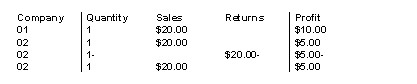
Following is an example of the transactions involved form the purchase receipt of the goods, the sale to another companies customer and the inter company sale.

Outcome – Sales Analysis
Process flow
Order Entry and Web order release
When an order is diverted, the following defaults.
- Immediate document print (IDOC) = N and the Order key (KEYORD) = original process number. This allows merging orders into one invoice.
- Picking slip merge – Checks the warehouse location and branch code (IBR/WH) to be the same for merging orders.
- Background updater –allows merging for the diverted orders when the Order key is not blank.
- Pick plan generation – merges diverted orders into one invoice. This does not allow diverted orders when selecting for invoice (when an order is diverted at order entry time). The Order key will be filled with the original process number.
- Picking confirmation – diverted orders will merge into one invoice. This checks if all diverted orders are at status ‘A’, if all at ‘A’ status it will generate a pick plan for each process number. It then displays a message on the screen that the picking slip is waiting on another picking slip to be confirmed before the invoice is generated.
- End of day/End of month – addition of inter company sales generation – Depending on the setup as to when this generation is required (End of day or End of month). This will generate inter company sales consisting of the following transactions.
- The purchase receipt of the stock by the retailer
- Cost of sales adjustment against the original sale
- Sale of the stock from the publisher to the retailer
- AR transactions and debtors update
