
Royalty sales interface allows you to upload sales data for royalty calculations and payments to payees. The transactions are uploaded from excel files using template provided by Iptor. The movement types for the incoming GDM transactions must be defined with Movement source type = I (External sales interface).
- In the menu, expand Publishing Modules > Rights & Permission > Period Processing and Others > Monthly Royalty Run and double-click Royalty Sales Interface. RYO053 Royalty Sales Interface panel appears. All the existing uploaded batches are displayed. You can use function F10=Open/Closed/All to filter batches for display.
- Click Add to create a new batch. RYO053 panel appears in Add mode.

| Field | Description |
| Batch | A unique alpha numeric number must be entered to identify the batch. The batch ID must be same as the excel sheetname holding the data to be uploaded. On upload the system will check for the excel sheet matching the Batch ID on the upload excel file. |
| Description | Mandatory description for the upload batch. |
| Location | This is the location of the excel file to be uploaded; this will default from the setup in XAM160 Document Exchange Maintenance. |
| Filename | Name of the excel file to be be uploaded. The excel file must be created using the template provided by Iptor and it must reside in the location entered above. |
| Company | Select the company the transactions are being uploaded for. |
| Batch status |
Batch header status (display only field).
|
- Enter the above information and click OK to save the batch. The status of the batch would change to ‘E‘ for entered.
- Click function Upload to upload the excel data. The system will validate the data on upload. If any errors are encountered on validation the excel would pop up highlighting the errors as shown below and the batch header status would remain at ‘E‘.
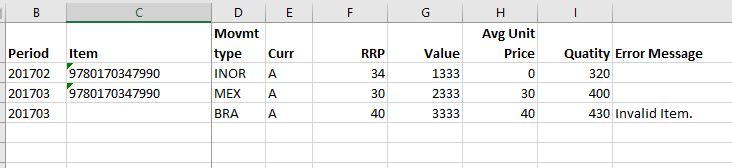
- Use function Excel to view the excel file.
- If there any errors, fix the data and upload again.
| Note | If the period being uploaded is in the lock up period as specified in control file TMSRY/LOAD-BAL, then it will be in error. |
- When the data is successfully uploaded you will get the message ‘Data uploaded successfully’. The uploaded data will be stored in the royalty sales interface file with header status ‘E‘ and detail status ‘V‘ for validated.
- Use function ‘Update‘ to activate the uploaded transactions for royalty calculations. The batch header status would then change to ‘C‘ for completed and the detail status would change to ‘A‘.
| Note | A Batch can be deleted at either E or C status. If the batch is deleted after being updated then both the batch header and detail status would change to ‘X’. |
Actions & Status updates
| Action | Header status | Detail status |
| Batch created | E | |
| Batch uploaded with errors | E | |
| Batch uploaded with no errors | E | V |
| Batch updated | C | A |
| Batch deleted after update | X | X |
