
This example describes how to upload sales orders from excel files to Iptor IP1. Excel file with the upload data must be in the directory for the upload before you begin this process. It should have work filename and field names highlighted in yellow cells in the following example and as described below.
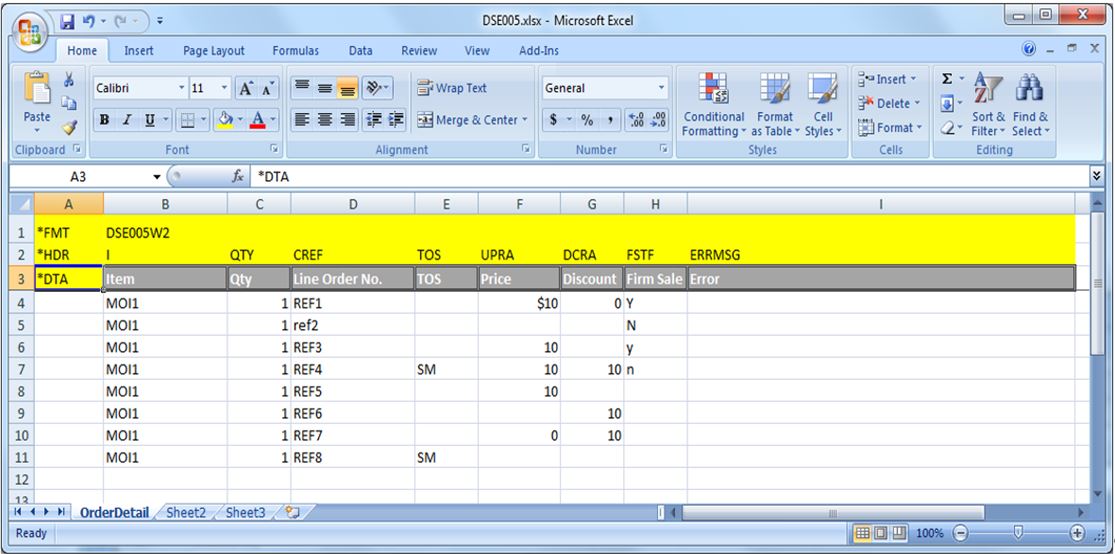
| Field | Description |
| I | Item (mandatory). |
| QTY | Order quantity for the corresponding item (mandatory). |
| CREF | Purchase order against each line. |
| TOS | Type of Sale (TOS), leave blank if using normal sales. |
| UPRA | Price for the corresponding item. If the price is in the upload file the system will use this price for the order. It the price is not in the upload file then the customer’s pricing and discount structure will be utilised to derive the price. |
| DCRA | If a Discount is in the upload file the system will use this discount for the order. If there is no discount and has a price in the upload file then no discount will be given. If both price and discount is not in the upload file then the customer’s pricing and discount structure will be utilised. |
| FSTF | Firm Sale flag (Y/N). If the field is left blank system will determine. |
| ERRMSG | System will update any data errors to this column. |
- In the menu, expand Distribution > Order Processing & Billing > Order Processing > Order Entry > Via Picking Slip > Order Types and then double-click PS Normal Order. DSE005A Order Entry – Picking Slips panel appears.
- Enter the Customer no on the order header and click function Import. DSE005I Import Excel panel appears.
- Enter Excel filename. The sheetname must be entered if there is more than one sheet in the excel file (if there is only 1 sheet then it will automatically default).
- To view/change the content of Excel file before upload, click function Show Excel.
| Note | If there is no data error in the Excel file, system will upload the file to Order Entry file and continue to enter order header/detail.
If any data error is found in the Excel file, system will display the Excel file with the error messages as shown below. You can then either fix the error and close/re-import the changed Excel file OR save the excel file with the errors and send it to the customer. |

