Contents
Introduction
Work with Failed Credit Card program lists the credit card transactions that are due for payment and has failed on payment processing for various reasons. It allows you to view the failed transactions and take appropriate actions depending on the status of the order. Already actioned failed transactions will not be listed unless it was flagged with a follow up date and the date has expired. The following actions can be taken on the failed transactions:
- Retry failed credit card
- Enter a new payment/write off the failed payment transaction
- Cancel order and void the failed payment transaction
- Force the order to go to backorder
- Email the customer & follow up later
- Void failed payment
- Update internal notes with automatic timestamp
Business rules setup
The following business rules have to be setup to process Failed Credit Card transactions. Business rules for this process must be setup with support from Iptor IP1 consultants. It is critical to understand the setting of control files and how it works. Control files must be setup correctly for the system to operate as intended. Any changes to the control files setup should be addressed cautiously and in consultation with Iptor IP1 consultants.
The purpose of this setup is to assist Iptor IP1 consultants and customers setup appropriate business rules at a customer site for the specified process.
| Note | This document does not cover customised setup tasks of specific companies. Deviations from this setup should be covered by setup tasks written by individual companies. |
| Control file | Setup |
| TMSAR/LTR-CD Letter Codes | Set up letter code for failed credit card email template. The letter code determines the template or the format of the email to be sent to the customer/contact regarding the failed transaction. The templates can be setup in ARE010 Letter Format Maintenance. Different letter codes can be nominated into groups to enable use of only letter codes within a group. |
| TMSAR/CH-FODYS Customer History: Number of days to follow up | For the failed credit card letter code, set up number of days to follow up on after sending an email to the customer. Ensure the Follow up flag is set to ‘Y’. |
| TMSDS/TR-TXT Transaction Text Types |
Setup the failed credit card Text type with
|
| TMSDS/TRJ-STS Transaction Credit Card Status | This is a system defined control file. Status ‘Z’ is specifically for credit card action. Once a failed credit card transaction has been actioned by DSW050 (Work with Failed Credit Card Payments) the status will change to ‘Z’ (actioned failure). |
| TMSDS/DSW050 C/C failed action default | Define the default letter code by order status if required. |
Procedure
View failed payment transaction
- In the menu, expand Base Modules > Distribution > Debtors & Claims > Accounts Receivable > Other and then double-click Work with Failed Debtor Credit Card. DSW050 Work with Failed Credit Card Payments panel appears listing the failed transactions. The failed transactions that has an email sent to the customer previously and the follow up date for that transaction has expired then it will be highlighted with an ‘*‘ in the Emailed column.
- To view the failed payment select the transaction and click option Payment Inquiry.
- To view the order details select the failed credit card transaction and click option Transaction Inquiry.
Action failed CC transaction
- From the list of failed credit card transactions, select the transaction you wish to take action on with option Action. The selected failed transaction is displayed.
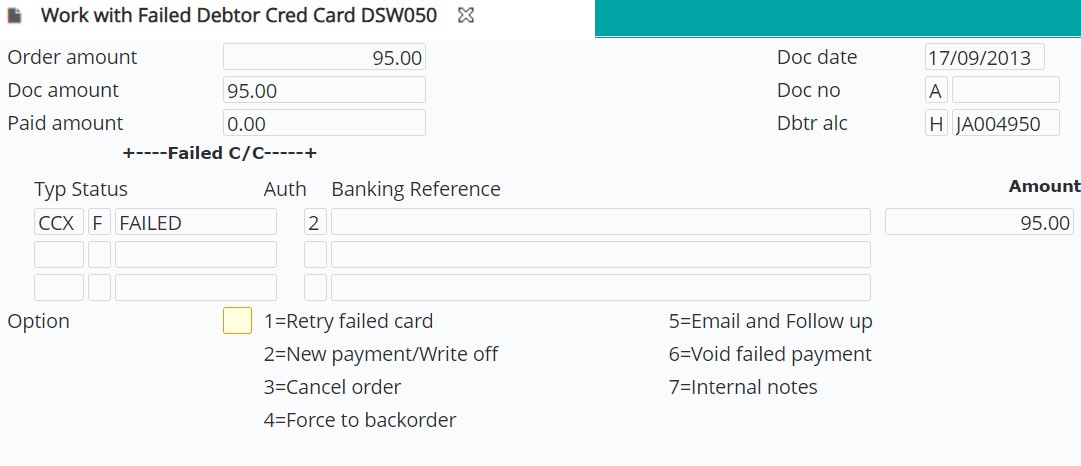
- From the above panel, you can take either of the following options as required.
| Options | Process//steps |
| 1=Retry failed card | Allows you to re-process the payment with the existing credit card details. The Pay amount will default to the document amount less any paid amount.
When the payment is successful you will get the message ‘Selected option successfully actioned. Press Enter to complete’. |
| 2=New payment/Write off | New payment details can be entered to process the payment.
This will delete the old credit card transaction and create a new transaction for the new payment. |
| 3=Cancel order |
Allows you to cancel the order. The order/warehouse status must be at ‘DW’ or prior for the order to be cancelled. On cancellation the order status will be updated to ‘R’ for rejected and the credit card transaction will be void with the status changed to ‘Z’ (actioned failure).
|
| 4=Force to backorder | An order can be pushed to back order if the credit card has expired or there is insufficient funds and the customer hasn’t responded with valid details. The order/warehouse status must be at ‘DW’ for the order to be forced to backorder. When forced to back order, the Outstanding order file will be updated with the order (document type = ‘B’), the credit card transaction status will be updated to ‘Z’ (actioned failure), the order will be updated to complete.
|
| 5=Email and follow up |
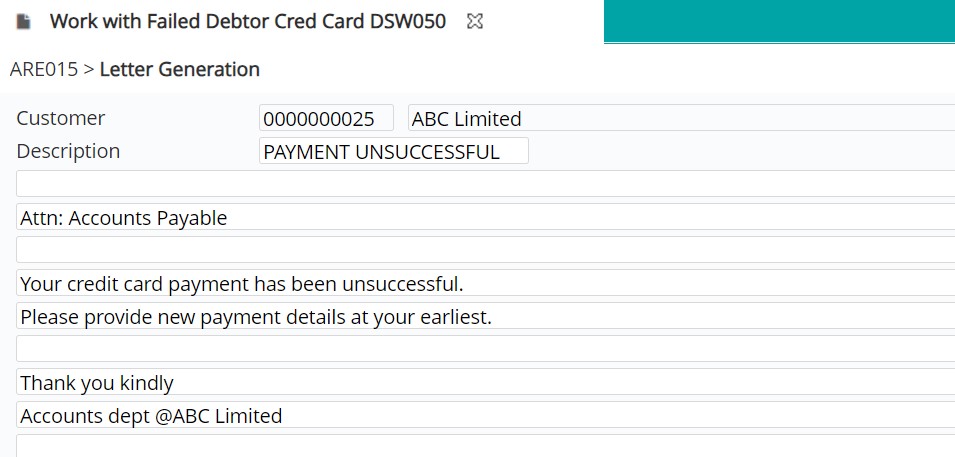
Allows you to send an email to the customer using a letter template and updates the follow up date so you can come back and follow up on payment. Once an email has been sent, this option will be highlighted. The email sent will create an entry in customer history.
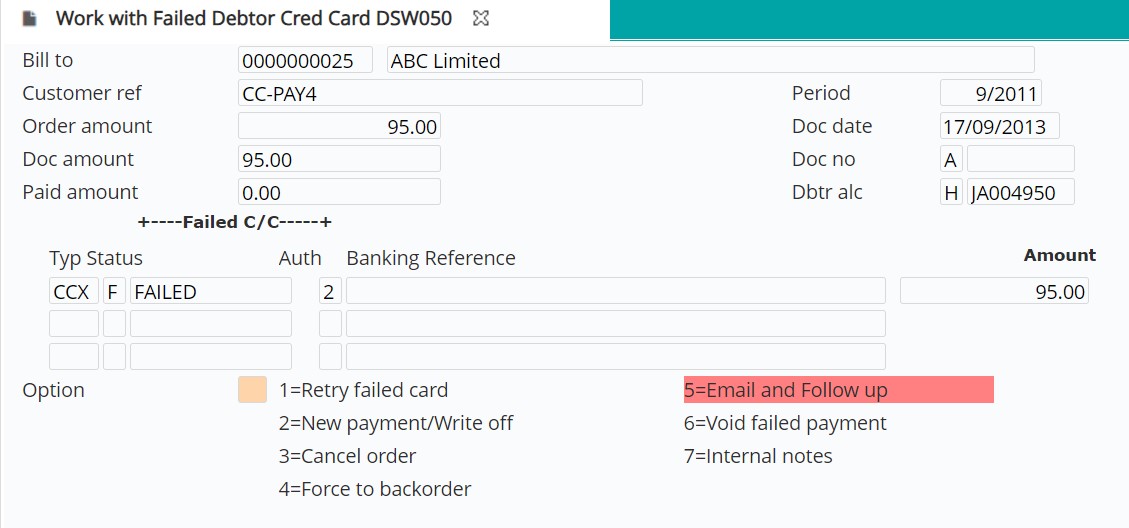
The action 5=Email and Follow up will be highlighted (as above) to indicate that action has been taken and the credit card transaction status will be updated with ‘Z’ (actioned failure). The transaction will not appear on the failed credit card listing until the follow up date has expired and the payment is still outstanding. |
| 6-Void failed transaction |
This will void the credit card transaction and change the status to ‘Z’ (actioned failure). The void transaction will no longer appear on the list of failed credit card transactions. The order will remain unchanged.
|
| 7-Internal notes |
Allows you to enter any internal notes. It automatically updates with current date and user ID timestamp with the option to add any notes. This option is also automatically called after all the other options so you can enter any reasons for actions taken.
|