
Debtors aged trial balance
The Debtors Aged Trial Balance report lists transaction details such as outstanding totals; payments made and recorded sales for a nominated period. You can setup multiple report formats with various selection fields, sequence of the fields on the report, totals and control breaks. You also have the option to create a Detailed Trial Balance or a Summary Trial Balance.
- In the menu, expand Base Modules > Distribution > Debtors & Claims > Accounts Receivable > A/R Reports > Reports and then double-click Debtor Aged Trial Balance Report. Debtor Aged Trial Balance panel appears listing all the existing report formats.
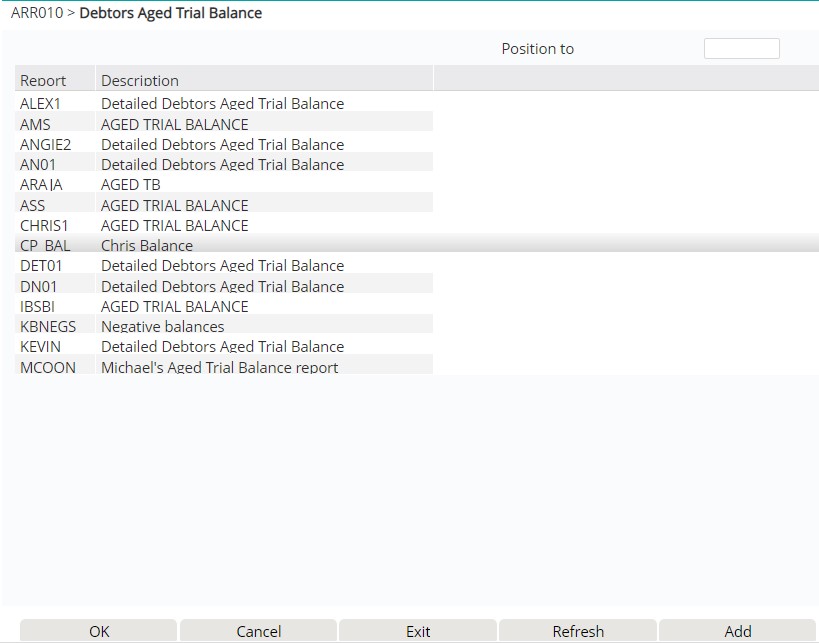
| Functions/Options | Description |
| Add | Access Debtors Aged Trial Balance for addition of a new aged trial balance report format. |
| Run | Allows to run the aged trial balance report for the selected report format. |
- You can select an existing report format to run or setup a new format and define the selection criteria, sequence of the fields and control breaks and columns for the report. When the new report format is setup, you will have the option to save and run the report.
Add a new aged trial balance report format
- On the above Debtor Aged Trial Balance panel click Add. Debtor Aged Trial Balance panel appears in add mode.
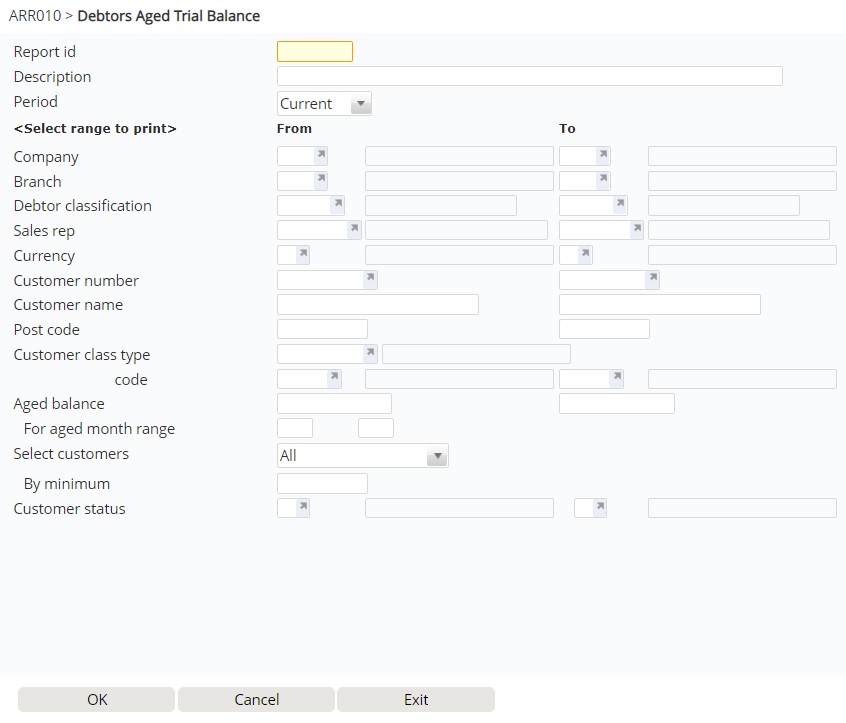
| Field | Description |
| Report ID | A Report ID to identify a specific report format. Mandatory field. |
| Description |
Enter a meaningful description identifying the Aged trial balance report. |
| Period | Select the period on which to report. If the report is to be selected before month end then you would enter 1=Current. If the report is selected after month end then you would select 2=Previous. |
| Aged balance |
This field is optional and is used to determine which account details to include in the report based on a minimum and maximum account balance. The aged balance is the balance outstanding after an invoice is past due. The aged balance can be calculated from the due date or document date. |
| For aged month range | This range selection is optional and is used to determine the months that match the aged balance criteria, to include in the report. |
| Select customers | Select which customers to include based on their credit limit ratings. To display all customers you would select 1=All. To display customers who exceed their internal credit, select 2=Exceed int credit. To display customers who exceed their external credit, select 3=Exceed ext credit. These credit limits are established on the Customer Masterfile. |
| By minimum | If customers have been selected based on exceeding their credit limit, this field is used to exclude those accounts that have only exceeded their limit above the amount set here. |
| Customer status | From and To Customer account status can be entered to include/exclude customers based on their status. |
- Enter the selection field values to include/exclude customers from the report as required and click Page down. The next panel for Debtors Aged Trail Balance appears.
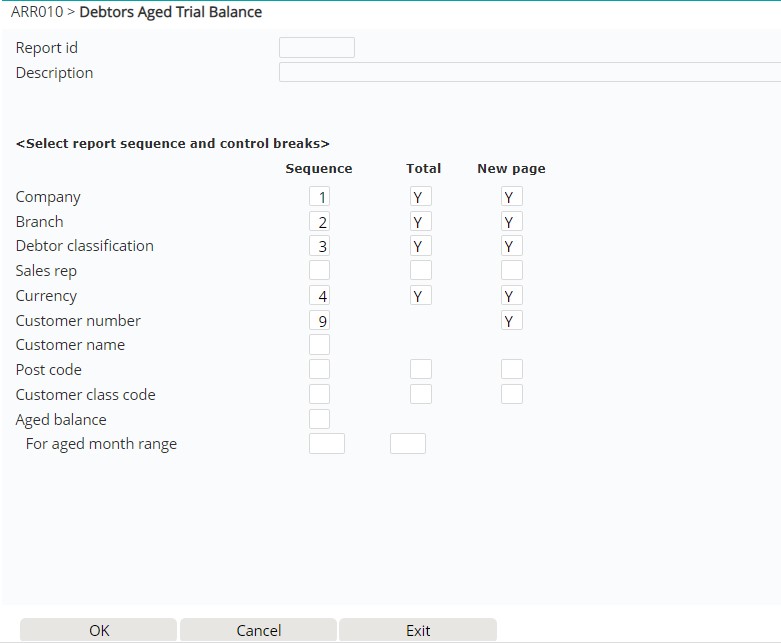
| Field | Description |
| Sequence | This is the sequence in which you would like the corresponding field to appear on the report. The default can be overridden. The field with sequence = 1 will displayed first; e.g. Company in the above example. |
| Total | To total by corresponding field enter Y against that field. E.g. If you would like to have totals by company then enter Y. The defaults can be overridden |
| New page | To enable a page break when the value of the corresponding field changes enter Y. E.g. If you would like each Company on a new page then enter Y. The defaults can be overridden |
- Enter the report sequence, totals and control breaks for all the fields on the above panel as required.
- Click Page down to define the columns for the report.

| Field | Description | ||||||||||||||||||||||||||||||||||||||||
| Column | A maximum of 12 column defaults may be created with at least one column being mandatory. The report width is 198 characters. | ||||||||||||||||||||||||||||||||||||||||
| Heading |
This is the description for each of the columns in the report. Example:
|
||||||||||||||||||||||||||||||||||||||||
| Credit limit | This field is optional. If the first column is credit limit then enter 1=Internal or 2=External. Leave blank for aged balance. | ||||||||||||||||||||||||||||||||||||||||
| Aged range |
If the column is aged balance then enter 1 – 99 for overdue months; 0 or blank for current month, 1 to 99 for future due months. Example:
|
- Enter the above column definitions. At least one column definition must be specified.
- Click Page down.
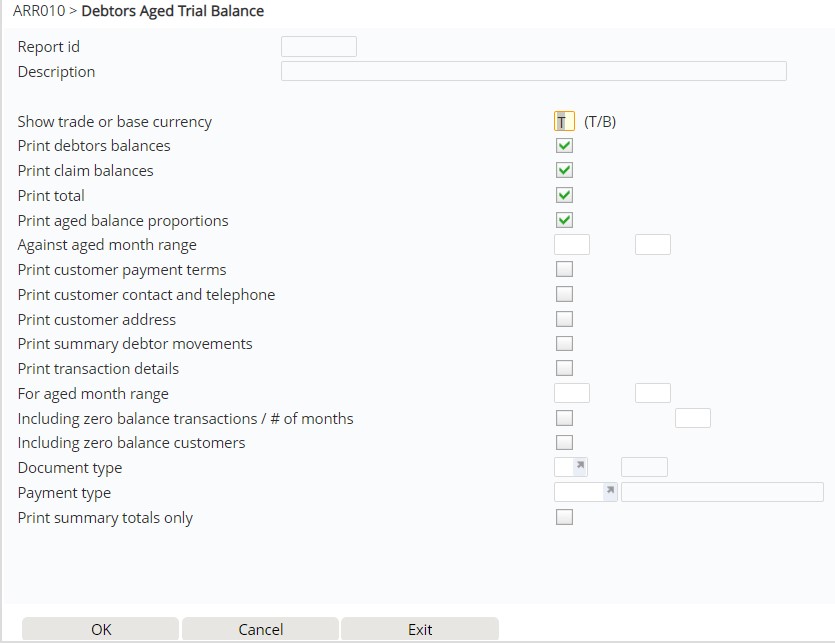
| Field | Description |
| Show trade or base currency | Select whether to show currency in either base currency or trade currency. |
| Print debtors balances | Indicate if debtor account balances are to print on the report. |
| Print claim balances | Indicate whether to print claim balances on the report. |
| Print total | Specify whether or not to print a total per aged balance on the report. |
| Print aged balance proportions |
Balance proportion is the percentage of the aged balance in relation to the total amount due for a given period. Specify whether or not to show aged balance proportions on the report. |
| Against aged month range | Indicate the months against which to print aged balance proportions, if the previous field was flagged for selection. |
| Print customer payment terms | Indicate whether the payment terms applicable to each customer are to be printed on the report. |
| Print customer contact and telephone | Indicate if the Customer Contract name and Telephone Number should print on the report. |
| Print customer address | Indicate whether the Customer’s address is to be printed on the report. |
|
Print summary debtor movements |
Indicate whether a summary of the debtor’s movements is to print on the report. |
| Print transaction details | Specify whether or not details of the transactions on the customer’s account are to be printed. |
| For aged month range | A range of balances can be nominated to be included in the report. |
| Including zero balance transactions |
Indicate if the transaction details to be printed on the report should include those transactions that have a zero balance. |
| No of months | Number of months to print all zero balance transactions if the transaction period is within a period back by the # of months entered. |
| Including zero balance customers | Indicate if customers with zero balance are to be included in the report. |
| Document type | Optional field to select a specific document type. |
| Payment type | Optional field to select a specific payment type. |
| Print summary total only | Indicate whether to print debtor balances on the report, or summary total only. |
- Select/flag above fields as required.
- Click OK. The final panel appears to allow you to save/run the report.
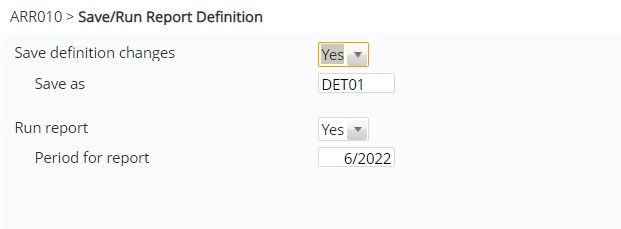
- Select whether to save the report and whether to run the report for the specified period and click OK.
