
Contents
Introduction
Regional period close allows Iptor IP1 to run end of day (EOD) and end of month (EOM) processes either by individual company or by a group of companies (regions). Day end and month end processes can be automatically scheduled for different regions at their respective times. Users in active regions will still have access to the system, while users in a closing region will be locked out.
It is advised that each region have their own EOP user who can submit their own regional EOP jobs so the reports come out on their respective queues.
The EOD/EOM programs will check if there are any jobs locking the system and if there is any then it will take the following actions. If the process is being run interactively then
- it will display the locking object, the job name and the user
- provide the option to send a message (via function key Send message) to the user/s to end their job/log out
- provide the option to end the job lock (via function key End job). You can use this option if the users don’t end the job themselves after receiving the message.
If the process is being run in batch mode then
- the message will be automatically sent to the users with the job lock (upto 5 messages will be sent)
- if the lock remains after the 5th message then the system will end the locked job and the End of Period process will continue.
Business rules setup
View the business rulesThe following control files should be setup for Regional period close.
| Control file | Setup |
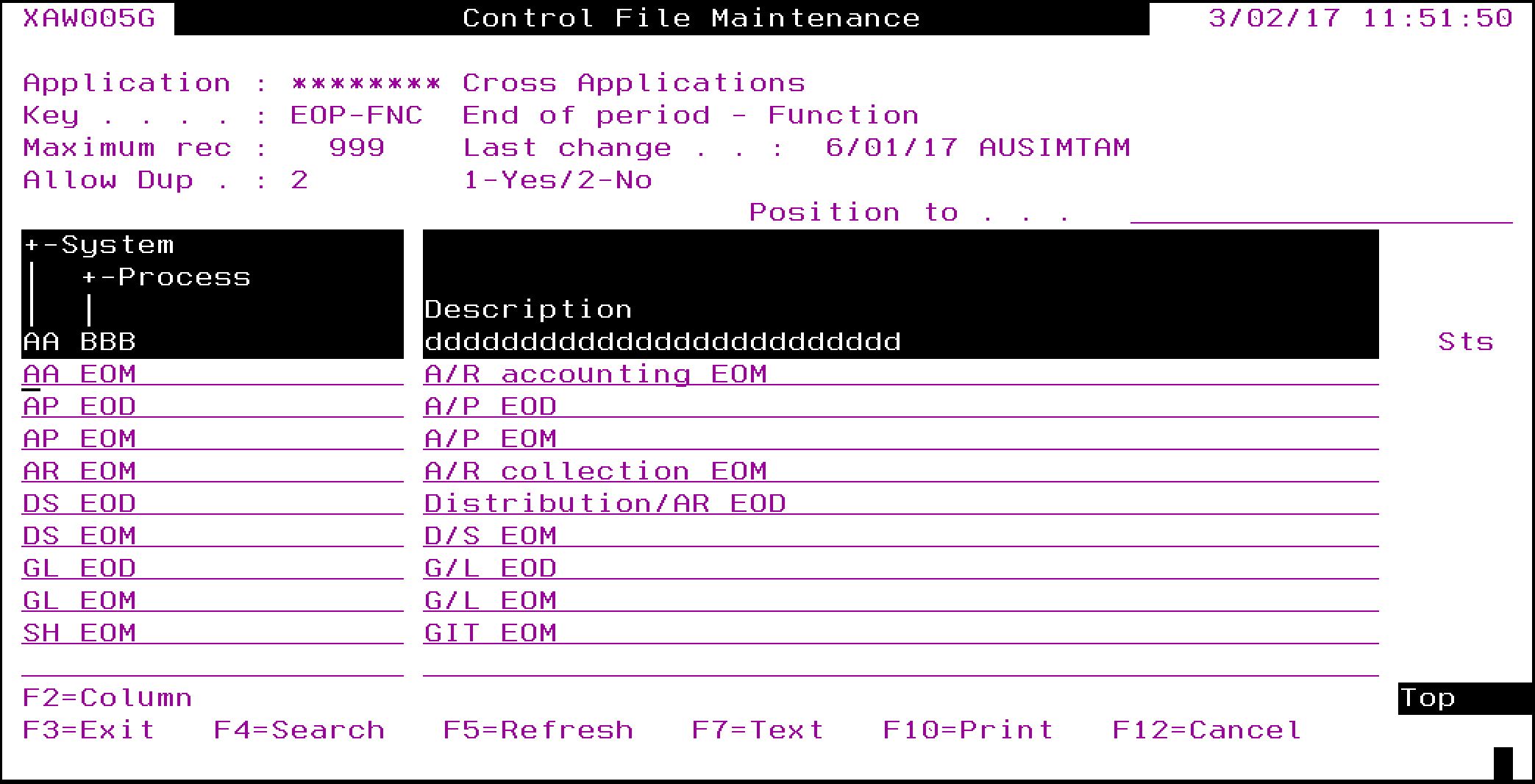
| ********/EOP-FNC End of period – Function | Setup EOD/EOM functions for the end of period processes in this control file.
|
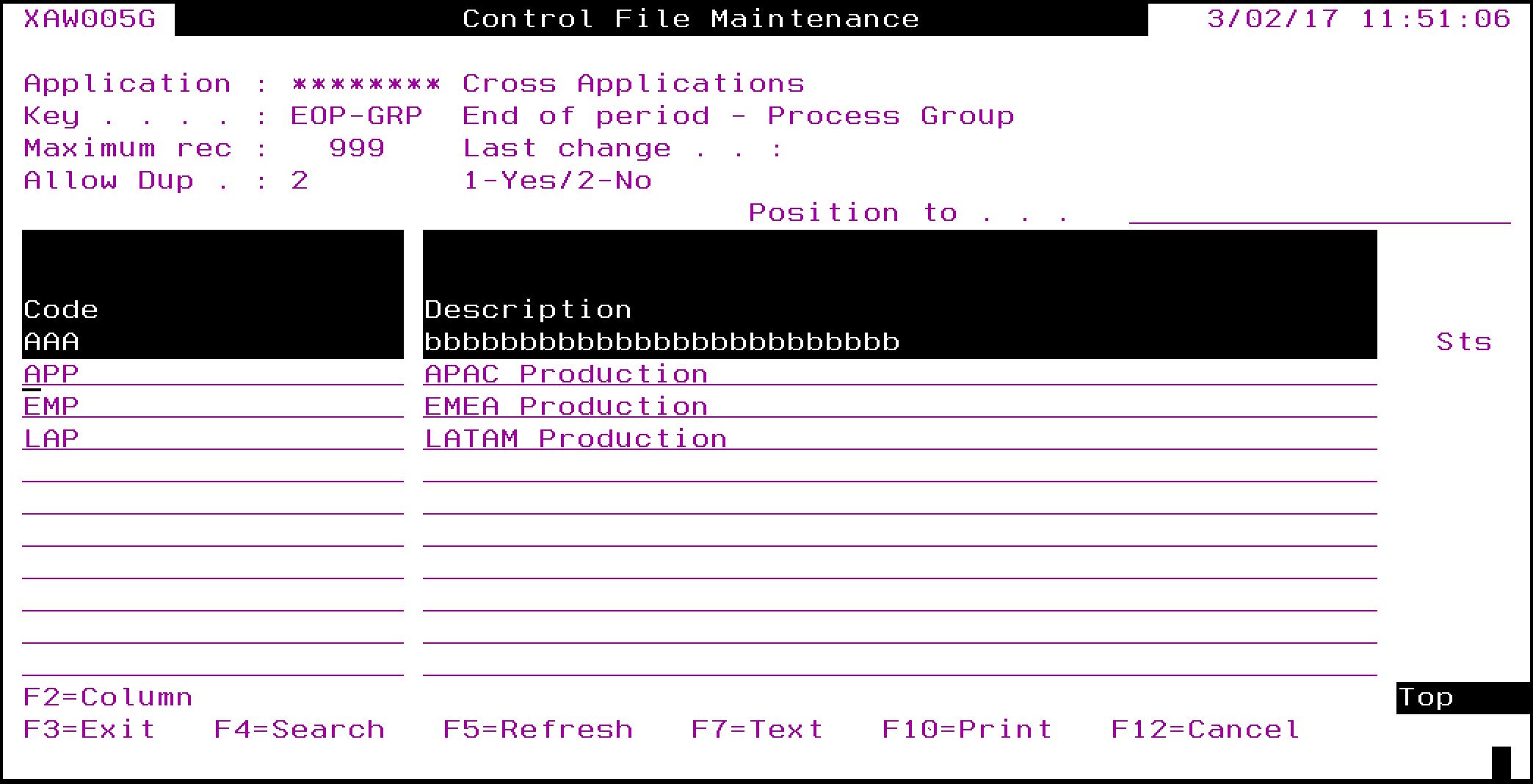
| ********/EOP-GRP End of period – Process Group | Setup regions that the companies belong to. Example EMEA, APAC, LATAM etc.
|
| ********/LNG Language codes | System defined control file with the CCSID of the various language codes. (currently optional) |
| ********/TZN-DFN Timezone definition | Holds the timezones for the various regions & countries. (currently optional) |
| TMSAR/IN-SCHD Instalment payment selection schedule | Add Company and Bank codes.
|
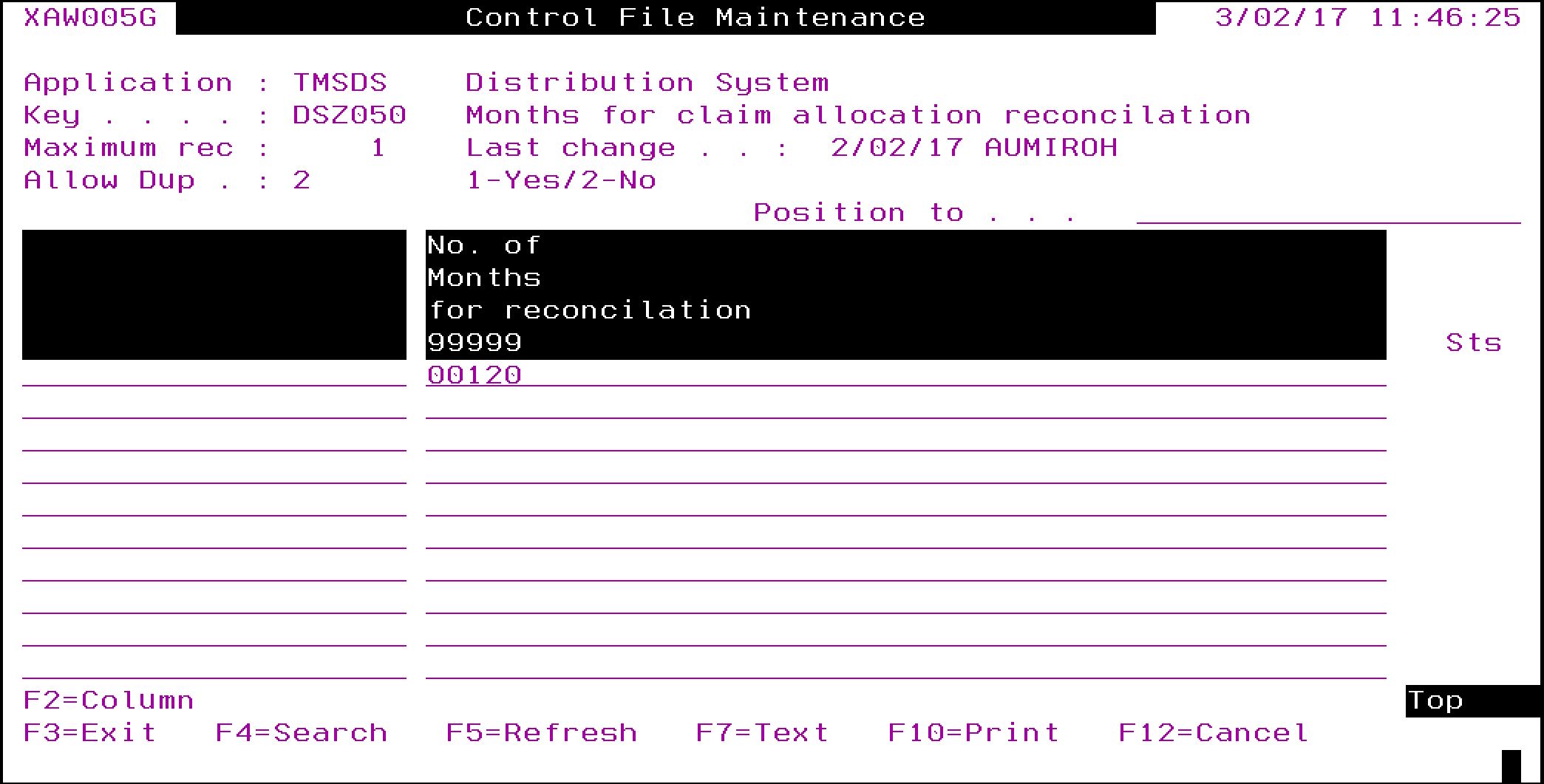
| TMSDS/DSZ050 Months for claim allocation reconcilation | Enter number of months for reconciliation.
|
| TMSDS/PRT-AUTO Automatic Document Print Selection | Include Company code.
|


Company-region database setup
| IMPORTANT | It is very critical that the company/region configuration is setup accurately for EOD/EOM to work. The system will not check for missing or incorrect information. |
For detailed information on any of the data fields for this setup please see Cross Applications – Regional Period Close.
| Tasks | Instructions | ||
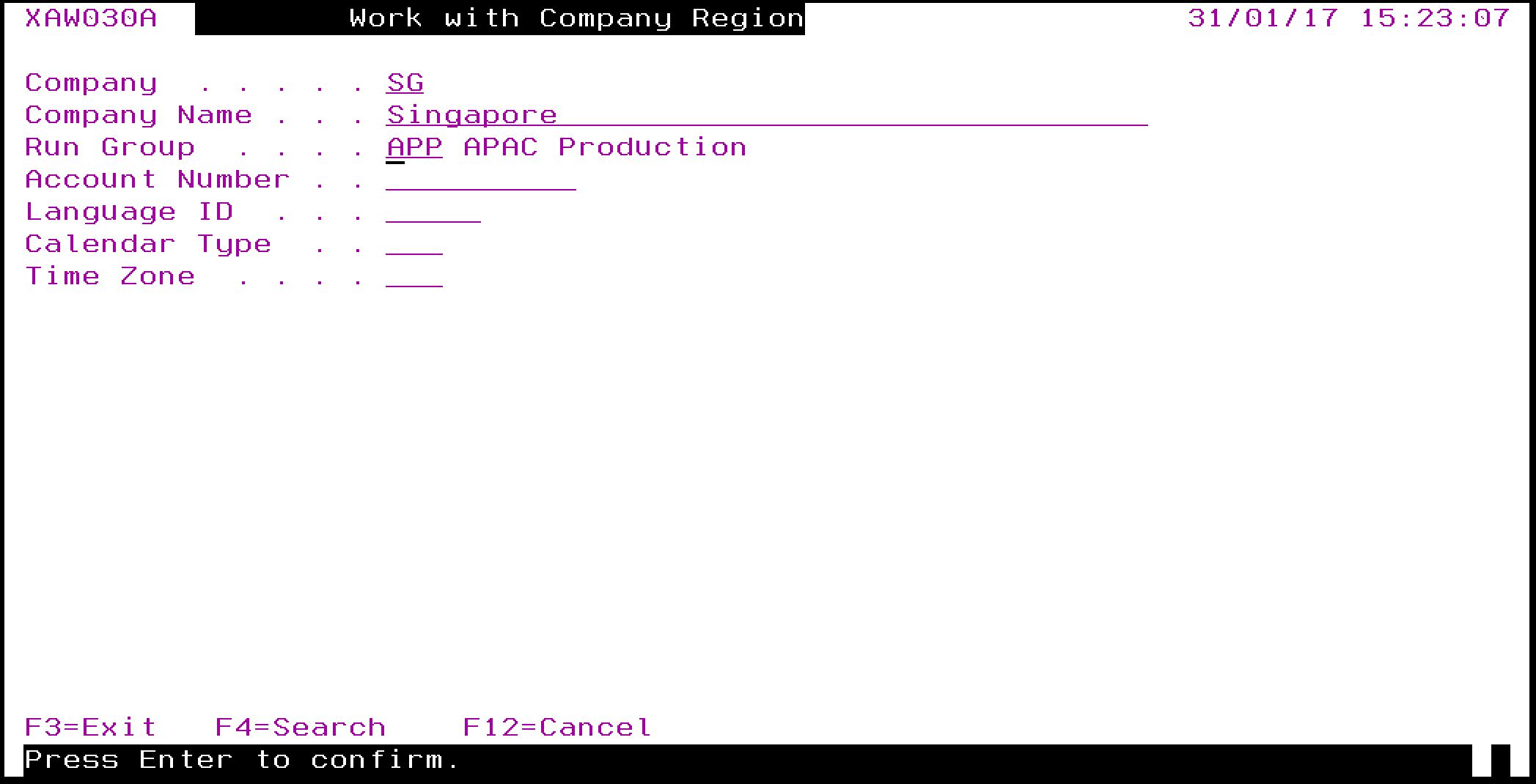
| Setup company/region database |
|

Other setup
| IMPORTANT | Before entering transactions please check your user setup in control file TMSDS/POS-USRD. The AR location for your User ID must be in the same company/region you are entering transactions in. If not then the default period may not match the current processing period of the company/region and you will get an error message.
Also check that your User group access (setup via Contact Attributes in CRM) allows you to access company/region specific data. |
Process – EOD/EOM
The following EOD/EOM processes can now be run by regions.
- AGCEODA Combined A/P and G/L – EOD
- APCEODA Accounts Payable End of Day
- APCEOMA A/P End of Month Control Prog – Selection
- APO200 Currency exchange gains and losses adj
- ARCEOMA End of Month Control Program
- ARO140 A/R Bank Interface
- DSCEODA End of day processing – Parameter prep
- DSCEOMA End of Month Control Program – Selection
- GLCEODA G/L end of day
- GLCEOMA End of Month Control Program – Selection
When the end of day or end of month is run, either the company or the region must be specified. If the company belongs to a region then enter the region as shown below.
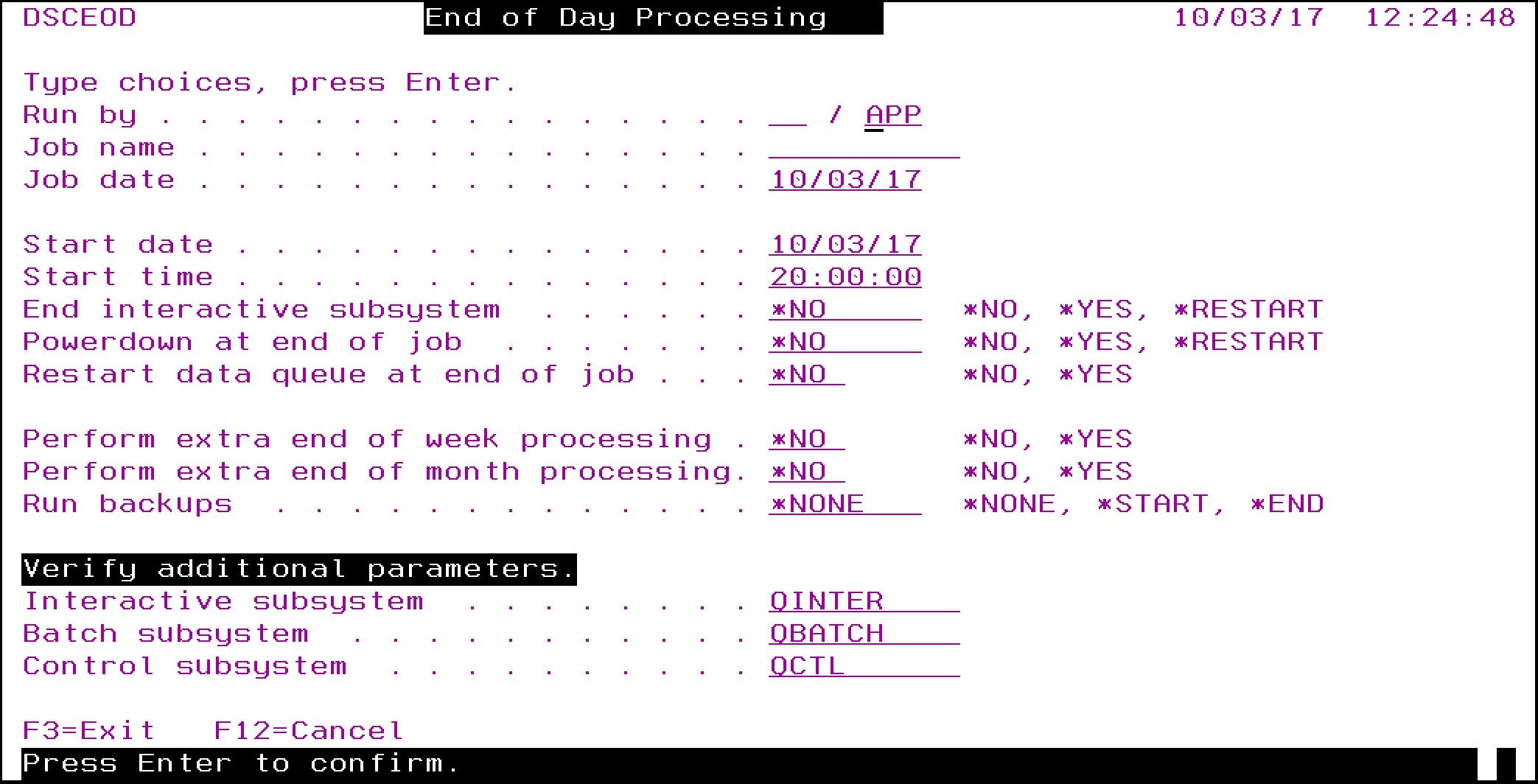
If the company does not belong to a region then the company code must be entered,as shown here.

| IMPORTANT | If EOD/EOM jobs are scheduled to run automatically for any company or region then you must set the correct parameters for the company/region. |
| Note | While EOD/EOM is running for a specific region, the system is available for normal operations for all other regions. |
