
Add a new project template
The Project Entry/Maintenance program allows the user to add a new template for a project.
- In the menu, expand Publishing Modules > Book Publishing >Templates and double-click BP Work with Template. BPM005 – Project Selection main panel appears. Field Record type defaults to T (for templates).
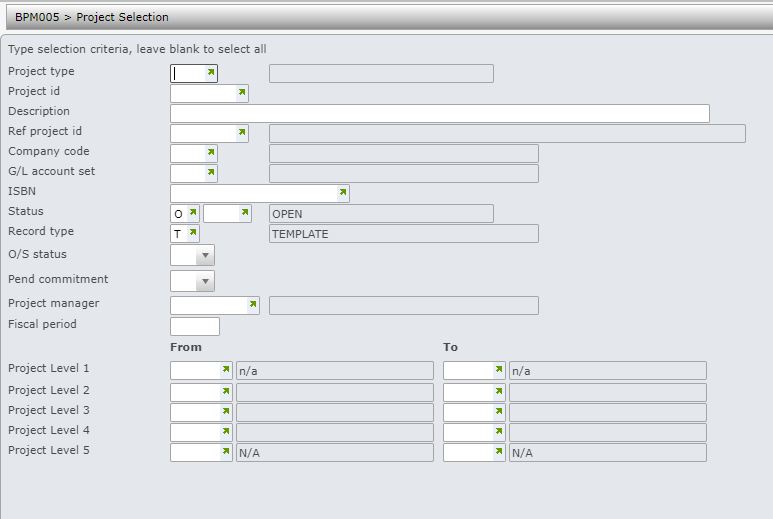
- Click OK and all the existing templates are listed.
- Click Add to add a new project template.
- Enter the Company code and click OK.
| Field | Description |
| Project ID | The Project ID identifies the name and/or number of the Project. This number is used throughout the Book Production system to access all the details of a Project. For example commitments, actual charges, tasks, etc. In order to prevent duplication, new Project ID numbers are validated when added. When adding a Project, the Project ID is converted to capital letters. When using Project Selection enter the Project ID on which to search. If the full Project ID is entered only that project displays on the following screen but if part of the Project ID is entered the system scans for projects that match the criteria and lists the matches. Once found the cursor is positioned to the selected Project ID. When entering timesheets if the task code entered for a timesheet requires entry of the Project ID one must be entered. Note: If the task and Project ID combination do not have the same General Ledger account the following warning message appears, ‘Task/Project combination do not have a valid G/L Account’. |
| Project desc | A brief description of the project. |
| Reference | A reference for the project. |
| Fiscal period | The fiscal year defaults to the current financial period for which the Project is being undertaken and can be overridden. |
| Project level 1 – 5 | 1- 5 levels of project hierarchy. |
| Project type | Project types are maintained in control file TMSBP/PJ-TYPE. Select one of the valid project types, example Book for a book publication project. |
| Proj manager | A valid Project Manager responsible for the new project. |
| Sub status | This is the sub status of the project as specified in control file TMSBP/PJ-PJSST. |
| Pub date | The date this book is to be published. |
| Comment | Enter any comments to include about the Book or Project. |
| Account set | A valid Account Set for the Project. If the Account Set determines how costs are grouped together |
- Enter the above information, as necessary for the new project template.
- Click Page down.
| Field | Description |
| Control budget | The total Budget for the Project. |
| Original budget | This field is blank at entry stage. The original budget is calculated at maintenance level. The original budget is the first control budget entered for the project. |
| Revenue type | Defines the type of revenue and when the revenue is generated decides if invoices are consolidated. Invoices can be generated for the whole amount or can be split. For example: 25% then 75%. |
| Revenue budget | The revenue amount allocated to the Project. If a revenue amount is entered within the template it is used for any projects created using this template. |
| Cust order no | This is the customer order number, which is a reference, given to this order for the selected customer. This must be the same for all consolidated invoices. It is also a reference for the invoices generated. |
| Customer number | This is the customer for whom we are printing the book and generating invoices. Customer status is validated so “closed” customers can not be added in the project header for Revenue generation. |
| ISBN | ISBN for the project. |
- Enter the above information, as necessary for the new project template.
- Click OK and the new project template is created.
