
Add an employee
- In the menu, expand Publishing Modules > Book Publishing > Others > Timesheets > Maintenance and double-click BP Employee maintenance. BPM600 Employee Masterfile Maintenance panel is displayed.
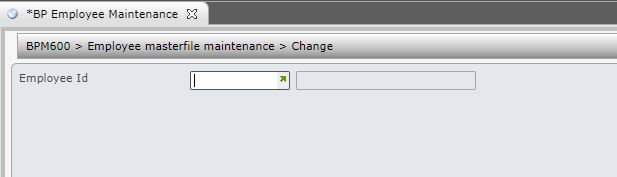
| Field | Description |
| Employee ID | In Employee masterfile this is the employee ID being created in the employee masterfile. Note: In Add mode only valid IBM POWER SYSTEM user sign on profiles can be used for the employee ID. An existing employee in the Timesheets system cannot be added. In Pending approval this is the employee ID for whom there are pending estimates. The employee ID must be set up in TMSBP/BS-APPR and the approval level defined for each employee. If there is no approval level, leave the level blank on the control level. |
- Enter Employee ID and click Add mode. BPM600 Employee Masterfile Maintenance main panel is displayed.

| Function | Description |
| Calendar | Access calendar to display and maintain employee working and non working days. |
| Field | Description |
| Employee | This is the employee’s name. |
| Email address | The employee’s email address. |
| Company | Company to which employee belongs. |
| Manager | The manager the employee reports to. |
| Default task | The employee’s default work task code. |
| Calendar type | This is the type of calendar to be used. The global calendar or department calendar can be selected. |
| Total daily hours | The total daily hours the employee must work. Entry in this field must include a decimal point. When the timesheet for the employee is produced the hours entered must equal the total daily hours. For example 8.5 hours equals 8 hours and 30 minutes. |
| Allow variance | Determine whether to allow a variance on the total daily hours. |
| Chargeable % rate | The chargeable percentage rate for the employee’s time on a daily basis. Example, If some of their time is considered chargeable it could be 90.00. The remainder could be administration etc. This appears on the productivity report displaying the Actual Hours chargeable and non-chargeable comparing these figures with the ‘Standard Chargeable’ hours and percentage. |
| Department (current) | This is the employee’s current department. Used to group employees in reports and also by Timesheet Entry to determine the GL account an employee’s work costs are credited to. |
| Department change/next | This is the change date, in the case where an employee changes departments, and the new department. When the change date has been reached, the next department is used. |
| Hourly rate (current) | This is the employee’s hourly rate of pay. |
| Hourly rate change/next | This is the date the hourly rate changes and the next rate of hourly pay. When the change date has been reached, the next hourly rate of pay is used. |
| T/Sheet override | Determine whether the current user has the authority to enter timesheets for other employees. Defaults to No they do not have the authority and can only enter their own and can be overridden to Yes, they have the authority. |
| T/Sheet format | Determine the timesheet format to default for the employee. Format 1 allows timesheets entry by Project and Book ID whereas format 2 allow timesheet entry by ISBN and impression. This results in direct access to the Project. When entering timesheets the user can change the format view by using the Format function. |
| Employee status | Defaults to A = Active and can be overridden. |
- Enter all the information, as required.
- Click OK. New employee details are added to the Employee masterfile.
