Overview
With Smartsheet and EBP integration in IP1, you can upload financial summaries by project from IP1 to Smartsheet and download Smartsheet schedule at project level from Smartsheet to IP1. The interchange is expected to occur once a day and can be initiated from a menu or scheduled to run as part of the end of day process.
The data interchange between Smartsheet and EBP in IP1 system handles the following.
- Uploads the financial summary (budget, actual & estimated revenue) by project from IP1 to Smartsheet
- Downloads Smartsheet schedule at project level from Smartsheet to IP1
Note: To use this process, you must have Smartsheet installed and have the latest version of Java Server that supports Smartsheet. Java server must be configured with a silent User-ID to read and write to Smartsheet.
Process flow
- Create the Project and save the project in IP1.
- Project details would include financials (budgets)
- Save the initial milestone/schedule details.
- If the project is new and it doesn’t exist in SS, it will be created with the project details and the budgets into SS. If the project already exists, then the details of the budget and milestone details would be updated.
- Therefore, the rules of project creation/maintenance must be established. The project will be created in BP initially. Both project details and the SS details would be kept in sync (agreed fields).
- When schedule dates are updated in SS, it will be uploaded to the milestone dates in IP1.
- With this in place, the following would be synchronized for both planned and active projects.
- Budgets, Commitments raised and actuals from projects to Smartsheet.
- Milestone scheduled dates from Smartsheet to the Project schedule in IP1.
Pre-requisites & setup
Carefully configured business rules, masterfiles, templates and account setups must be in place to ensure efficient flow of the Book production process.
| Business rules – mandatory control files for Book production module. | Smartsheet control files |
|
Templates A default scheduling template should be created in Iptor EBP. In the event there is no schedule for a project in IP1 then this template would be used to download and update the schedule for that project. Note: Control file TMSBP/SD-SD1 must be updated with the default template ID. |
Smartsheet process
It is your responsibility to ensure that you understand this procedure before performing the following tasks. Note: Deviations from this procedure should be covered by procedures written by your company. Before performing any tasks please ensure all the business rules are set-up accordingly.
| Process | Steps |
| Setup project | Create/setup the project in IP1 and the same in Smartsheet. |
| Sync Smartsheet |
This process is normally scheduled in the end of day process. To run it manually follow these steps.
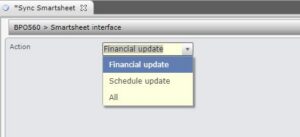
2. Select to either export financials to Smartsheet (Financial update) or import schedule from Smartsheet (Schedule update) or do both (All). The financials uploaded to Smartsheet come from the following sources.
The schedule download from Smartsheet will check if the project schedule exists in BPEV00P, if it exists then it will look for the matching tasks (as specified in TMSBP/SS-SD) in the schedule record and update the schedule fields (current estimated start and completion dates & actual start and completion dates) in IP1. Control file TMSBP/SS-SD specifies which of these fields get updated. If the project schedule does not exist in BPEV00P, then it will use the default scheduling template specified in control file TMSBP/SS-SD1. The default template must be setup in IP1. Note: If the project is closed (status C) or locked (status Z) Ip1 will not be updated with the scheduling dates. |