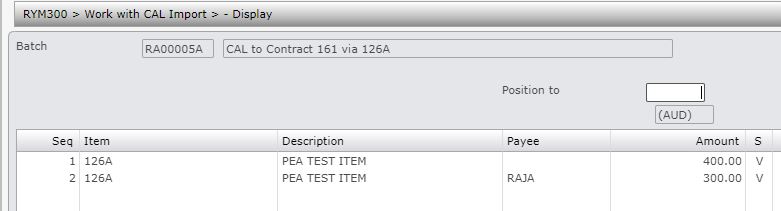
Work with CAL allows you to upload and process all incoming CAL and 3rd party payment transactions. For every upload a new batch must be created specifying the posting period and the movement type, which determines the calculation method to be used; CAL (pro rata calculation) or 3PT (non pro-rata calculation). The transactions are uploaded from excel files using template provided by Iptor. On upload the system will check for errors first. If there are any errors the status would remain at E (entered) and the data would not be uploaded. If there are no errors, the status will change to V (validated) and the data will be uploaded.
Create a upload batch
- In the menu, expand Publishing Modules > Rights & Permission > Period Processing and Others and double-click Copyright Agency Licence. RYM300 Work with CAL Import panel appears
- To enter a new batch click Add. RYM300 Work with CAL Import panels appears in add mode.
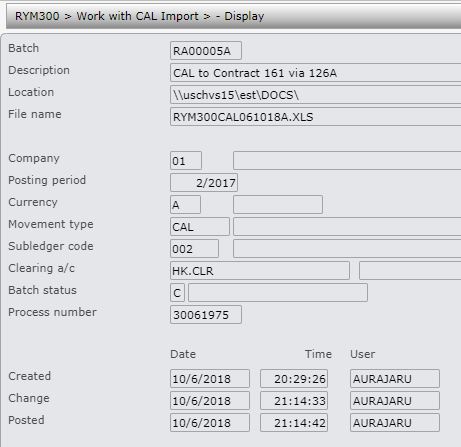
- Enter the following information for the upload batch.
| Field | Description |
| Batch | Enter a unique up to 8 character code to identify the batch for the CAL upload. The Batch number must be the same as the sheet name of the upload excel file. |
| Description | A description of the batch. |
| Location | This is the location of the excel file to be uploaded; this will default from the setup in XAM160 Document Exchange Maintenance. |
| Filename | Name of the excel file to be be uploaded.The excel file must be created using the template provided by Iptor and it must reside in the location entered above. |
| Posting period | This is the processing period for the payment. |
| Movement type | Movement type determines the CAL calculation method and is set up in control file TMSRY/CAL-MTYP. The actual movement type must be entered to enable regional dissection (CAL income source) for publisher, which then uses CAL expense formula (by movement type) to post to respective G/L account (for revenue). |
| Subledger code | The subledger code as set in TMSRY/RY-SSTC determines the payments and deduction type. |
| Clearing a/c | CAL GL clearing account for the selected company. |
| Batch status |
This is a non input field; the system will update the status automatically as per below:
|
| Process number | This is the GL process number, updated by the system when transactions are posted to GL. |
- Click OK to save the batch. The status on batch entry would be E for entered.
Upload, validate & process
- In the menu, expand Publishing Modules > Rights & Permission > Period Processing and Others and double-click Copyright Agency Licence. RYM300 Work with CAL Import panel appears
- Select the batch and right click Change.
- Click function Upload. The system will validate the data and highlight any errors. If there are errors the status will remain at E (entered). When there are no errors the status will change to V (Validated) and the excel data will be loaded.
- To view the errors click function Excel.

Any validation errors will be highlighted in the message column. After the transactions have been uploaded, use the options below to post to GL, recalculate or view the transactions as required.
View available options to process CAL| Option | Description |
| Detail |
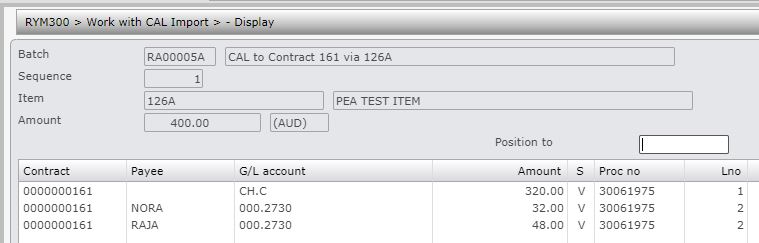
This will display the details of the uploaded excel file. The split of the amount $400 against the contract and the payee can be seen using option Detail. In this example the publisher share being 80% and 20% for the payees( Pay Thru % on the CAL movement definition).
|
| Change | Change will display the details of the batch allowing you to make any changes to the batch. This option is not available for batches that have been posted to GL already (status C). If any changes are made to the batch then option Recalc should be taken to recalculate. |
| Delete | Use this option to delete batches that are not yet posted. |
| Display |
Use this option to display the batch details.
|
| Recal | If any of the batch data has been changed then this option must be run to recalculate the details again. |
| Transfer | Transfer will generate GL transactions in CAL currency. No changes will be allowed to the batch details once the transactions are posted. |