Introduction
Customer focused rewards and bonus incentives can be set up within IP1. There rewards can based on the total order meeting the qualifying conditions, or at line level whereby bonus items are generated based on a minimum sales quantity per order line.
Order based incentives
Bonus rules are setup to define all the qualifying conditions, along with the minimum value/quantity that must be satisfied before the rewards can be applied. These rewards are given by means of any of the following.
- adjustment reward item with a negative value
- discount rate override on an order line
- freight flag override on the sales order header
- bonus item
Order based bonus rules can be created either for Coupons, Promotional packages or Direct Mail campaign lists. An order can qualify for multiple deals (bonus rules) and each deal can have multiple reward options. Rewards will be applied against customer order in sequence assigned on the bonus rules. Some of the reward options are allocated to specific reward groups in control file TMSDS/BO-RWDOP. The system will allow only one reward option from a group to be setup for a bonus rule. For example reward options % and $ off an order belonging to group A can not be in the same bonus rule.
On order entry, the system will check and apply all the applicable bonuses. When the order is finalised, the system will work out the relevant savings on the total invoice value, the discounted shipping charge, or the bonus products to be supplied. For some reward options a reward adjustment item will be generated automatically as one of the order detail lines to reflect the order or shipping based incentive savings. The negative sales value on this order detail line will reduce the total invoiced value. This transaction line will be posted into a G/L expense account. Bonus product will be generated separately as another order detail line with discounted sales value.
The sales transaction G/L definition function will be used to map the G/L expense account for the reward adjustment item and for the bonus product supplied
Business rules setup
The following business rules have to be setup to handle Bonus Incentives. Business rules for Bonus Incentives must be setup with support from Iptor IP1 consultants. It is critical to understand the setting of control files and how it works. Control files must be setup correctly for the system to operate as intended. Any changes to the control files setup should be addressed cautiously and in consultation with Iptor IP1 consultants.
| Note |
This document does not cover customised setup tasks of specific companies. Deviations from this setup should be covered by setup tasks written by individual companies. |
| Control file |
Setup |
| TMSDS/BO-CPUSL Order based bonus coupon usage level |
Define if the coupon usage level is per customer, per contact or both. If the usage level is by customer then the number used will be maintained by customer and will be checked against maximum use specified for the coupon. |
| TMSDS/BO-RWDOP Order based bonus reward options |
Setup the applicable reward options with the valid system defined reward rule. The following reward options are available.
| User defined option |
Description |
Reward rule |
| A |
% off each line |
6 |
| B |
% off each order |
2 |
| C |
$ off an order |
3 |
| D |
% off cheapest on bulk buy |
7 |
| E |
$ off cheapest on bulk buy |
8 |
| F |
fixed price freight |
4 |
| G |
$ off freight |
5 |
| H |
Fixed price item |
A |
| I |
Bonus items |
1 |
| J |
Override discount on an existing order line |
9 |
| T |
Override discount term |
T |
| Note |
You can set up reward groups and link it to the reward options (column C on the control file). The reward group is a way to control the definition of multiple incentive rules on the same coupon. If a coupon has multiple incentive rules within same reward group, it will apply the first rule only. This will restrict the setting up of conflicting or illogical incentive rules such as fixed freight charge and $ off freight on the same coupon. |
|
| TMSDS/RTN-OBO Retention period for order bonus rules/coupons |
Define the retention period (in months) by company for the order based bonus rules. If the retention period is entered as 1 month then the bonus rule will be purged 1 month after expiry date. If no value is defined or 0 is defined it will not be purged. |
| TMSDS/BO-CBCD Charge back code |
Define charge back code and description that will be used for 3rd party business where order based bonus for freight needs to be charged back to their client. |
Procedure
It is your responsibility to ensure that you understand this procedure before performing the following tasks.
| Note |
Deviations from this procedure should be covered by procedures written by your company. Before performing any tasks please ensure all the business rules are set-up accordingly. |
| If you want to… |
Then… |
| Add a order based bonus rule for a Promotion |
- In the menu, expand Base Modules > Distribution > Masterfiles >Database Management > Database Management > Promotional Package > Promotion Maintenance and double-click Promotion Package. DSW300A Promotion Package Maintenance panel displays.
- Select the promotion you wish to add bonus rule to and click option Order bonus. DSM251A Work with Order Based Bonus panel appears to add the bonus rules.
- Click Add.

- Enter the following information for the bonus rule.
| Field |
Description |
| Bonus ID |
If the bonus rule is created for a promotion then the Bonus ID will default to 'P' followed by the Promotion ID, similarly for a Direct Mail campaign list it will default to 'D' followed by the campaign list and for a coupon it will default to 'C' followed by the coupon code. |
| Company |
Company the order based bonus rule is applicable to |
| Currency |
Currency the order based bonus rule applies to. |
| Sequence number |
Entering a sequence number is mandatory when creating an order based rule. The order based rules are added to the system in the ascending order of sequence numbers. The sequence number is used to decide which rule is to be used when more than one order based rule exists. When sales orders are processed, system will look at the rules in the system and will apply the first valid rule to the order. |
| Description |
A descriptive text for the order based bonus rule. |
| Effective/Expiry |
The date range in which the order based rule will apply. |
| Field |
Select the fields to be included in the order based rule selection. |
| Option |
The option to be used for the selected field against the values specified in the next field, example 2=Select List, 3=Omit List etc. |
| Values |
Values to be used with the specified field. |
- Click OK to save the order based bonus rule. DSM251C Order based bonus rewards panel appears.
- Click Add to add the bonus reward. DSM251C Order based bonus rewards panel appears in Add mode.

- Enter the following information, as necessary.
| Field |
Description |
| Reward option |
Select from the list of available reward options. These rewards options are maintained in control file TMSDS/BO-RWDOP.
View Reward options and conditions and input required |
| Min sales basis |
Specify if the reward is based on minimum sales value or minimum sales quantity. |
| Sales rep |
Some of the reward options allow sales rep to be overridden on the sales order line. See reward options below to see which options allow sales rep override and enter the overriding sales rep if required for the reward option. |
- Click OK. The information displayed on the next Order based bonus rewards panel is dependent on the Reward option selected.

- Enter the necessary information for selected reward option.
- Click OK to save the order based bonus reward for the promotion.
|
| Add a order based bonus rule for a Coupon |
- In the menu, expand Base Modules > Distribution > Masterfiles >Database Management > Database Management > Promotional Package > Incentives and double-click Work with Coupons. DSW080A Work with Coupons panel displays.
- Select the coupon and right click option Bonus rule. DSM251A Work with Order Based Bonus panel appears to add the bonus rules.
- Follow from step 3 above in the section Add a order based bonus rule for a Promotion.
| Note |
Auto bonus flag on the coupon can be used to automatically apply the coupon to a sales order. |
|
| Add a order based bonus rule for a Direct Mail campaign list. |
- In the menu, expand Other Modules > Direct Mail > Maintenance and double-click Work with DM Campaigns. DMW010 Work with Campaigns panel displays.
- Select the campaign and right click option Lists. DMW020A Work with Campaign Lists panel appears.
- Select the campaign list and right click option Order bonus. DSM251A Work with Order Based Bonus panel appears to add the bonus rules.
- Follow from step 3 above in the section Add a order based bonus rule for a Promotion.
|
Line based incentives
Line based incentives offers bonus items and is generated for each order line, based on the sales quantity for each order line. Bonus rules must be set up to define the bonus item, bonus quantity and the type of sale. Different combinations of customer and item levels with effective and expiry dates can be defined for each bonus rule.
Business rules setup
| Control file |
Description |
| TMSDS/OE-BI Bonus item generation rule |
This control file is used to determine if the bonus to be generated should be based on the ordered item or the supplied (substituted) item.
Also, the original item can be flagged as firm sale therefore not allowing any returns of the original item or the bonus item. |
Procedure
| Task |
Instructions |
| Add a new line based bonus rule |
- In the menu, expand Base Modules > Distribution > Masterfiles >Database Management > Database Management > Promotional Package > Incentives and double-click Work with Line Based Bonus. DSM250A Work with Line Based Bonus selection panel appears.
- Enter either of the selection options to select existing rules.
- Click Add to add a new line based bonus rule. DSM250B Line Based Bonus Rule panel appears in add mode.
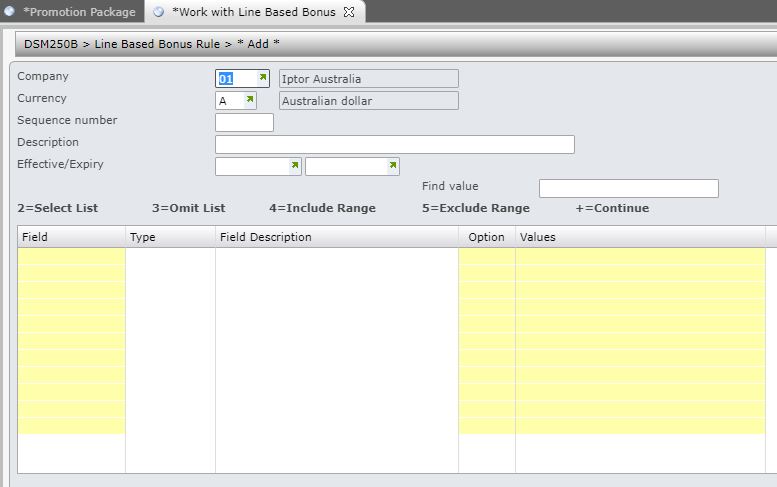
- Enter the following information. as required.
| Field |
Description |
| Company |
Company this line based bonus rule is applicable to |
| Currency |
Currency this line based bonus rule applies to. |
| Sequence number |
Sequence number is mandatory when creating a line based rule. The line based rules are added to the system in the ascending order of sequence numbers. The sequence number is used to decide which rule is to be used when more than one line based rule exists. When sales orders are processed, system will look at the rules in the system and will apply the first valid rule. |
| Description |
A descriptive text for the line based bonus rule. |
| Effective/Expiry |
The date range in which the line based rule will apply. |
| Field |
Select the fields to be included in the line based rule. |
| Option |
The option to be used for the selected field against the values specified in the next field, example 2=Select List, 3=Omit List etc. |
| Values |
Values to be used with the specified field. |
- Click OK. DSM250C Line Based Bonus Rule panel appears to enter the bonus giveaway details.

- Enter the following giveaway details.
| Field |
Description |
| Minimum sales qty |
The minimum quantity to be purchased to be eligible for bonus item. |
| Bonus item |
The code for the bonus item to be given away if eligible. |
| Description |
Item description of the bonus item; will default when the item code is entered. |
| Bonus qty |
The bonus item quantity to be given away if eligible for bonus item |
| Max qty |
The maximum number of bonus items that can be supplied on an order. |
| TOS |
Select the appropriate type of sale for the bonus item. |
- Click OK to save the bonus line reward details.
|

