
The mass grid order entry program allows a user to order stock for a range of stores defined by the buying group. It is possible to order stock that is common amongst several stores. For each store you are able to enter the amount per item on the one panel.
Add a mass order
- In the menu, expand Base > Distribution > Order Processing & Billing > Order Processing > Order Entry > Direct to Invoice > Order Entry Methods and then double-click DI Mass/Grid Order Entry. DSE310 Mass/Grid Order Entry panel appears.
- Enter the order header information, as necessary.
| Field | Description |
| Major store code | This major store code is mandatory and is used to select customers for this mass order. Major store codes default customer accounts rather than entering them one by one in the order detail panel. If a customer account is entered, it is validated to ensure it belongs to this major account. |
| Customer class type |
Classification types group customers into specific categories. The customer classification type defaults and can be overridden. This is used to select customers for this order. Customer account numbers are validated to ensure they belong to this classification. If there is an entry in the classification and the major store code then customers must be valid to both. If both of these are left blank, then any customer account can be entered. |
| Customer class code |
Classification codes are a second level of classification types. Entry in this field depends on the selection made in the Classification type field. In Mass Order Entry customers belonging to a Classification code can be selected.
|
| Default customers |
The default is Yes and can be overridden. Yes, customers will default on the panel in Store number sequence (store number is defined on the Customer masterfile). Extra customers cannot be added. No, the customers will have to be individually keyed in and they will be validated to both the Major account and the classification if they are entered, if either or both is blank, the customer is not validated to the blank entry. |
| Release date | This is the date on which the order will be released and is optional. This will become the release date on all orders from this entry. If it is entered, the orders will become forward orders rather than normal orders. |
- Click Page down and enter the order header information on the next panel, as necessary.
| Field | Description |
| Payment terms code | This code indicates the period of time a customer is allowed for payment of the account. It is a two character, field which indicates a specific number of days or months (periods) to be calculated from either the invoice date or the end of the current month to determine the aging of an invoice. In order entry, payment terms default from the Customer masterfile and an override is only necessary for individual orders if special terms have been negotiated. An Actual due date is another option for manipulating the payment due date. In the case of an order going to backorder, the terms are re-aged at the time of release, as the Invoice date, not the order is used. The following two Control Files also have an effect on how the Payment Terms are calculated. TMSDS/OS-AGEP determines which Outstanding Document Types are to re-age to the current period when released. Terms overrides made during Sales Order Entry are taken into account if the policy permits this. TMSDS/OS-PLCY determines by Outstanding Document Types whether or not to keep the Payment Terms as per the Sales Order or use the Customer Masterfile Terms when releasing documents. |
| Actual due date | The Actual due date is another option for manipulating the Payment due date. This defaults to No, Payment terms are not to be changed and can be overridden to Yes, override the normal Payment terms. If Yes is selected the due date, as well as a reason for the override, must be entered. If the order goes to backorder but is released before the actual due date, the order will not be re-aged. If release is after the actual due date, the normal terms as per the Customer masterfile will apply. |
| Order consolidation | This Order consolidation field indicates whether or not orders for this customer can be merged with any other orders or released backorders currently held in the system. This allows a single delivery of two or more orders to the one site. Orders can be merged up until the invoice print run is generated. Merging or consolidating invoices is a way to reduce external costs per invoice in the case of off site warehousing and to reduce customer minimum order charges if applicable. This merge flag can be overridden to cater for special circumstances. Order consolidation flags are established in Control File TMSDS/CM-OCON. Choices are: Y=allow consolidation (order merge) of this order with any other order that meets the same criteria. If the Held Orders facility is to be used, Order Consolidation must be permitted. N=merging orders is not allowed. X=merging of order by billing number instead of customer number is allowed. Note: If the order being entered is a cash sale (cash sale in the Source of order field) this flag will automatically be set to N=No. Orders merge with an auto freight flag of Y, or with an auto freight flag of N (if all other merge conditions apply). Orders with an auto freight flag of M do not merge. The auto freight flag is set in the Customer Masterfile. Orders that differ in some respects, also do not merge. These are: Immediate document print Order is not an Invoice (for example a credit or return) Order is an Advice Order Type (picking method) is different: direct to invoice does not merge with already delivered Customer does not allow consolidation (No in this field) Customer numbers differ Delivery details differ Payment Terms differ Payment Types differ – one order is cash with order and the other is credit card with order Tax numbers differ Warehouse codes differ Different document types Different document subtypes Delivery address is overridden Tax Code is overrdidden Type of Sale code on the order header differs Carrier codes differ Forwarding Agents differ Delivery Run numbers differ Delivery Run Stop Numbers differ Auto Freight calc is M for Manual or freight calc flags Y/N differ Minimum Invoice Charge surcharge Title is not a stock Item (backorders merging to normal orders) Source of Transaction codes differ Today’s day is greater than the backorder cut-off date Title is flagged as new release (no stock) Title is stopped or is closed after the order for this title has been entered. For additional information refer to Order consolidation. |
| Auto freight charge | The Auto Freight Charge indicator defaults from the Customer masterfile, however if the Type of sale for the order is freight exempt then the Auto freight charge indicator defaults to ‘N’. The default can be overridden if required. If the Type of sale is changed the Auto freight charge indicator will be reset accordingly. Auto Freight Charge indicator should be changed after the Type of sale to avoid resetting the flag. Freight will only be calculated on items that are flagged as freight applicable on the Item masterfile. Two freight charges are generated, one derived from taxable items and one derived from non-taxable items. Y=Yes freight is to be automatically calculated and charged to the order, based on user defined freight tables. Freight tables are defined in Database Management via Carrier masterfile, Carrier zone definition and Carrier zone charges. N = No freight calculation is not applicable M = Manual. Add a freight line as you are required to enter the freight charge basis and the rate or value which will form the freight calculation for this order. The freight charge shows as a separate line using a non-stock item. If the order is backordered and at least one line is invoiced the freight line will be charged. |
| Freight charge basis | A freight charge basis is mandatory if M=Manual is entered in the Auto freight charge field. Freight charge basis ‘T= Order units’ will calculate freight amount based on order units and charge freight once only; at the first delivery of any order items that would be liable for freight charge. |
| Freight charge value | The freight rate/value is mandatory if M=Manual is entered in the Auto freight charge field. Depending on the freight charge basis this field may contain a (F) fixed amount, (K) amount per weight unit or (V) a percentage of invoice value. |
| Order received date | The date on which order is received. |
- Click OK and DSE310 Mass Order Entry panel to enter order line details appears.

| Functions | Description |
| Header | Accesses header details. |
| Dsply opt/rmv opt | It switches between enable all available option and disable all options. |
| Options | Description |
| Text | Access Text entry panel to add the text for that item. |
- Enter the items to be mass ordered and click OK. The following order line details panel appears.
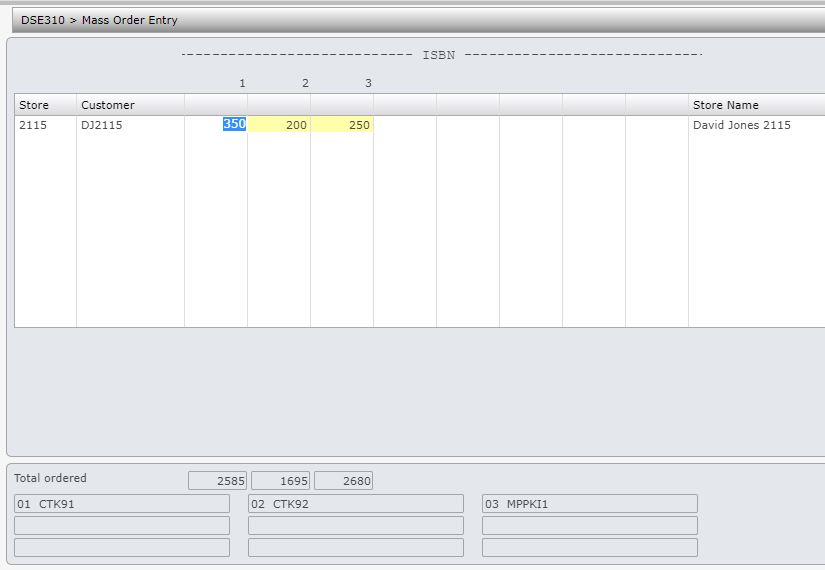
- Enter the order details on this panel , as required.
| Field | Description |
| Store | This is the Buying group store that the customer belongs to. Major store code identifies a customer as belonging to a Major Group of customers, like Myer Group. A Store Number is allocated to identify a particular store within a Major store group. The Store Number is entered in the Buy grp store no field in the Customer masterfile. |
| Customer |
Customers that belong to the Major store group entered in the order header. If the Default customers field is flagged as ‘Y’ on the order header, then customers will default on the panel in Store number sequence (store number is defined on the Customer masterfile). Extra customers cannot be added. If the Default customers field is flagged as ‘N’ on the order header, then the customers will have to be individually keyed in and they will be validated to both the Major account and the classification if they are entered, |
| Item quantity | Item quantity ordered against each customers in mass order entry. |
- Enter the quantity for item and Click OK to complete Mass order entry.
